
Before you start
Prerequisites and permissions
Have ready
- An active account and a connection.
Access rules
- The business must explicitly share the Job or issue the Invoice to your current customer account.
Where to find it
Navigation map
- Jobs
- Customer Portal → Jobs
- Job
- Customer Portal → Jobs → open a job
- Invoices
- Customer Portal → Invoices
- Invoice
- Customer Portal → Invoices → open an invoice
Walkthrough
Step by step
In each picture, the outlined area is what to look at.
- 01
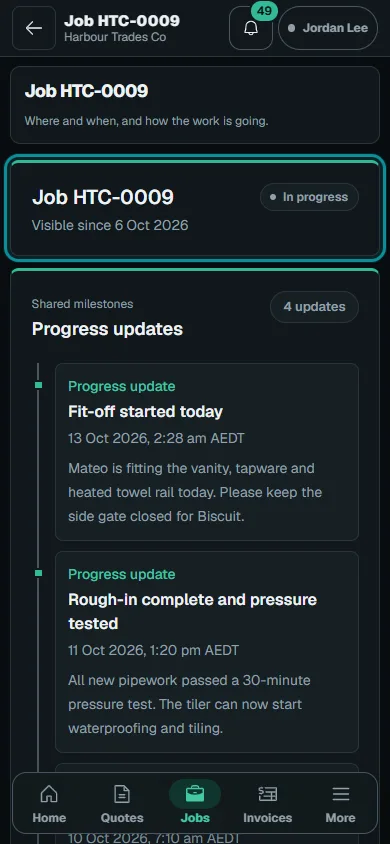
Open shared Jobs
Choose Jobs and open the intended Job. Read its summary, location and published progress; private evidence appears only when the business shares an eligible copy.
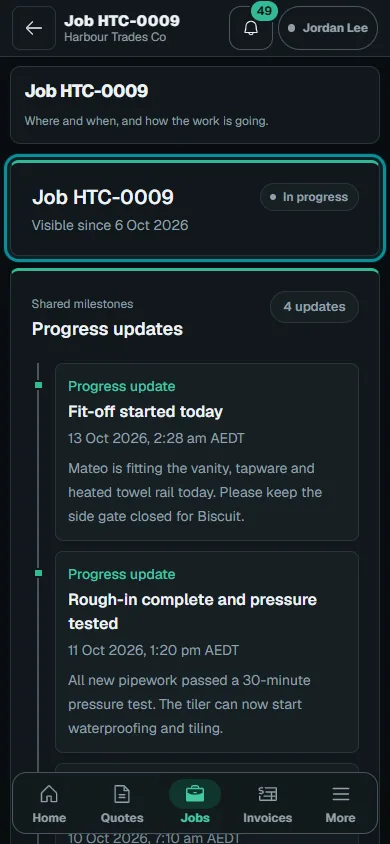
Choose Jobs and open the intended Job.Step 1 · Reviewed 2026-10-14Tap or click to open full size - 02
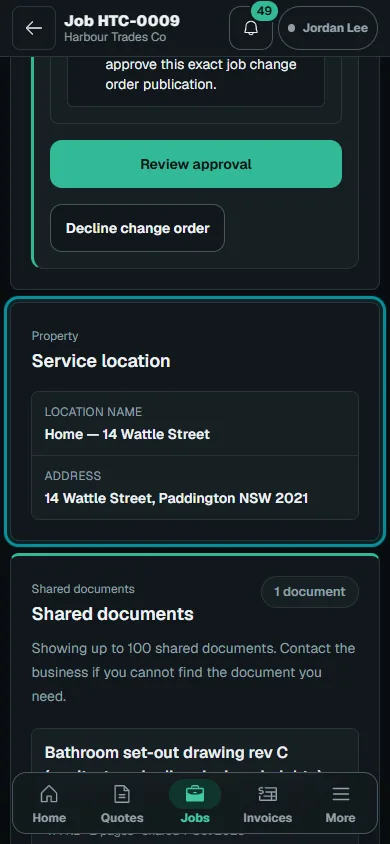
Review documents and changes
Open shared documents and review Change Orders on that Job. Use the offered approval or decline flow, or ask the business about incorrect details.
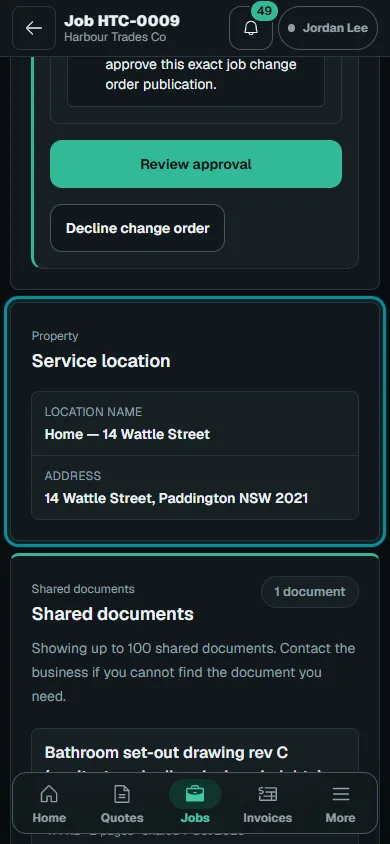
Open shared documents and review Change Orders on that Job.Step 2 · Reviewed 2026-10-14Tap or click to open full size - 03
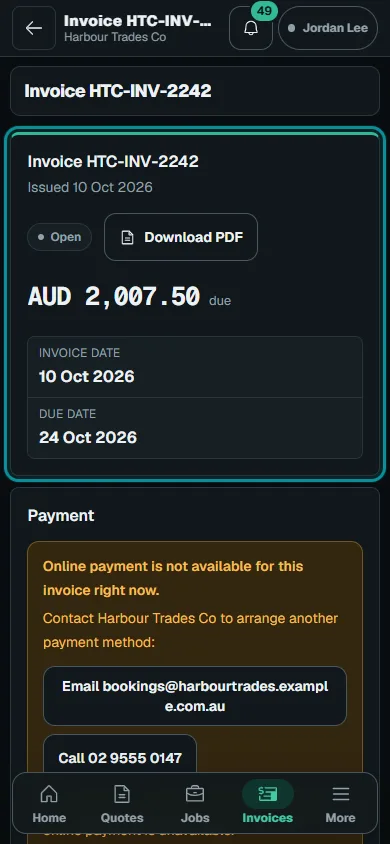
Open the invoice
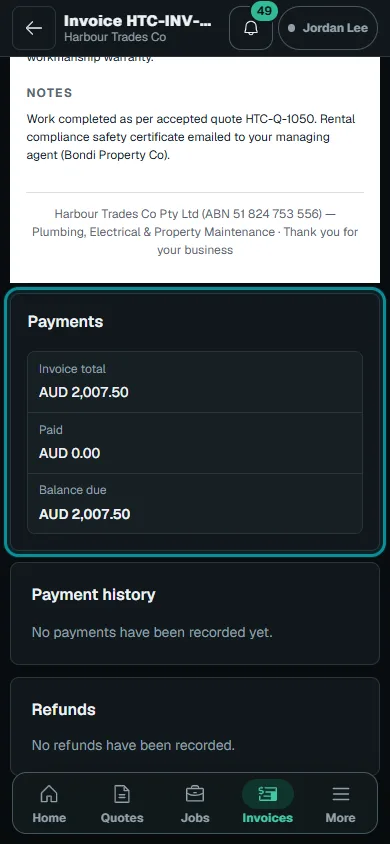
Open the issued invoice from Invoices. Check the work, total, payments and remaining balance, then download the document if needed.
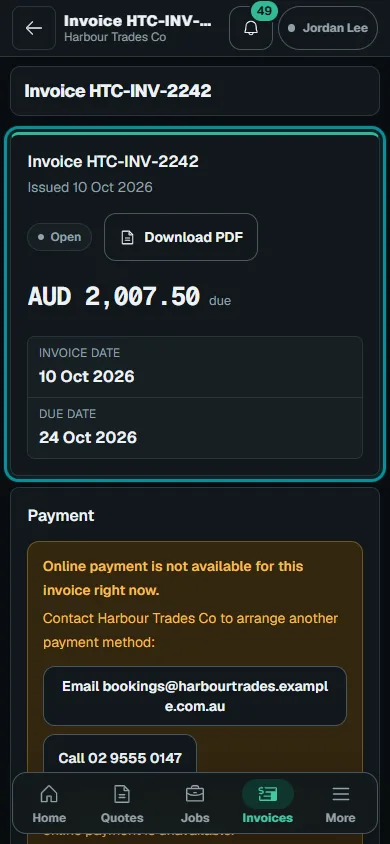
Open the issued invoice from Invoices.Step 3 · Reviewed 2026-10-14Tap or click to open full size - 04
Pay when offered
Choose Pay invoice when payments are ready and money is due. After checkout, check the invoice’s confirmed payment status; returning alone does not prove payment.
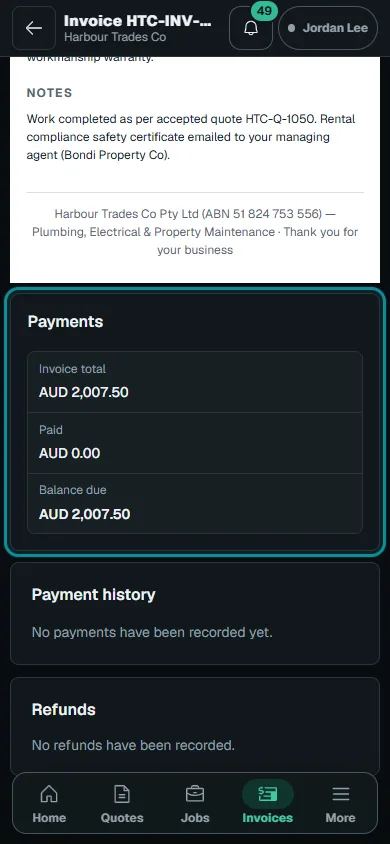
Choose Pay invoice when payments are ready and money is due.Step 4 · Reviewed 2026-10-14Tap or click to open full size
Troubleshooting
If something does not look right
The action is unavailable.
Read the message on the page. Check your role and plan with the Owner. Reload after an approved access change; do not submit the same change twice.
Keep going