
Before you start
Prerequisites and permissions
Have ready
- An active account and a connection.
Access rules
- Your role and plan must allow this page and the action you want to take. Ask the Owner if access is missing.
Where to find it
Navigation map
- Profile
- Customer Portal → Profile
- Account security
- Customer Portal → Account security
- Choose business
- Customer Portal → Switch business
- Forgot password
- Customer Portal → Sign in → Forgot password?
Walkthrough
Step by step
In each picture, the outlined area is what to look at.
- 01
Choose the business
Sign in to the Customer Portal and check the selected business. On a phone, More → Switch business changes the relationship.
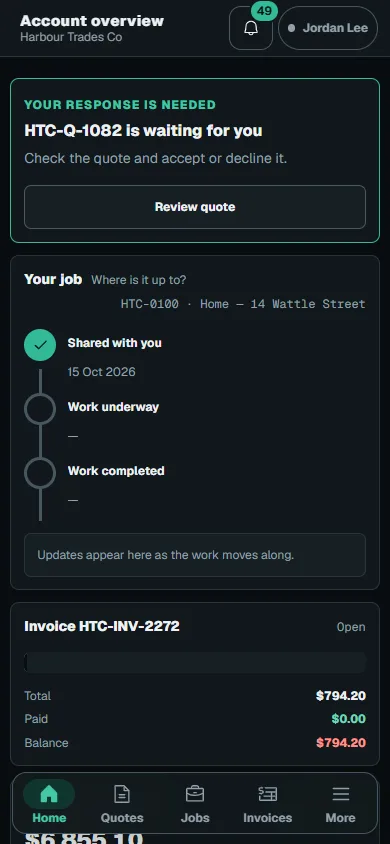
Sign in to the Customer Portal and check the selected business.Step 1 · Reviewed 2026-10-14Tap or click to open full size - 02
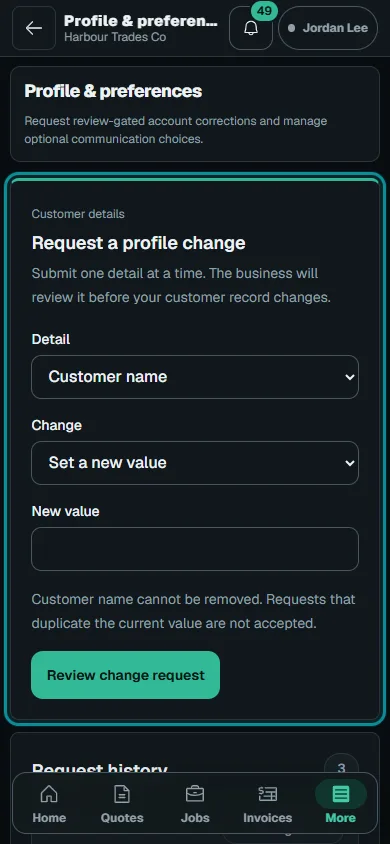
Request a profile change
In Profile, select the field and change type, then enter your proposed value. Choose Review change request, check Confirm profile change request, then Submit change request.
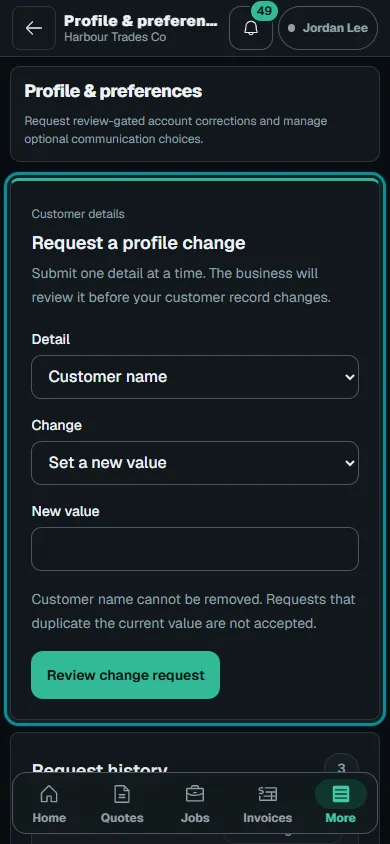
In Profile, select the field and change type, then enter your proposed value.Step 2 · Reviewed 2026-10-14Tap or click to open full size - 03
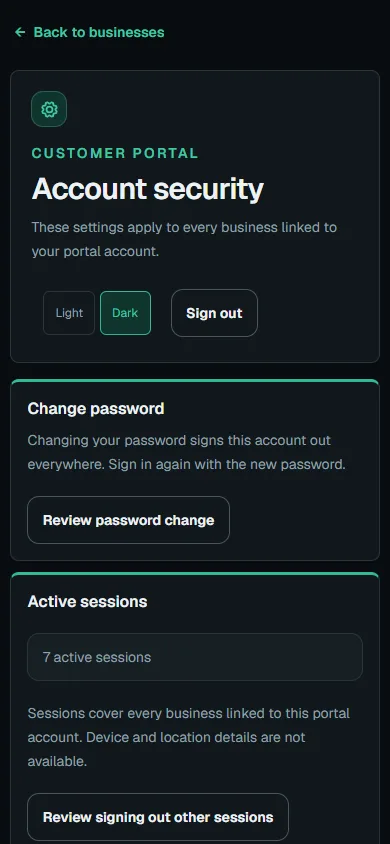
Review account security
Open Account security and choose Review password change or Review signing out other sessions. Check the confirmation before proceeding.
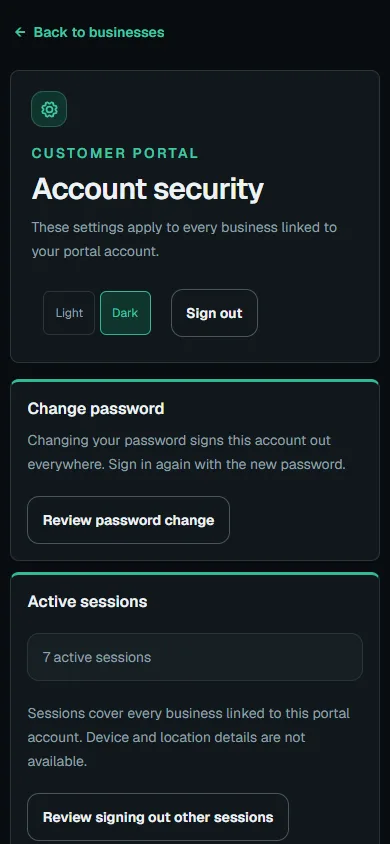
Open Account security and choose Review password change or Review signing out other sessions.Step 3 · Reviewed 2026-10-14Tap or click to open full size - 04
Recover access
Choose Forgot password on portal sign-in and follow the latest private reset link. Ask the business or support about expired access without sharing the link.
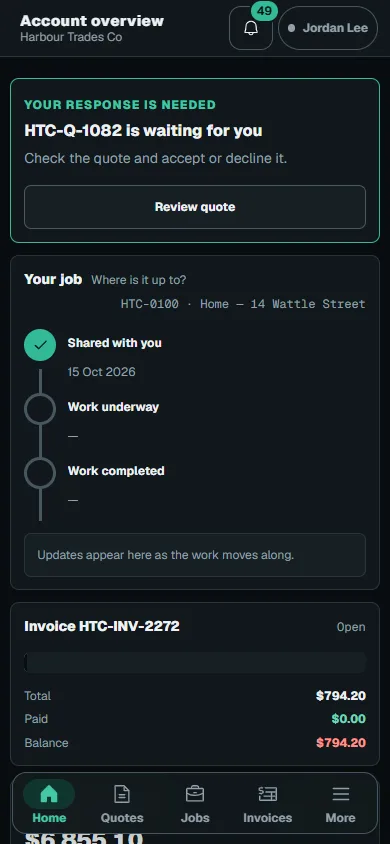
Troubleshooting
If something does not look right
The action is unavailable.
Read the message on the page. Check your role and plan with the Owner. Reload after an approved access change; do not submit the same change twice.
Keep going