
Before you start
Prerequisites and permissions
Have ready
- An active account and a connection.
Access rules
- Your role and plan must allow this page and the action you want to take. Ask the Owner if access is missing.
Where to find it
Navigation map
- Today
- Today
- My Day
- My Day
- Portal overview
- Customer Portal → Overview
Walkthrough
Step by step
In each picture, the outlined area is what to look at.
- 01
Use the phone navigation
Open the web or installed app and select your role’s visible tabs. More shows remaining destinations; Website Studio uses group tabs and an expandable menu.
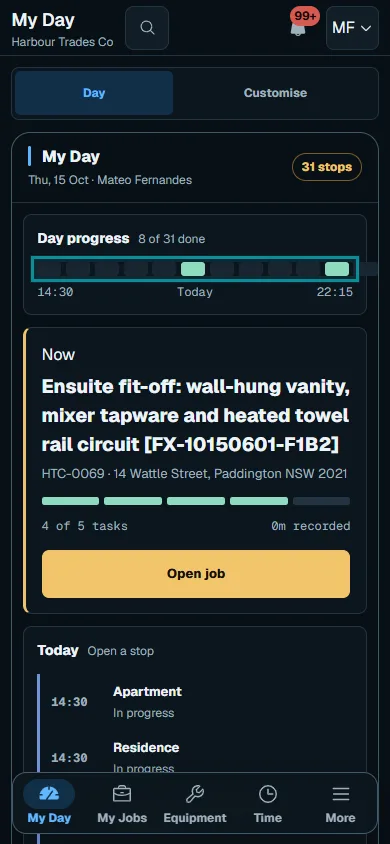
Open the web or installed app and select your role’s visible tabs.Step 1 · Reviewed 2026-10-14Tap or click to open full size - 02
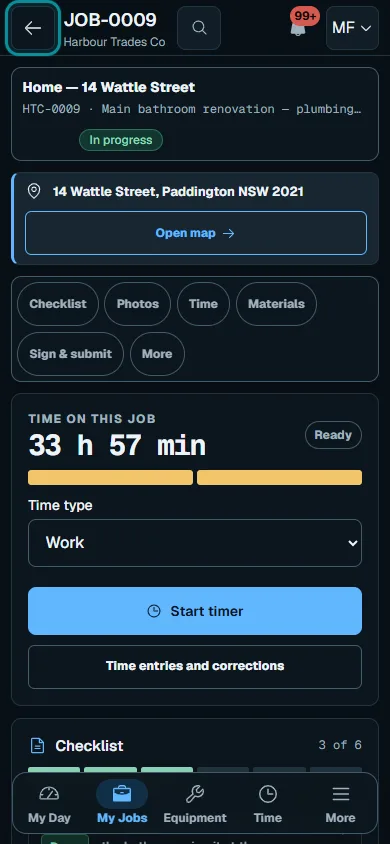
Return with Back
Use Back at the top left when away from a main tab. It returns to the previous app page or the appropriate parent when opened directly.
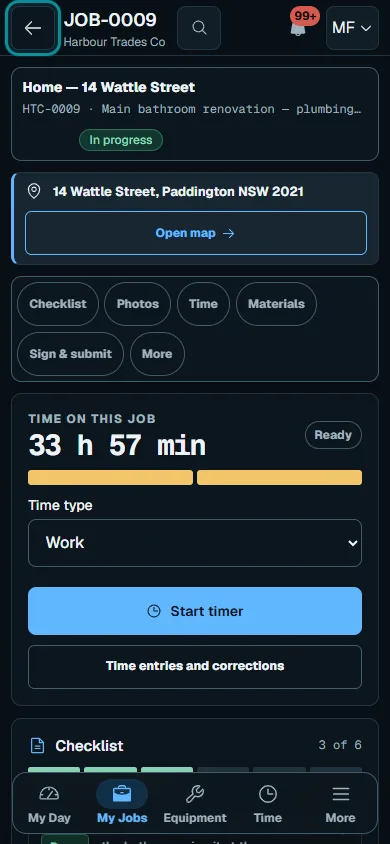
Use Back at the top left when away from a main tab.Step 2 · Reviewed 2026-10-14Tap or click to open full size - 03
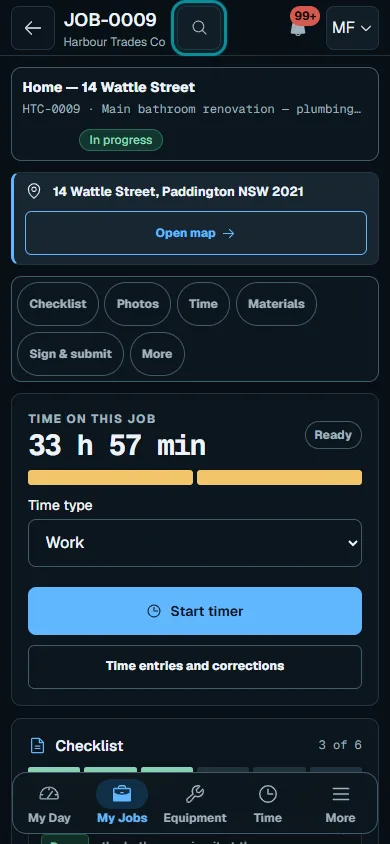
Find a record or help
Use header search to open Results with real record numbers. Assistant appears beside search when available; Help opens guidance for the current area.
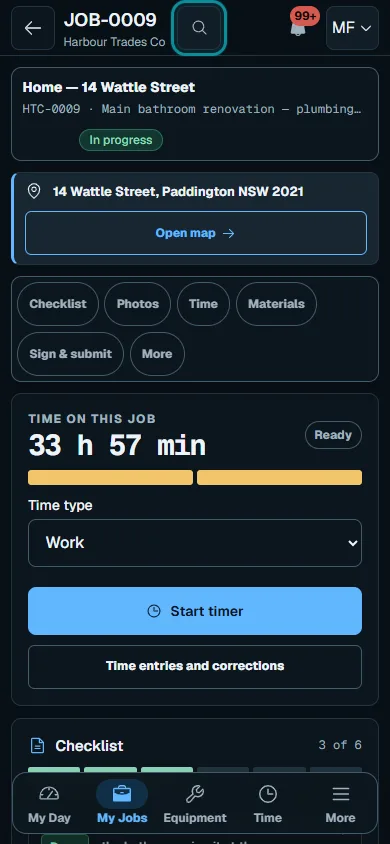
Use header search to open Results with real record numbers.Step 3 · Reviewed 2026-10-14Tap or click to open full size - 04
Wait for a save while connected
Stay connected for saves and uploads, and wait for confirmation before closing. Keep original photos or notes after a failed save; installation does not promise offline workflows.
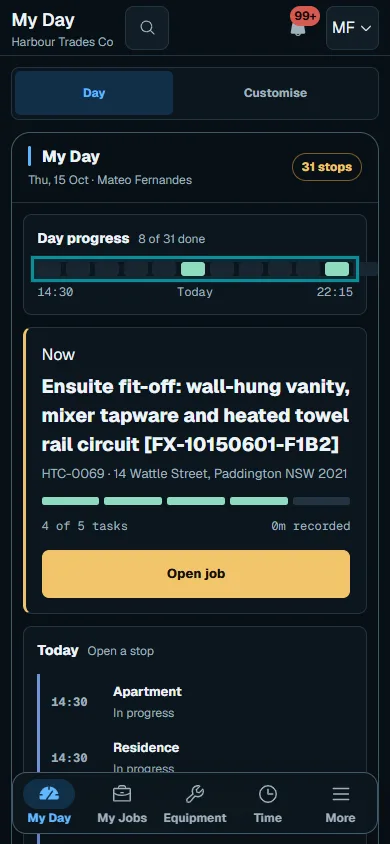
Troubleshooting
If something does not look right
The action is unavailable.
Read the message on the page. Check your role and plan with the Owner. Reload after an approved access change; do not submit the same change twice.
Keep going