
Before you start
Prerequisites and permissions
Have ready
- An active account and a connection.
Access rules
- Your role and plan must allow this page and the action you want to take. Ask the Owner if access is missing.
Where to find it
Navigation map
- Assigned Job
- My Jobs → open an assignment
Walkthrough
Step by step
In each picture, the outlined area is what to look at.
- 01
Open the assigned Job
Open the assignment from My Day or My Jobs and check its number and Site. Choose Start Work or the offered correction/resume action before adding evidence.
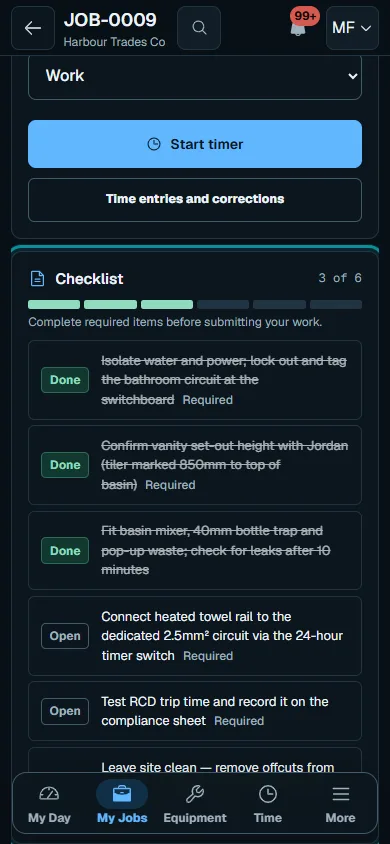
Open the assignment from My Day or My Jobs and check its number and Site.Step 1 · Reviewed 2026-10-14Tap or click to open full size - 02
Complete Forms
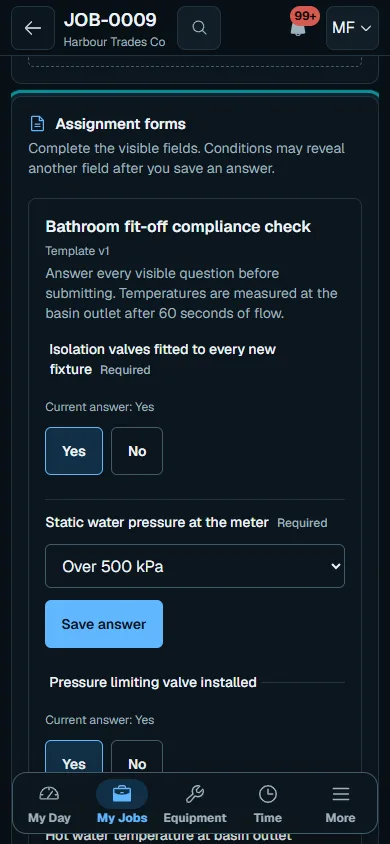
Open More → Forms and answer the requested fields. Choose Save answer for each answer and complete all required fields.
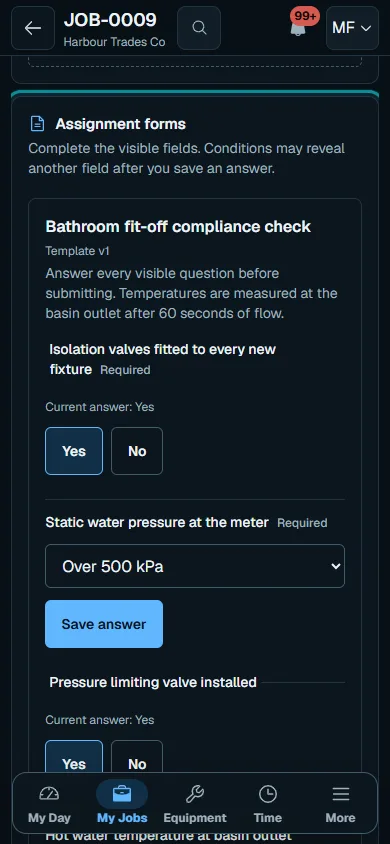
Open More → Forms and answer the requested fields.Step 2 · Reviewed 2026-10-14Tap or click to open full size - 03
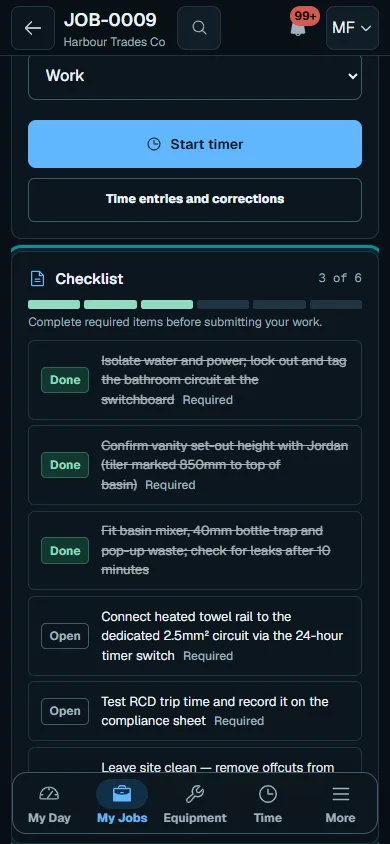
Check the evidence
Check Checklist, Photos, Time and Materials. Close active timers and complete required fields before submitting.
- 04
Sign and submit
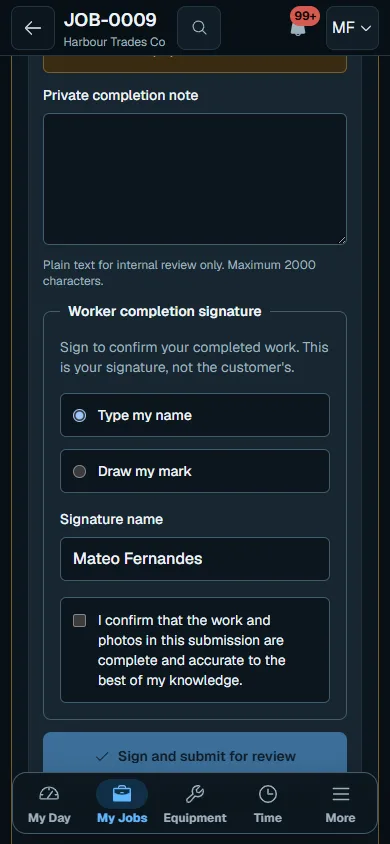
In Sign & submit, add Private completion note and Worker completion signature. Choose Sign and submit for review, check the details, then Confirm exact submission and wait for confirmation.
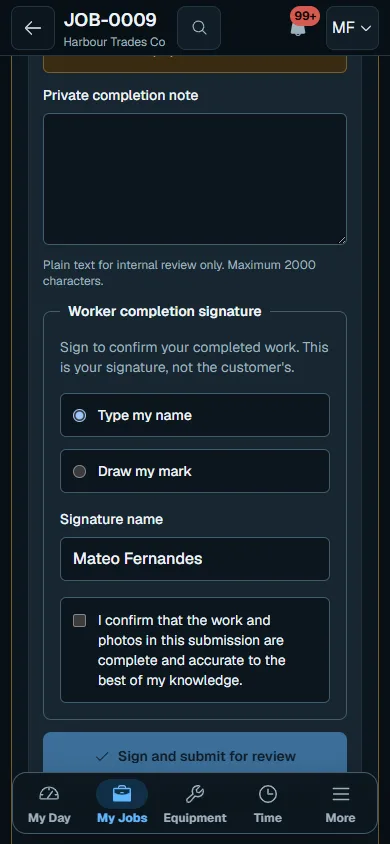
In Sign & submit, add Private completion note and Worker completion signature.Step 4 · Reviewed 2026-10-14Tap or click to open full size - 05
Follow the review
Reopen the assignment to read the office’s approval or correction instructions. Submission alone does not finish the Job or share private evidence with customers.
Troubleshooting
If something does not look right
The action is unavailable.
Read the message on the page. Check your role and plan with the Owner. Reload after an approved access change; do not submit the same change twice.
Keep going