
Before you start
Prerequisites and permissions
Have ready
- An active account and a connection.
Access rules
- Your role and plan must allow this page and the action you want to take. Ask the Owner if access is missing.
Where to find it
Navigation map
- Agreements
- Customer Portal → Agreements
- Assets
- Customer Portal → Assets
Walkthrough
Step by step
In each picture, the outlined area is what to look at.
- 01
Open Agreements
Choose Agreements, or More → Agreements on a phone. Read the published title, exact terms and status.
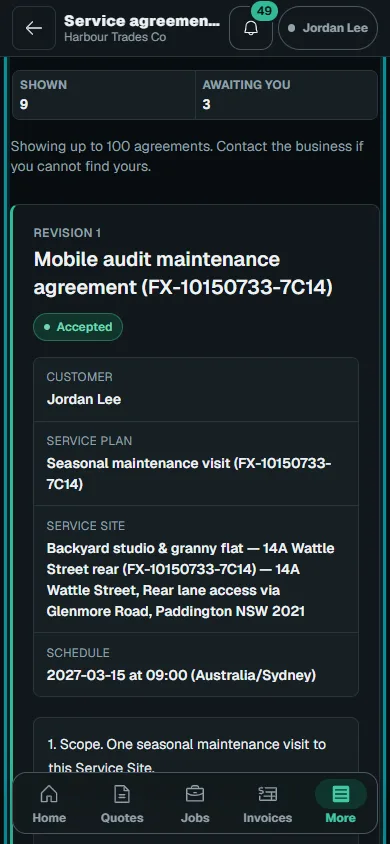
Choose Agreements, or More → Agreements on a phone.Step 1 · Reviewed 2026-10-14Tap or click to open full size - 02
Review acceptance
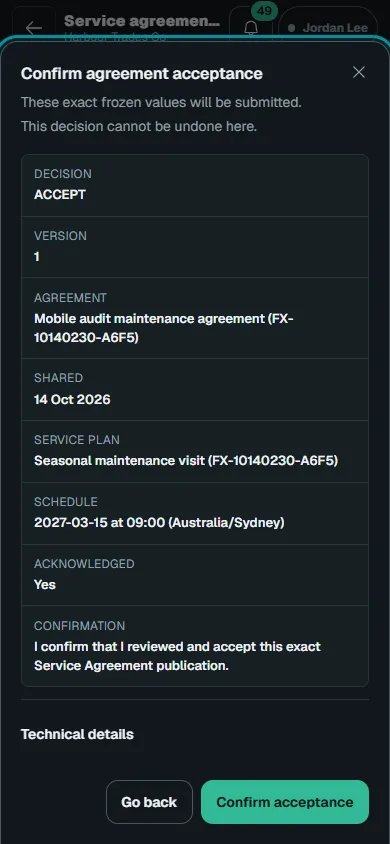
Choose Review acceptance and read Confirm agreement acceptance. Use Confirm acceptance only for your intended terms, then check the recorded outcome.
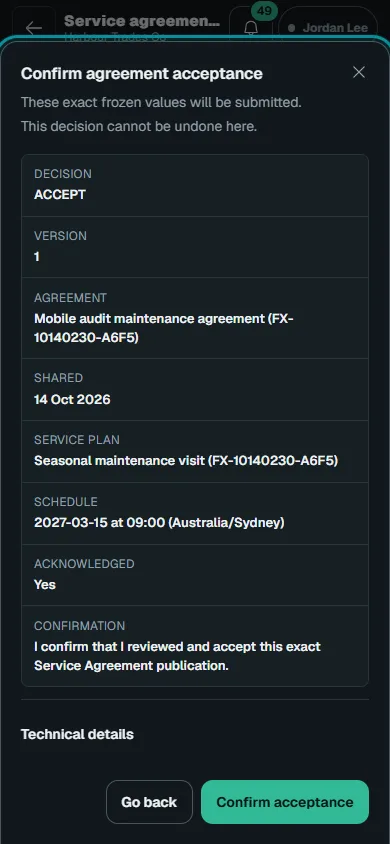
Choose Review acceptance and read Confirm agreement acceptance.Step 2 · Reviewed 2026-10-14Tap or click to open full size - 03
Open Assets
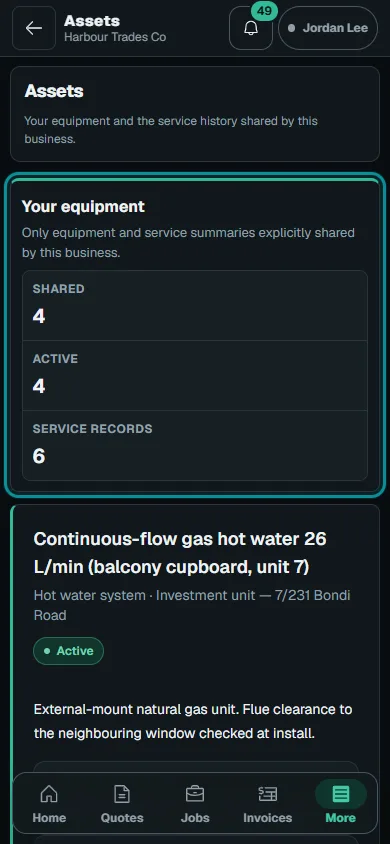
Choose Assets to see shared customer property and service history. Use View job followed by its number when offered.
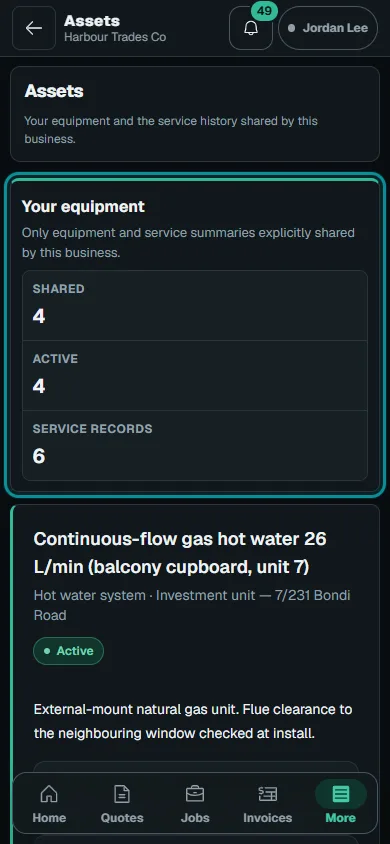
Choose Assets to see shared customer property and service history.Step 3 · Reviewed 2026-10-14Tap or click to open full size - 04
Ask for a correction
Contact the business about incorrect assets, agreements or linked jobs. History is read-only; accepting exact terms does not guarantee legal enforceability.
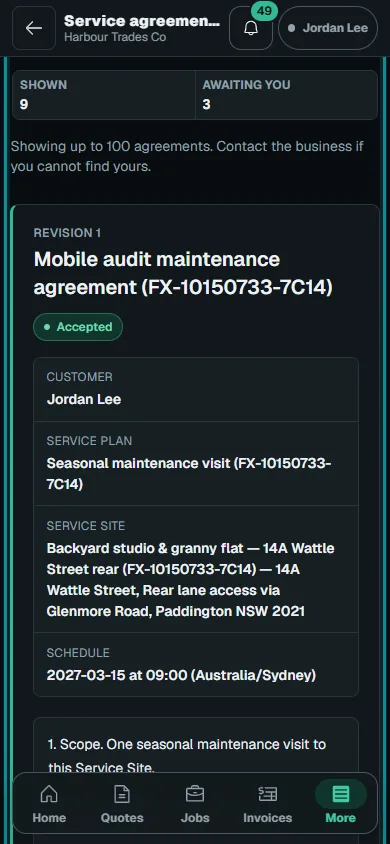
Troubleshooting
If something does not look right
The action is unavailable.
Read the message on the page. Check your role and plan with the Owner. Reload after an approved access change; do not submit the same change twice.
Keep going