
Before you start
Prerequisites and permissions
Have ready
- An active account and a connection.
Access rules
- You need a current portal relationship or a valid private quote link for this published quote.
Where to find it
Navigation map
- Quotes
- Customer Portal → Quotes
- Quote
- Customer Portal → Quotes → open a quote
Walkthrough
Step by step
In each picture, the outlined area is what to look at.
- 01
Open the shared quote
Open the current quote from Quotes or its secure link. Check the business, work, dates and total.
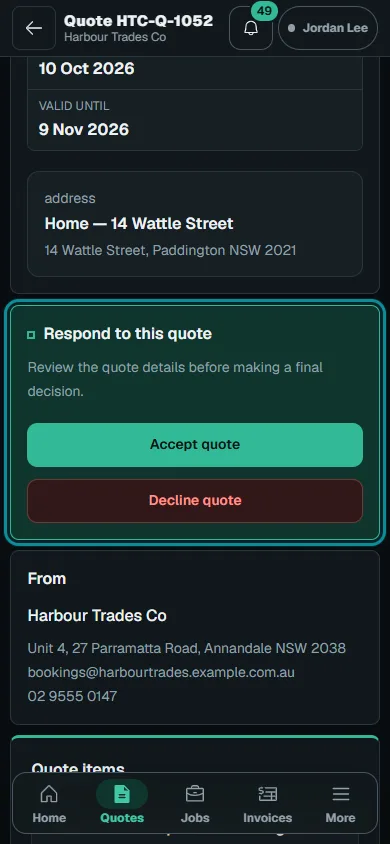
Open the current quote from Quotes or its secure link.Step 1 · Reviewed 2026-10-14Tap or click to open full size - 02
Review choices and files
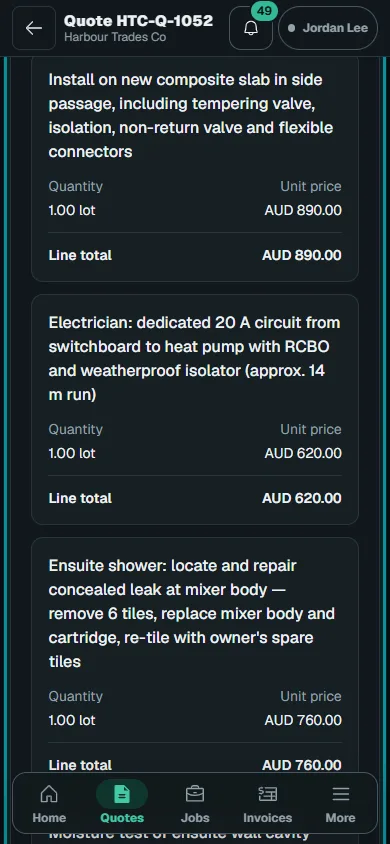
Review offered options and extras to see how they change the total. Open attached photos and PDFs before deciding.
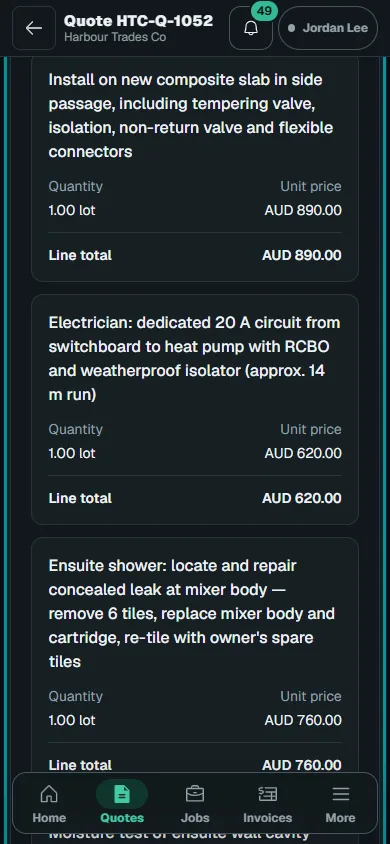
Review offered options and extras to see how they change the total.Step 2 · Reviewed 2026-10-14Tap or click to open full size - 03
Ask a question
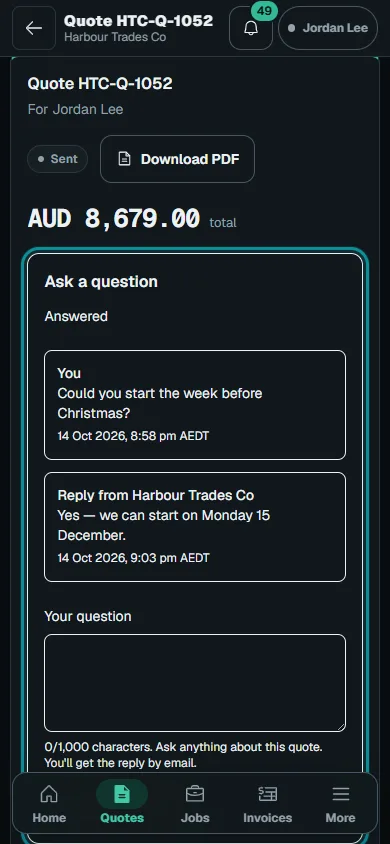
Enter your question in the question area and choose Send question. Return to read the reply; questions do not accept or revise the quote.
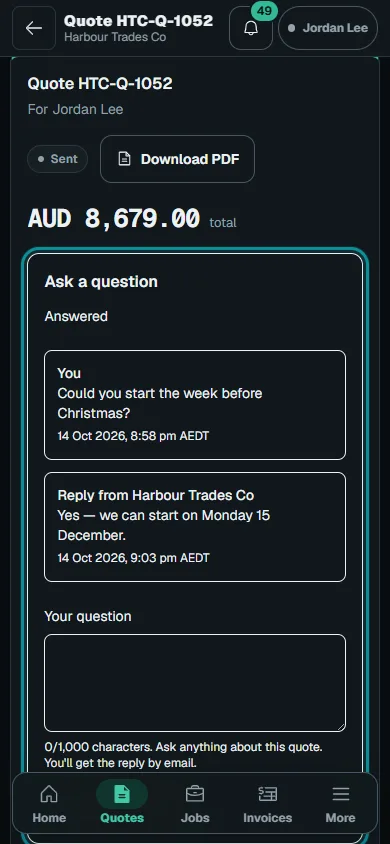
Enter your question in the question area and choose Send question.Step 3 · Reviewed 2026-10-14Tap or click to open full size - 04
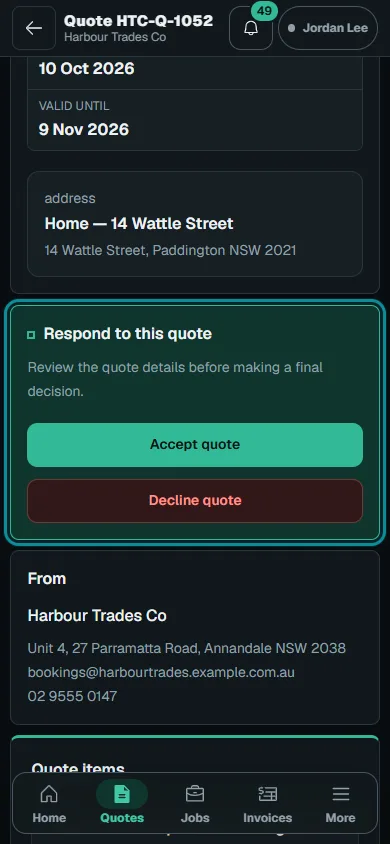
Accept or decline
Read the terms and acknowledgement before Confirm acceptance. For decline, open Decline this quote?, choose Review decline, then check Confirm your decline before Confirm decline.
- 05
Check the next action
Check the recorded decision and any deposit invoice, using only offered payment controls. Acceptance does not schedule a Job; ask the business about missing invoices or changes.
Troubleshooting
If something does not look right
The action is unavailable.
Read the message on the page. Check your role and plan with the Owner. Reload after an approved access change; do not submit the same change twice.
Keep going