
Before you start
Prerequisites and permissions
Have ready
- An active account and a connection.
Access rules
- Your role and plan must allow this page and the action you want to take. Ask the Owner if access is missing.
Where to find it
Navigation map
- Customers
- Sales → Customers
- Quotes
- Sales → Quotes
- Jobs
- Jobs
- Invoices
- Money → Invoices
- Expenses
- Money → Expenses
Walkthrough
Step by step
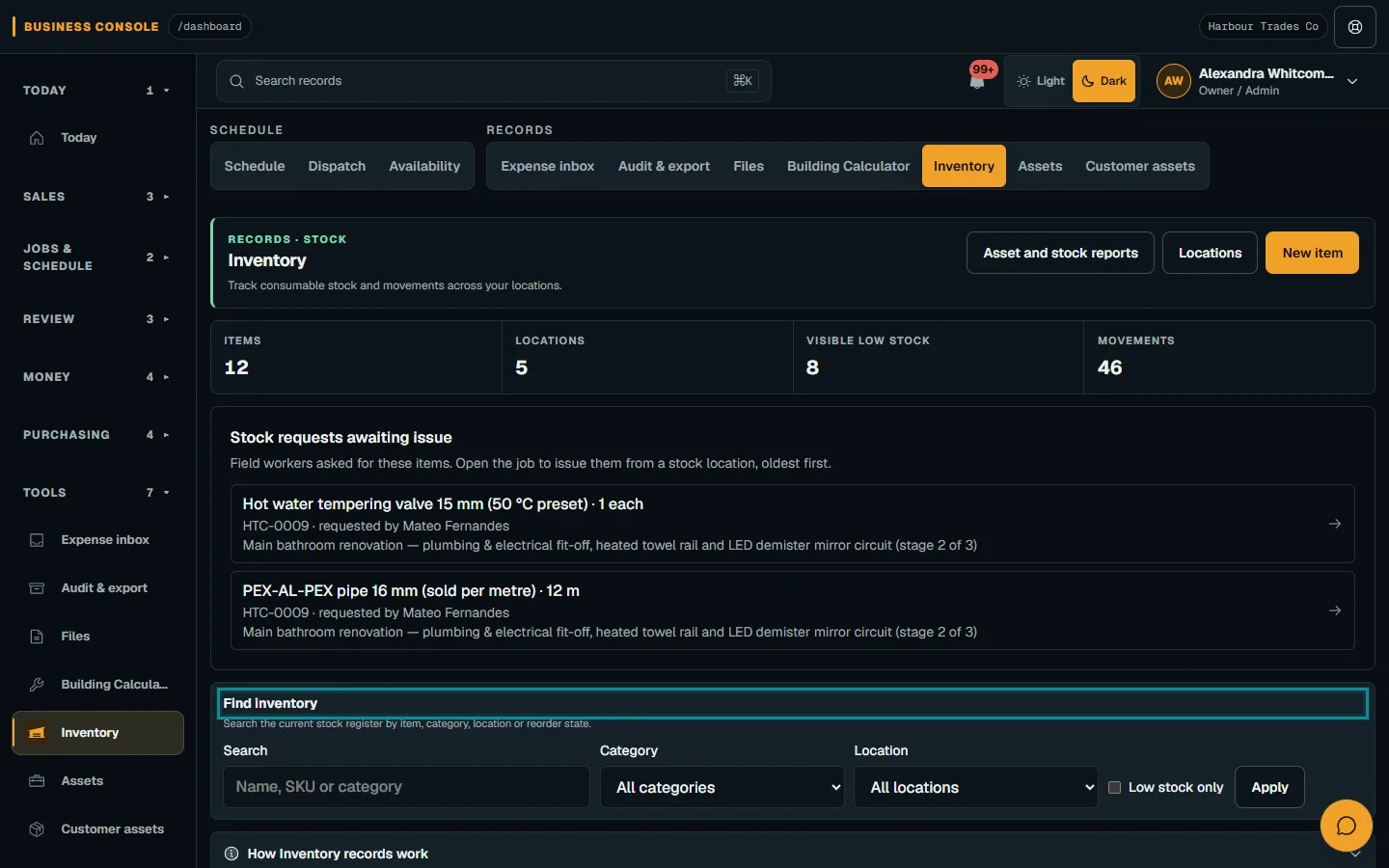
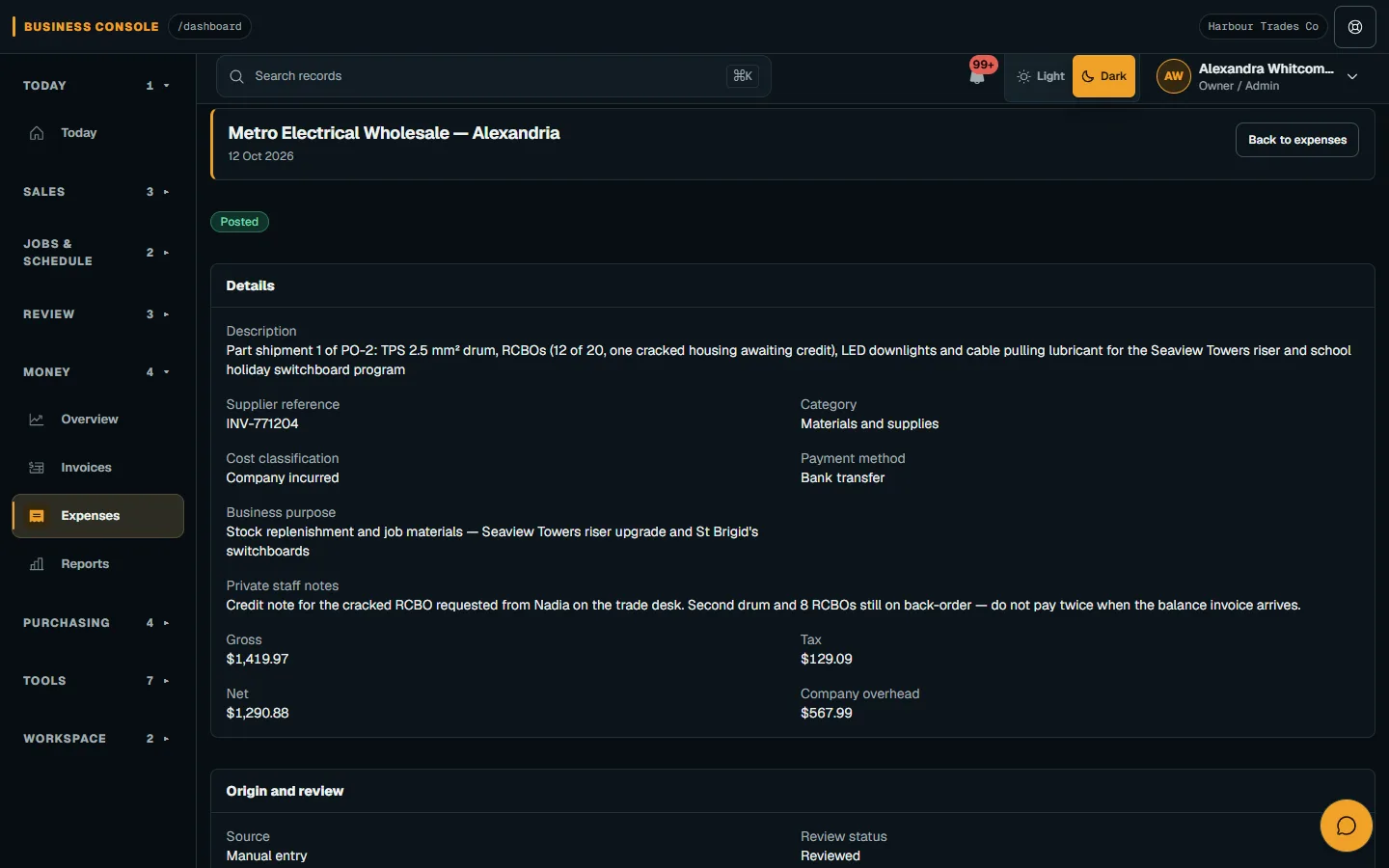
In each picture, the outlined area is what to look at.
- 01
Open the right list
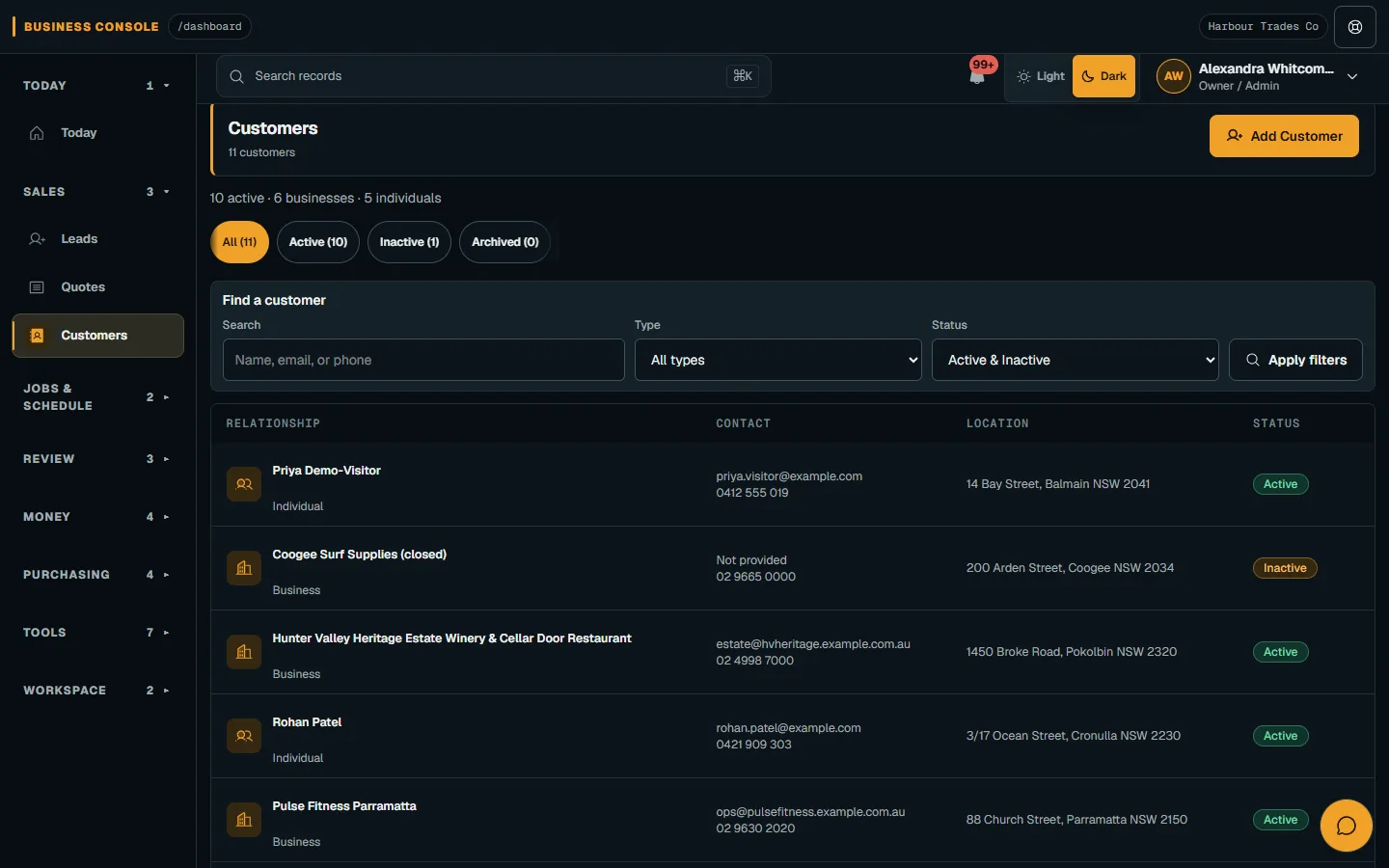
Open the relevant Customers, Quotes, Jobs or Invoices list. Read its summary and use status chips to narrow the records shown.
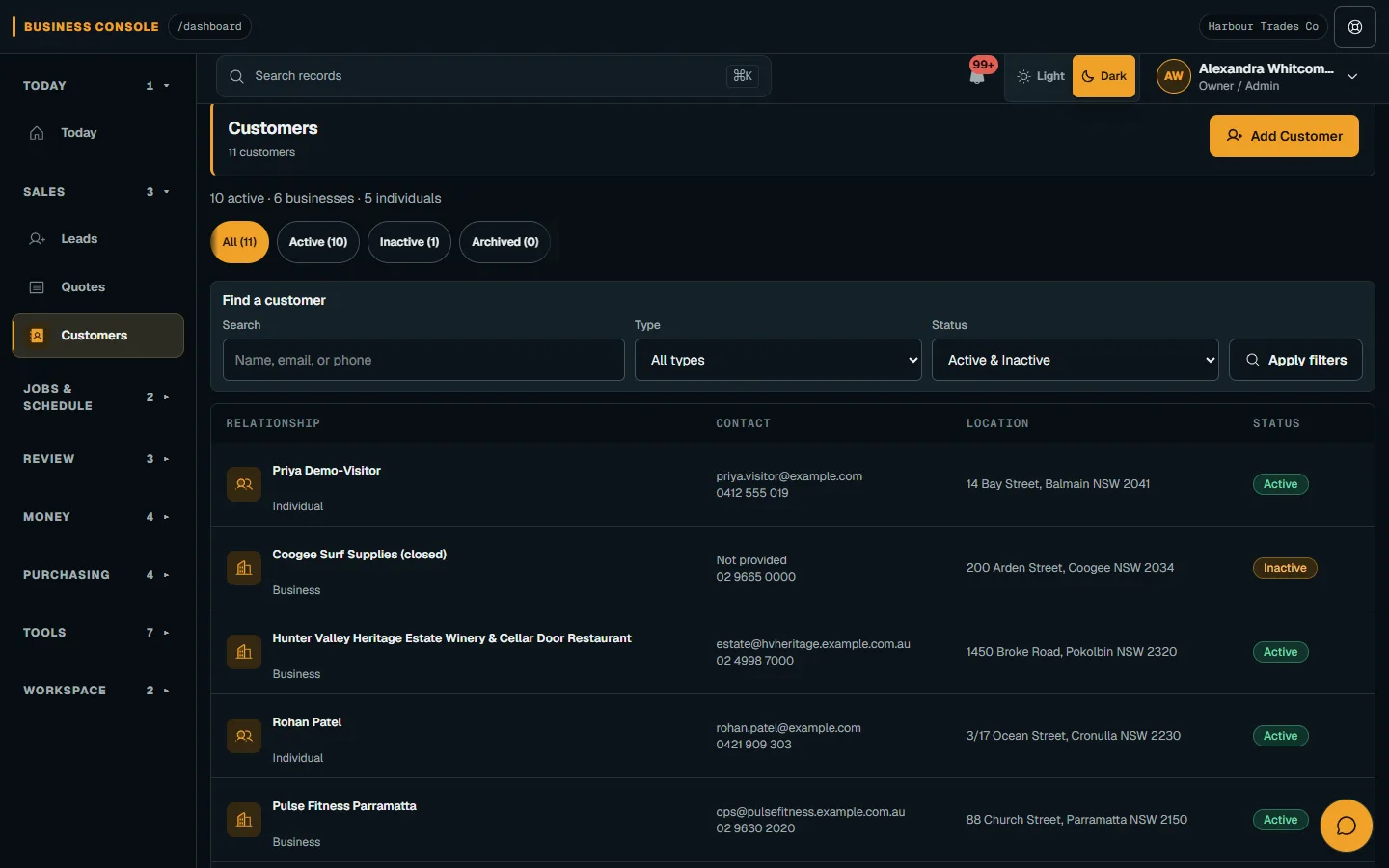
Open the relevant Customers, Quotes, Jobs or Invoices list.Step 1 · Reviewed 2026-10-14Tap or click to open full size - 02
Use the Find card
Enter a supported name or number in Find and apply filters. Check the record count and later pages when the list is limited.
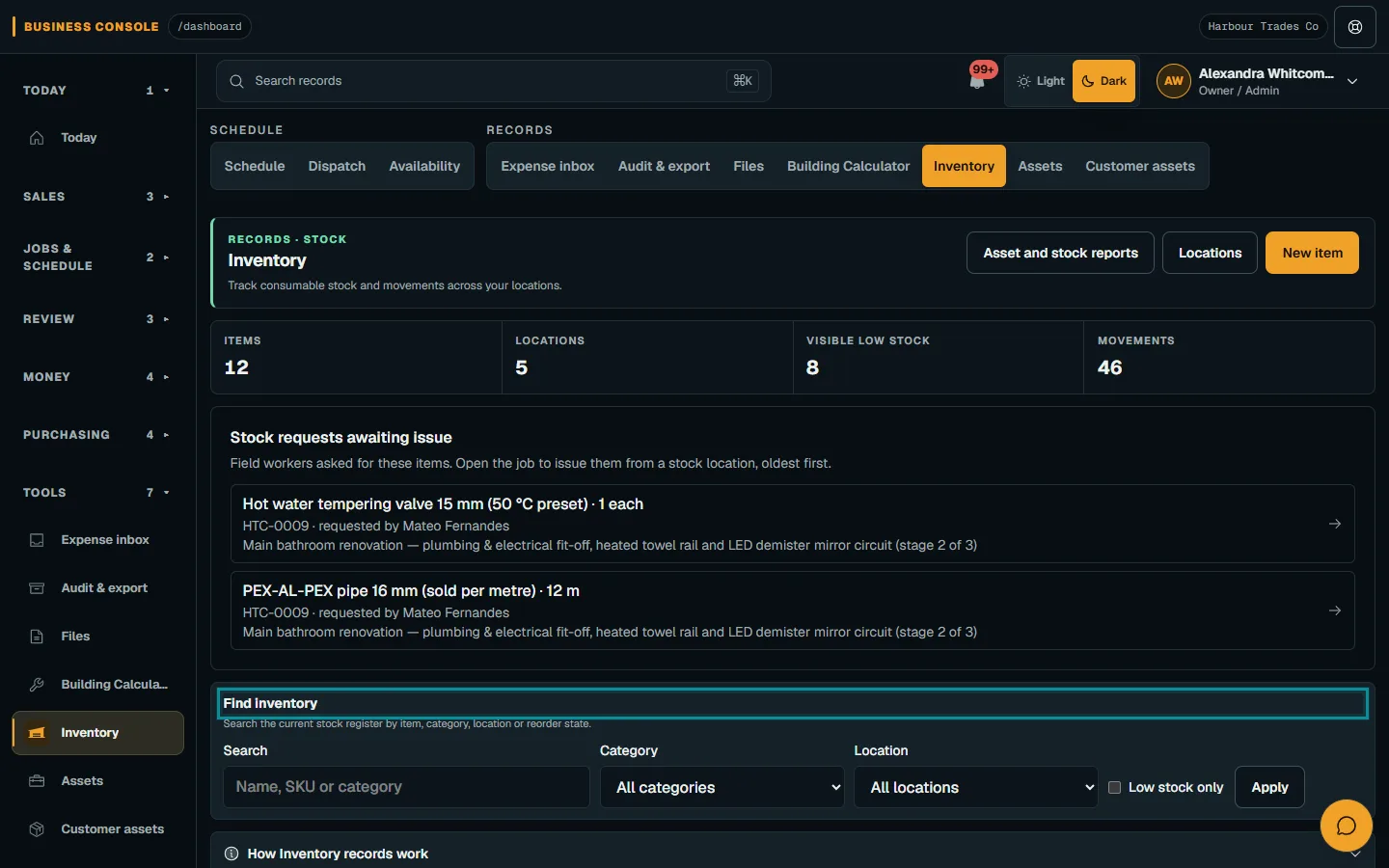
Enter a supported name or number in Find and apply filters.Step 2 · Reviewed 2026-10-14Tap or click to open full size - 03
Check the save result
Save the draft and look for Saved with the highlighted record in supported lists. Open it to check details; new Customers and Sites return to customer detail.
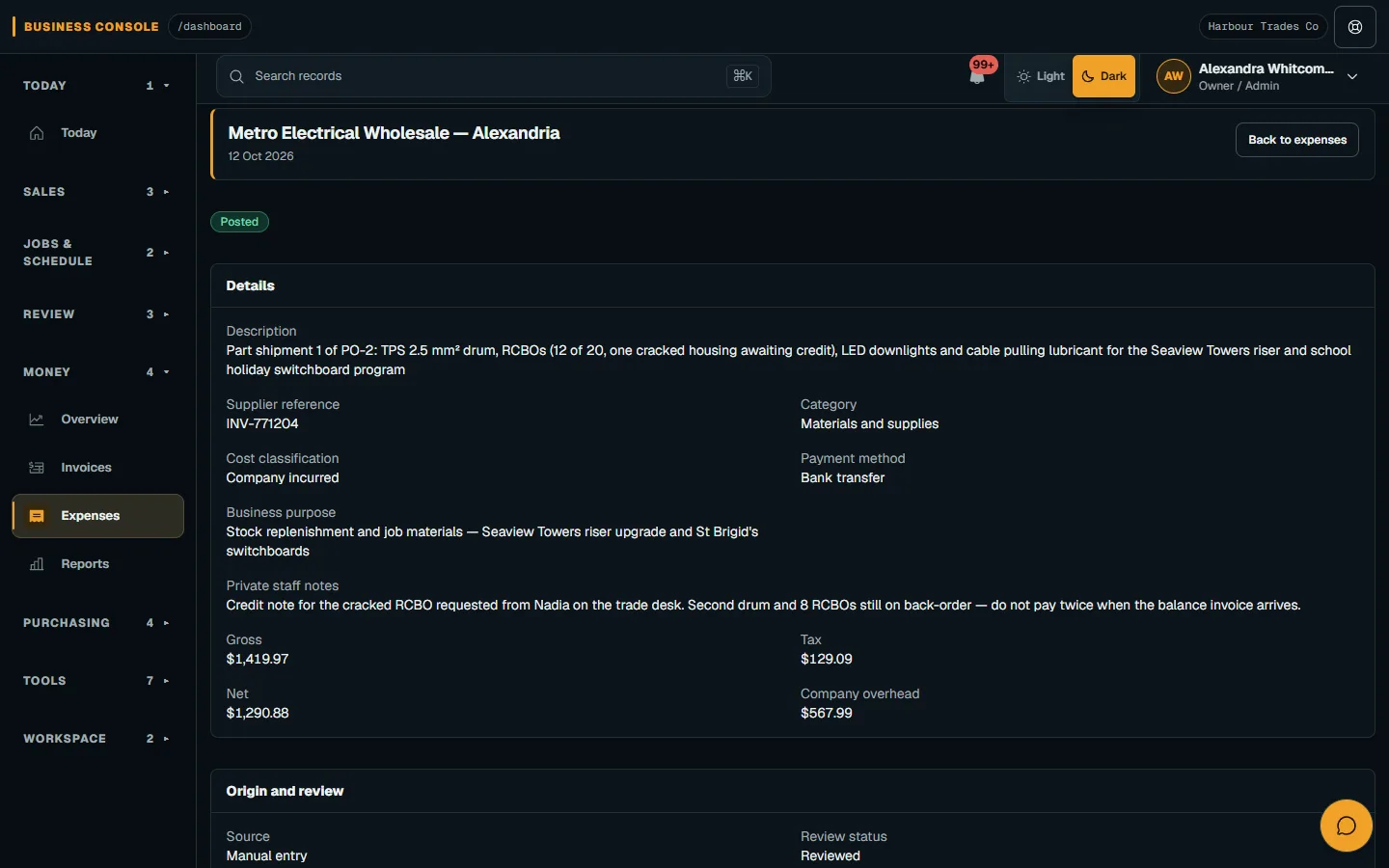
An existing saved Expense, without the temporary Saved return-to-list message.Step 3 · Reviewed 2026-10-14Tap or click to open full size - 04
Enter amounts and upload files carefully
Fill the required quantity and amount fields, then wait for upload progress and a saved preview. Selecting a file alone does not complete its upload.
Troubleshooting
If something does not look right
The action is unavailable.
Read the message on the page. Check your role and plan with the Owner. Reload after an approved access change; do not submit the same change twice.
Keep going