
Before you start
Prerequisites and permissions
Have ready
- An active account and a connection.
Access rules
- Customer and Job management permissions and online-booking plan access are required.
Where to find it
Navigation map
- Booking requests
- Booking requests
- Booking request help
- Booking requests → Booking request help
Walkthrough
Step by step
In each picture, the outlined area is what to look at.
- 01
Open Booking requests
Open the request during its displayed 24-hour hold. Check the service, customer, time, address and expiry.
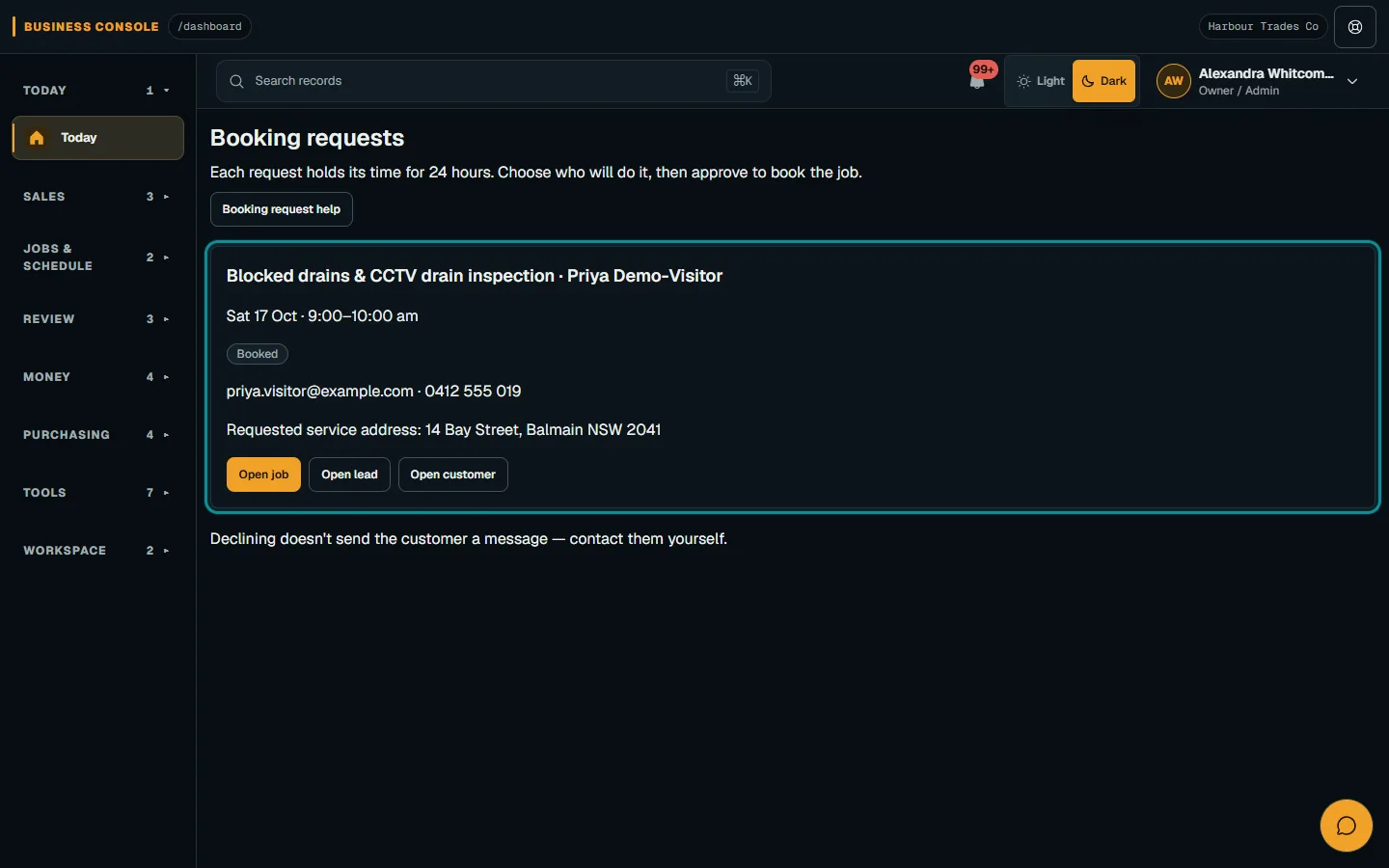
Open the request marked Waiting for you and check its service, customer, requested time, address and Held until time.Step 1 · Reviewed 2026-10-14Tap or click to open full size 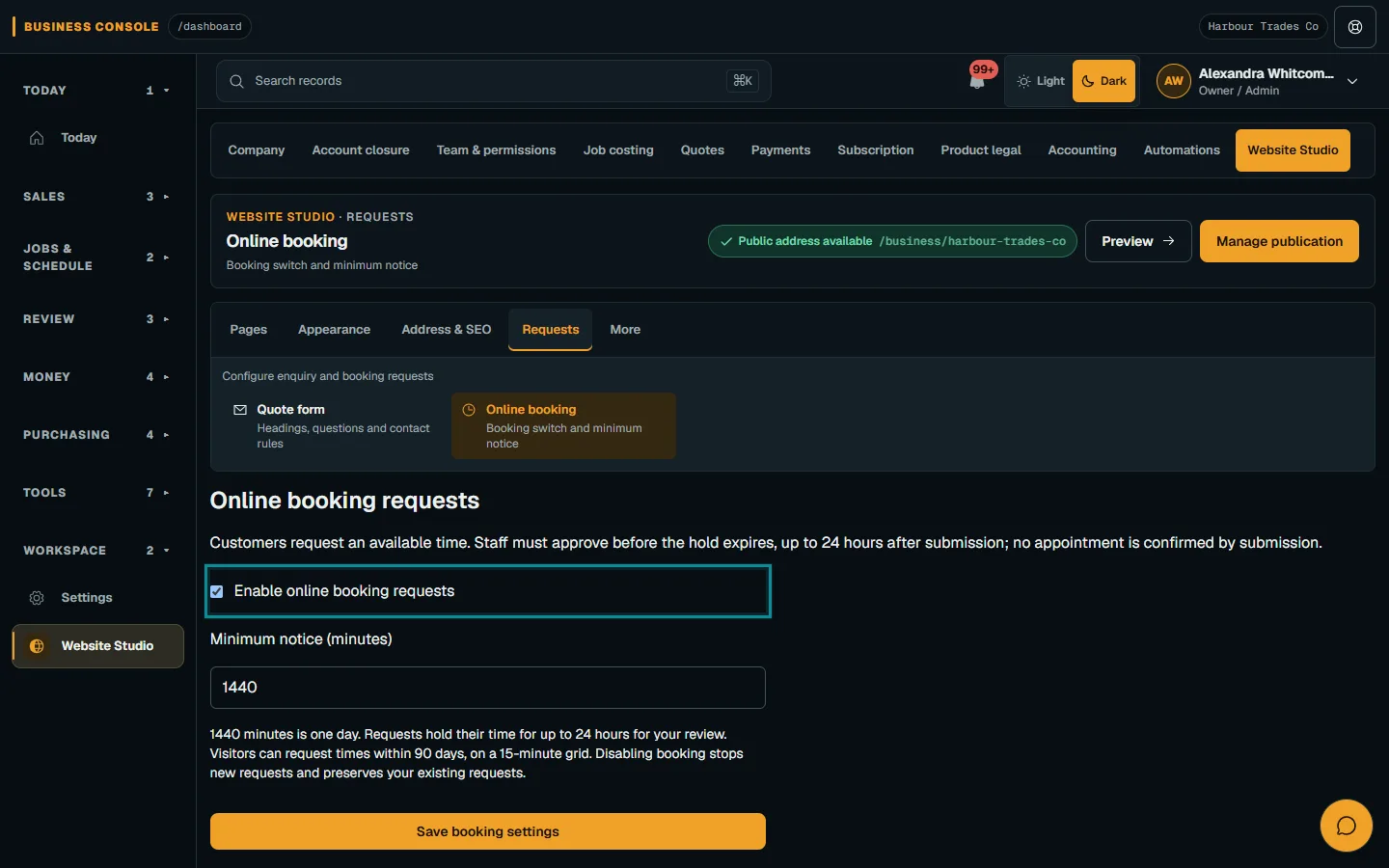
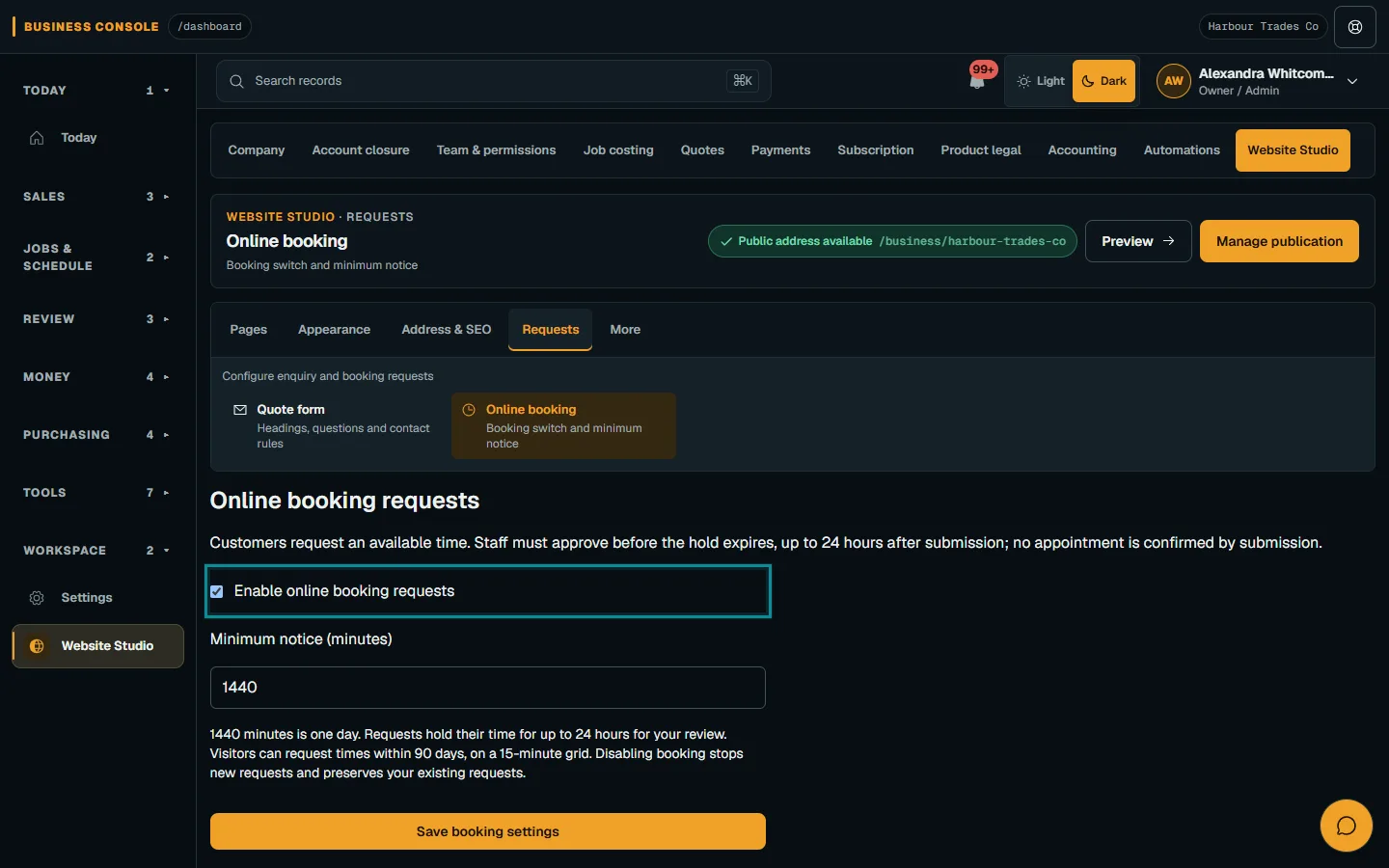
Online booking is enabled; review service durations and worker availability before offering slots.Step 1 · Reviewed 2026-10-14Tap or click to open full size - 02
Confirm the customer and Site
Choose Open lead, then convert to a customer when needed. Check Open customer, then add or select the correct site.
- 03
Review the crew and decision
Choose who will do the job, then choose Approve and book job. Approval converts the Lead, creates or selects the Site and books the Job; expired holds cannot confirm bookings.
- 04
Confirm the result
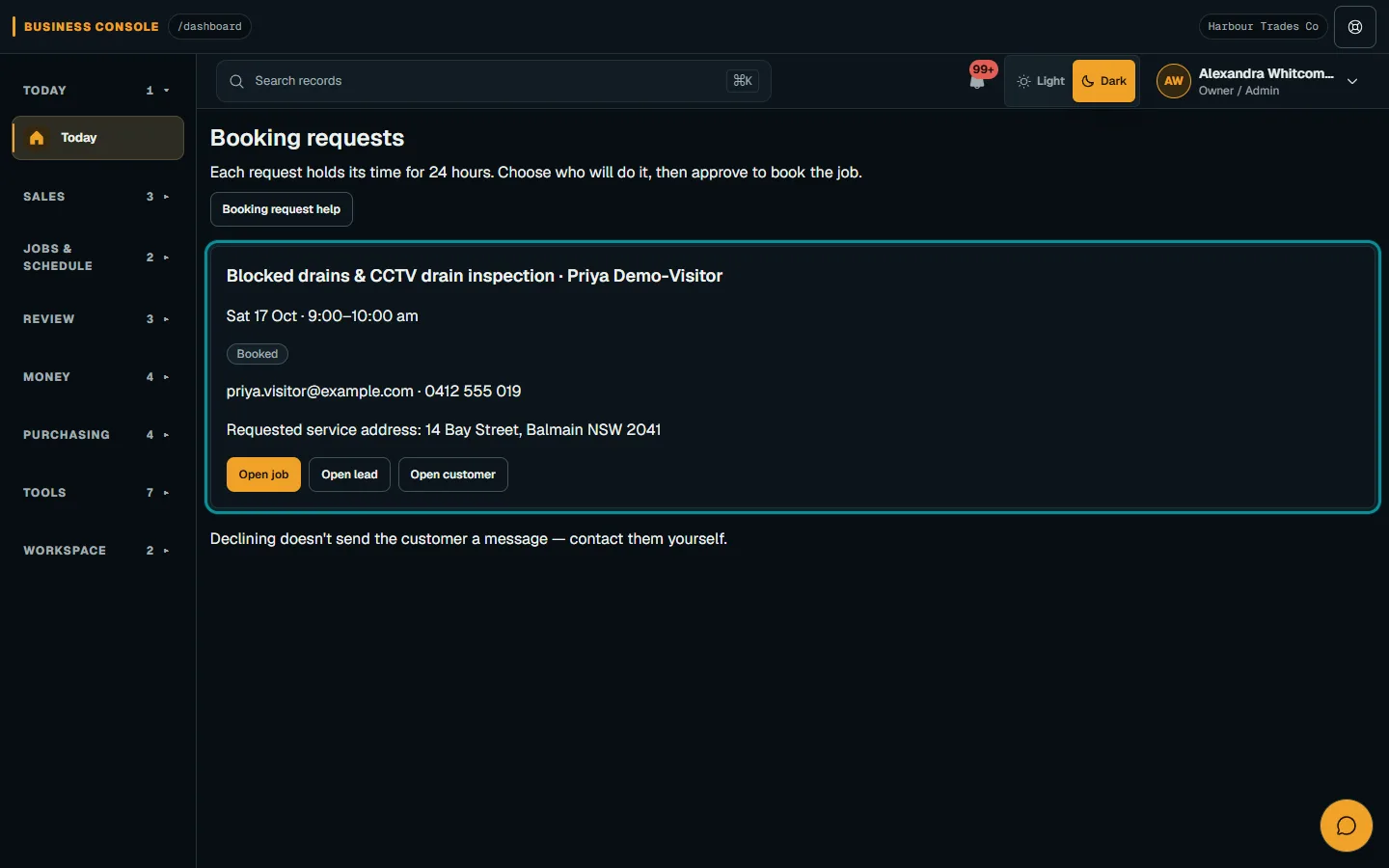
After approval, choose Open job and check the booking. After declining, contact the customer manually because no decline message is sent.
Troubleshooting
If something does not look right
The action is unavailable.
Read the message on the page. Check your role and plan with the Owner. Reload after an approved access change; do not submit the same change twice.
Keep going