
Before you start
Prerequisites and permissions
Have ready
- An active account and a connection.
Access rules
- Your role and plan must allow this page and the action you want to take. Ask the Owner if access is missing.
Where to find it
Navigation map
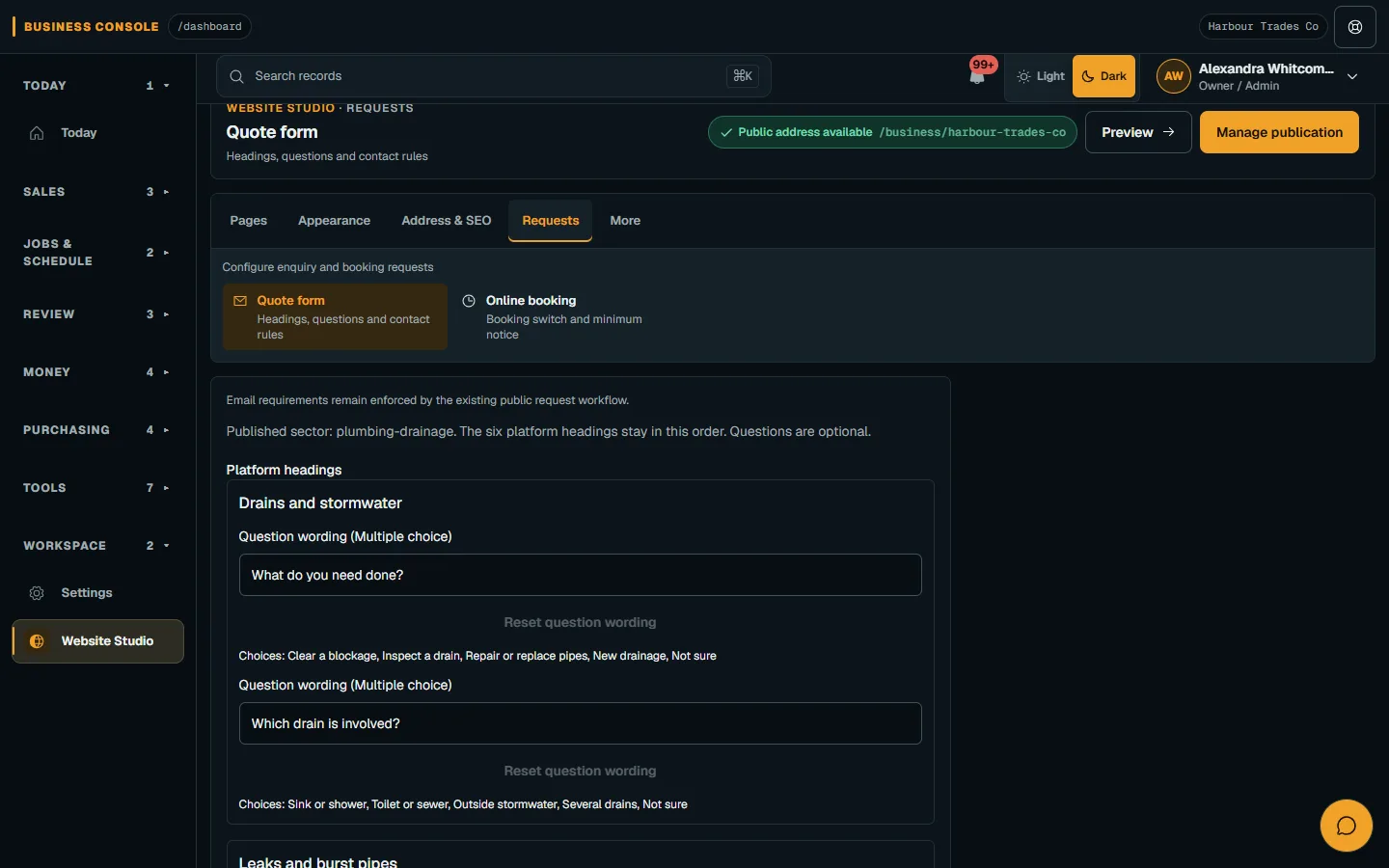
- Quote form
- Settings → Website Studio → Requests → Quote form
- Online booking
- Settings → Website Studio → Requests → Online booking
- Booking requests
- Booking requests
Walkthrough
Step by step
In each picture, the outlined area is what to look at.
- 01
Review the Quote form
Open Requests → Quote form and check its public choices and contact information. Save the offered settings and inspect the visitor form.
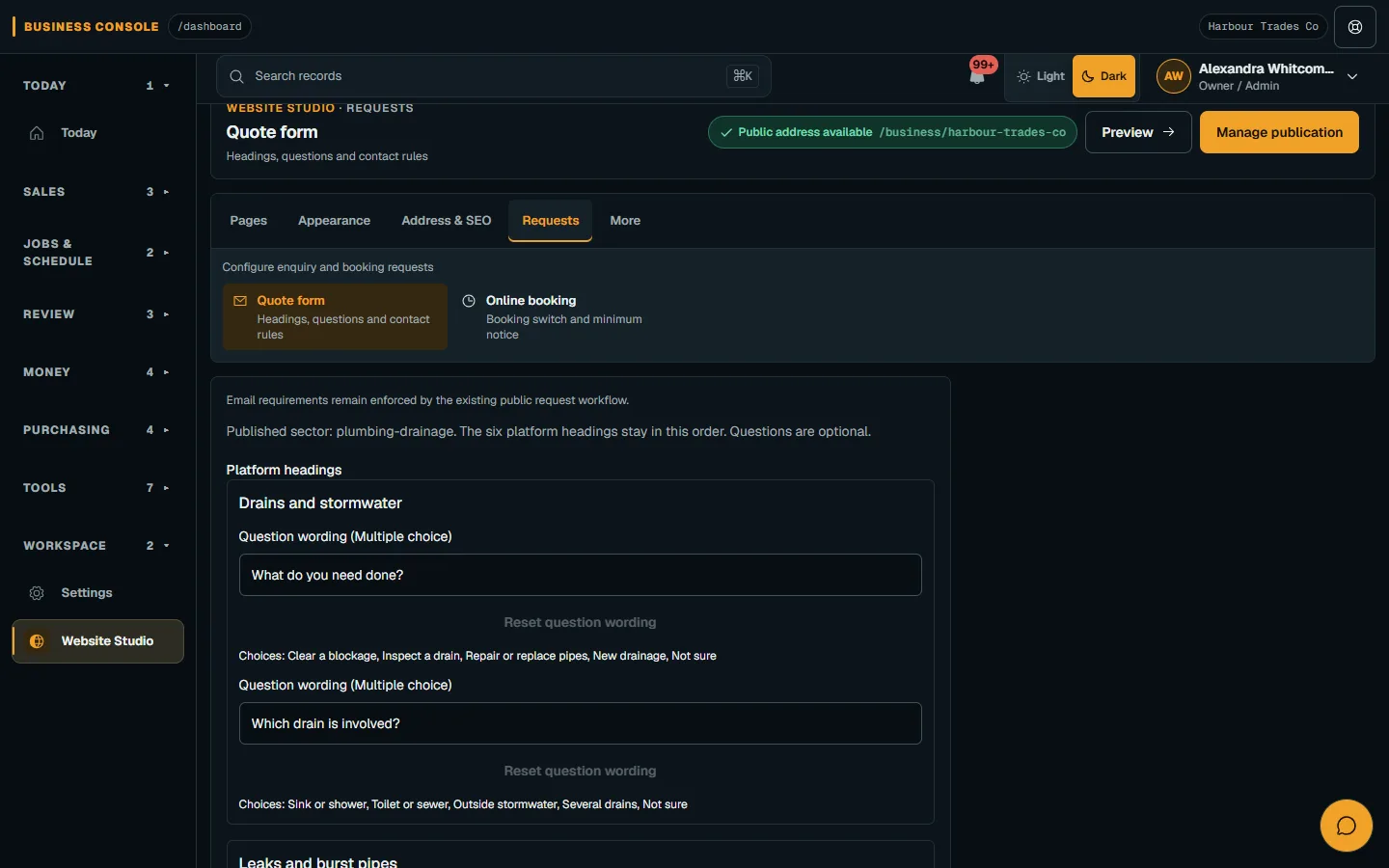
Open Requests → Quote form and check its public choices and contact information.Step 1 · Reviewed 2026-10-14Tap or click to open full size - 02
Check enquiry completion
Complete the public form’s final submission to save an enquiry. Wait for optional photo uploads; Continue alone does not submit the request.
- 03
Set booking availability
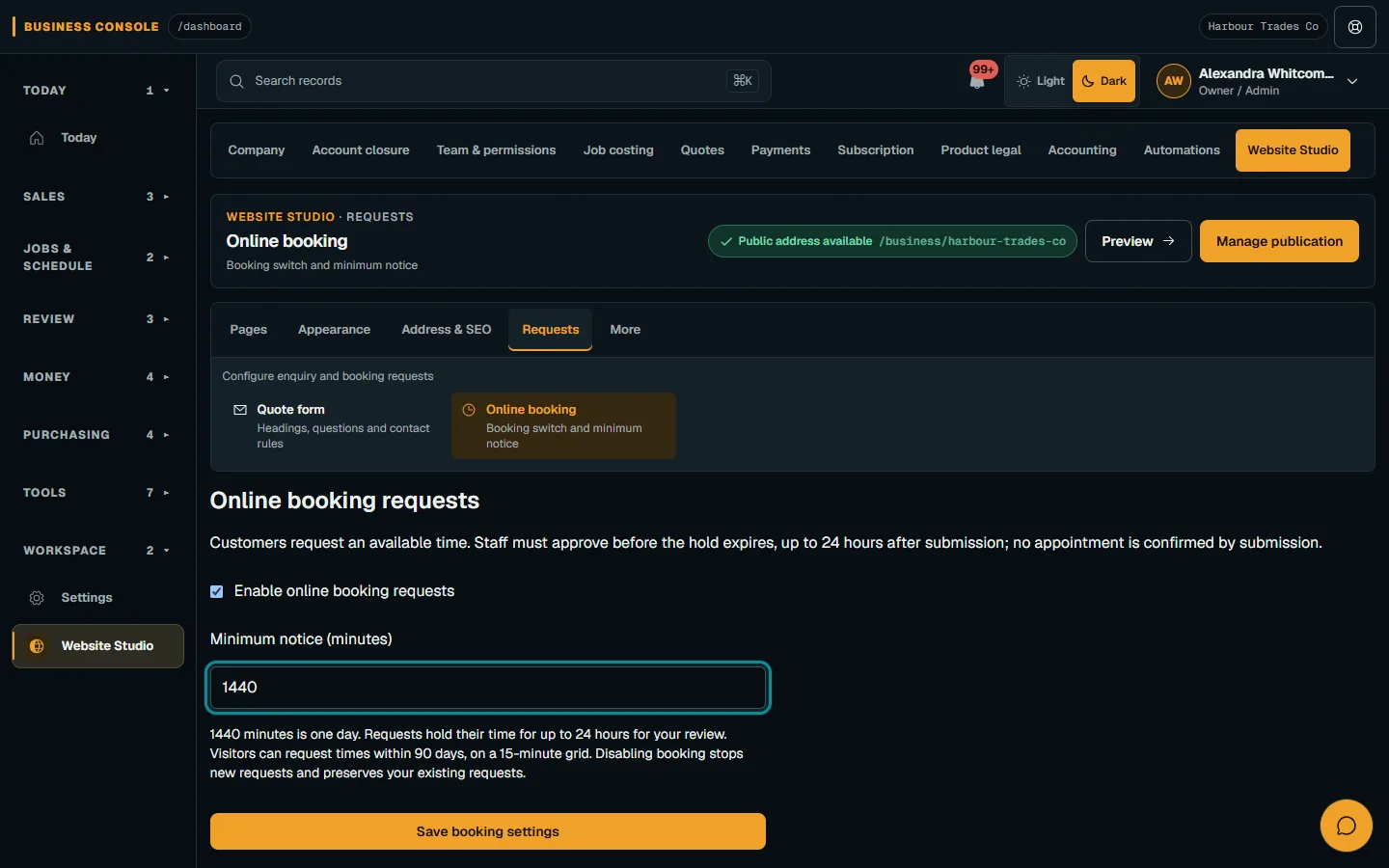
Open Online booking, check lead time and choose Save booking settings. Inspect the offered slots; a request creates a temporary hold awaiting staff approval.
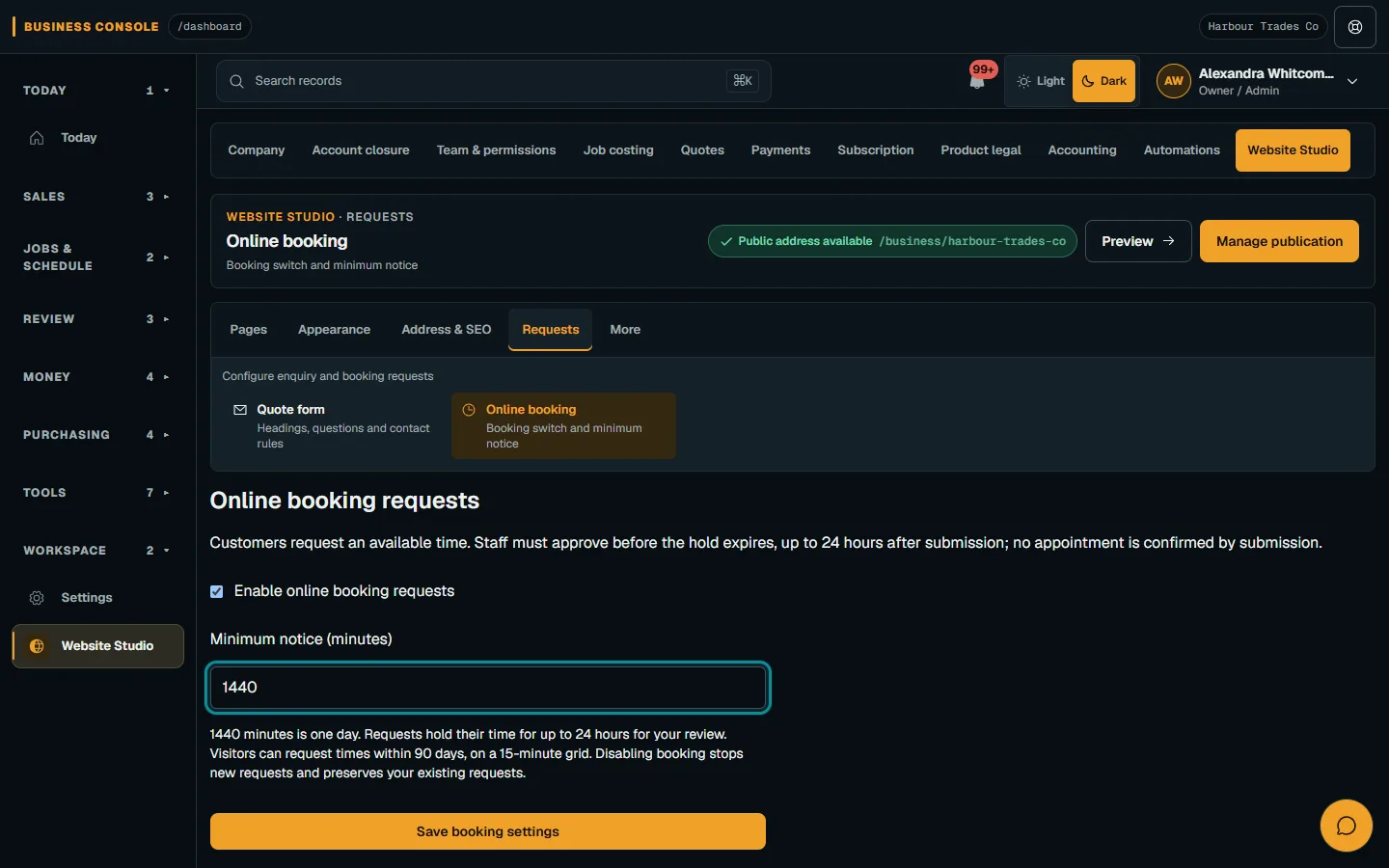
Open Online booking, check lead time and choose Save booking settings.Step 3 · Reviewed 2026-10-14Tap or click to open full size - 04
Review requests before promising work
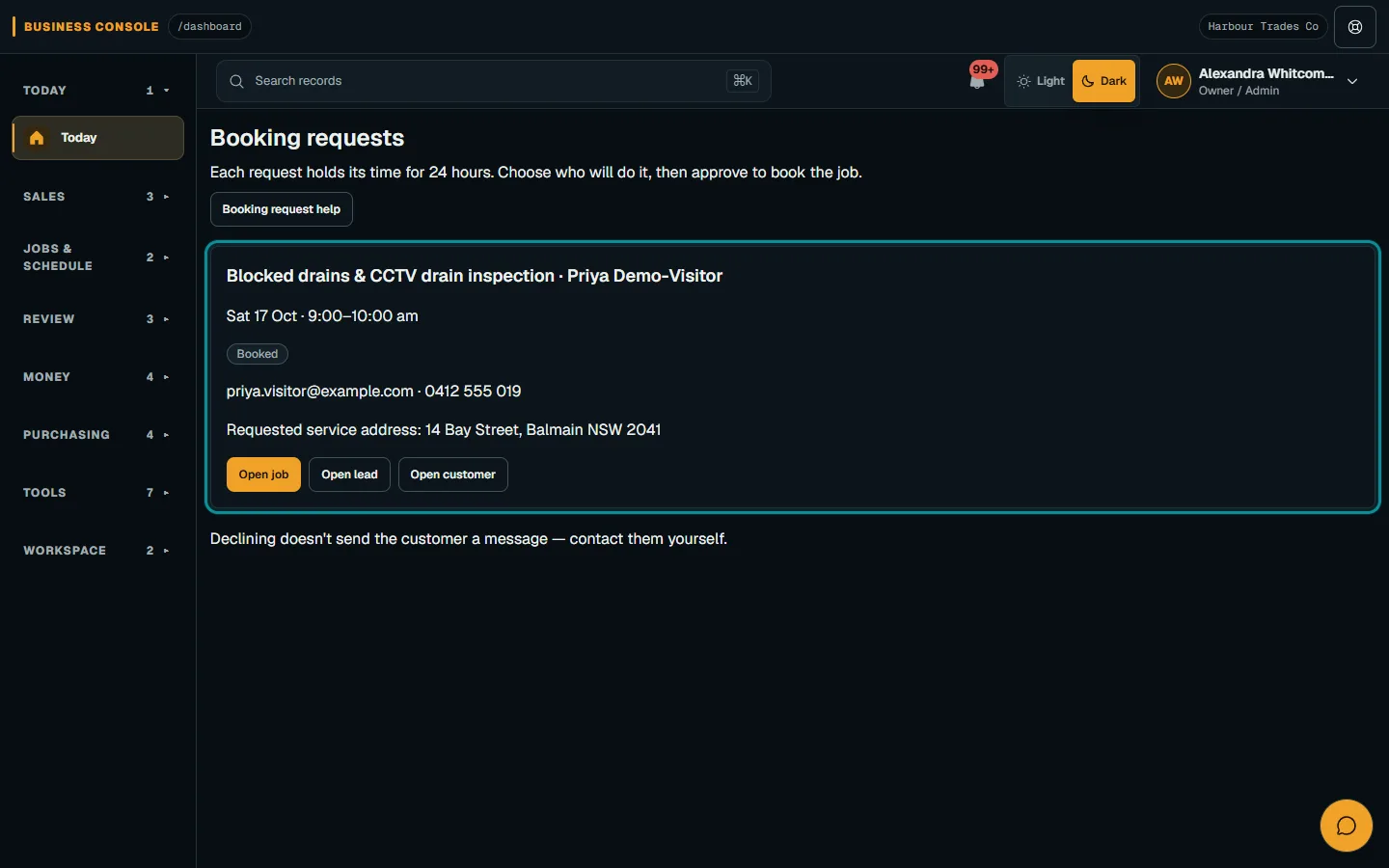
Choose Review booking requests and check the customer, Site, worker and hold. Approve only the intended request and wait for the confirmed result.
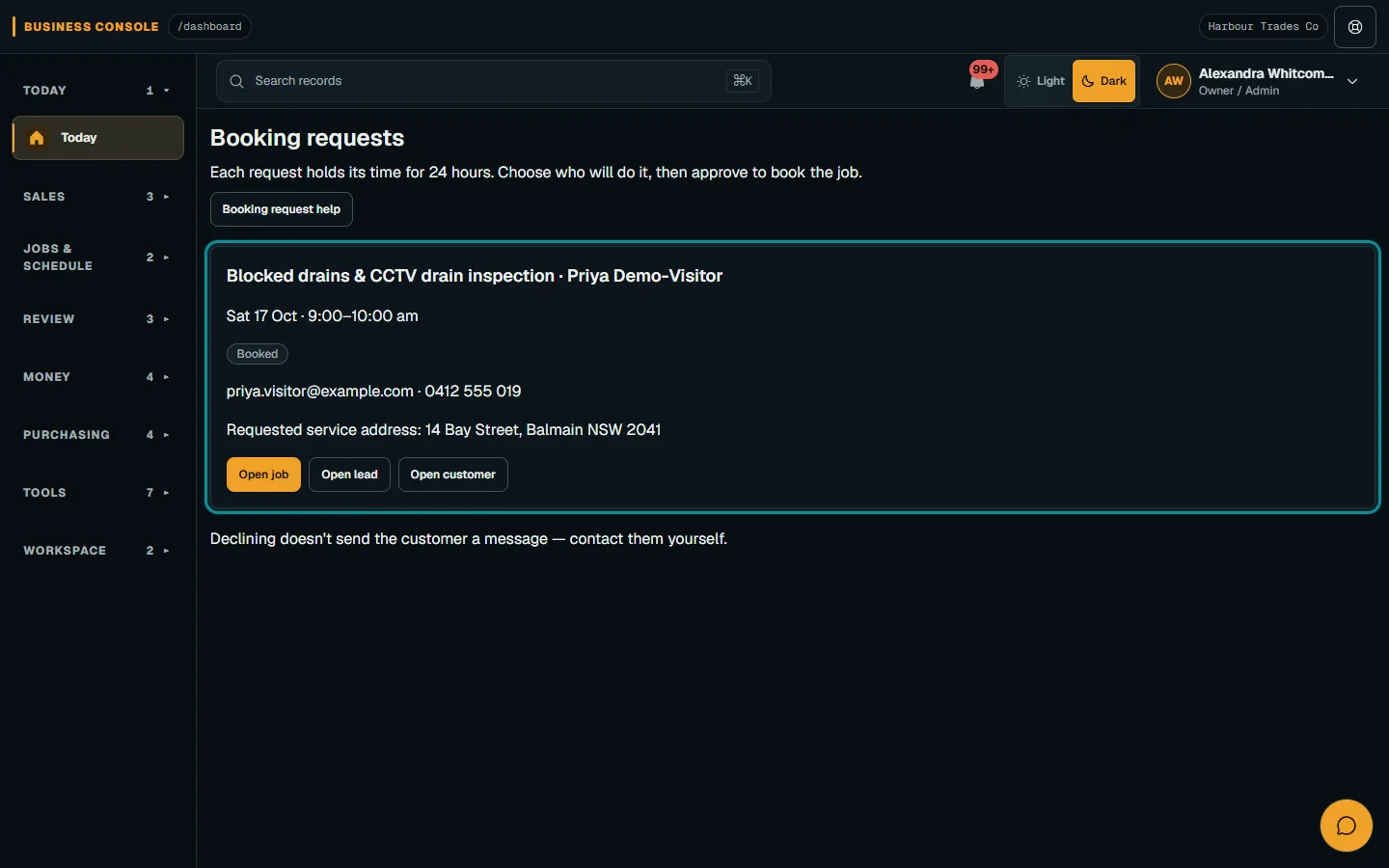
Review the customer, site and available person, then choose Approve and book job.Step 4 · Reviewed 2026-10-14Tap or click to open full size
Troubleshooting
If something does not look right
The action is unavailable.
Read the message on the page. Check your role and plan with the Owner. Reload after an approved access change; do not submit the same change twice.
Keep going