
Before you start
Prerequisites and permissions
Have ready
- An active account and a connection.
Access rules
- Your role and plan must allow this page and the action you want to take. Ask the Owner if access is missing.
Where to find it
Navigation map
- Homepage
- Settings → Website Studio → Pages → Homepage
- Services
- Settings → Website Studio → Pages → Services
- Service Areas
- Settings → Website Studio → Pages → Service Areas
- Projects
- Settings → Website Studio → Pages → Projects
- FAQ
- Settings → Website Studio → Pages → FAQ
- Contact
- Settings → Website Studio → Pages → Contact
- Composer
- Settings → Website Studio → Pages → Composer
Walkthrough
Step by step
In each picture, the outlined area is what to look at.
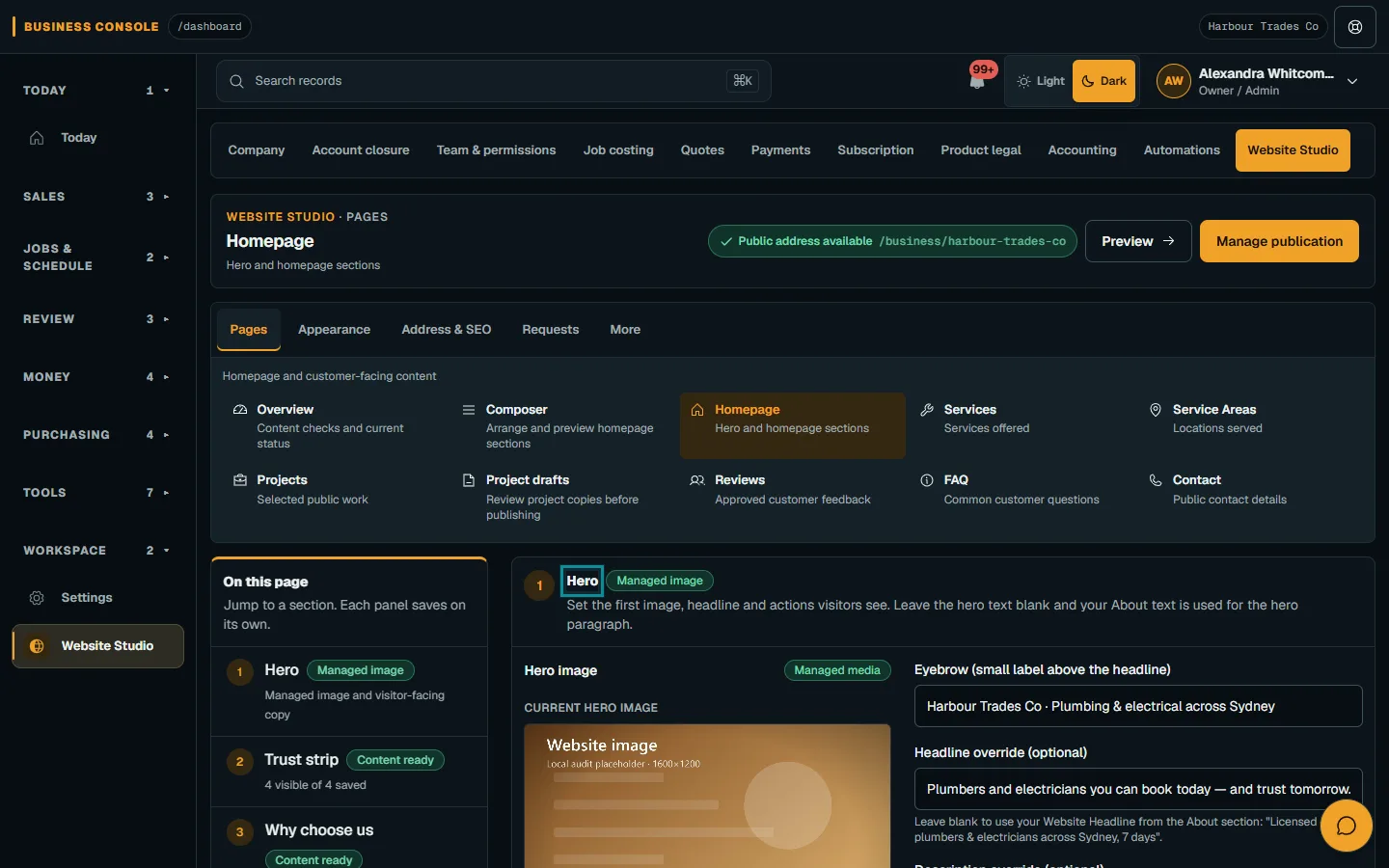
- 01
Choose the content page
Open Website Studio → Pages and choose the page to edit. Check current business facts; on a phone, select Pages and expand its menu.
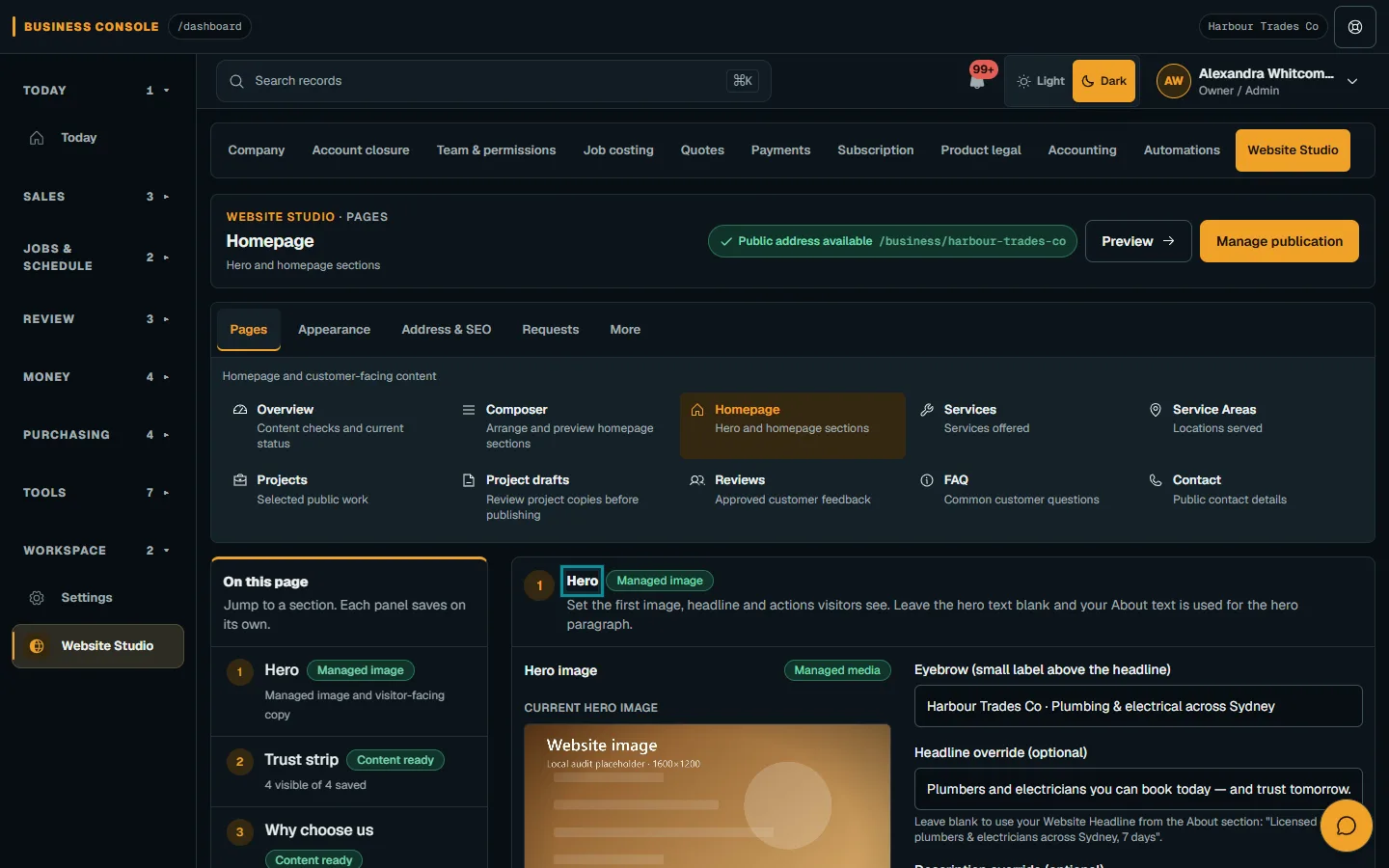
Open Website Studio → Pages and choose the page to edit.Step 1 · Reviewed 2026-10-14Tap or click to open full size - 02
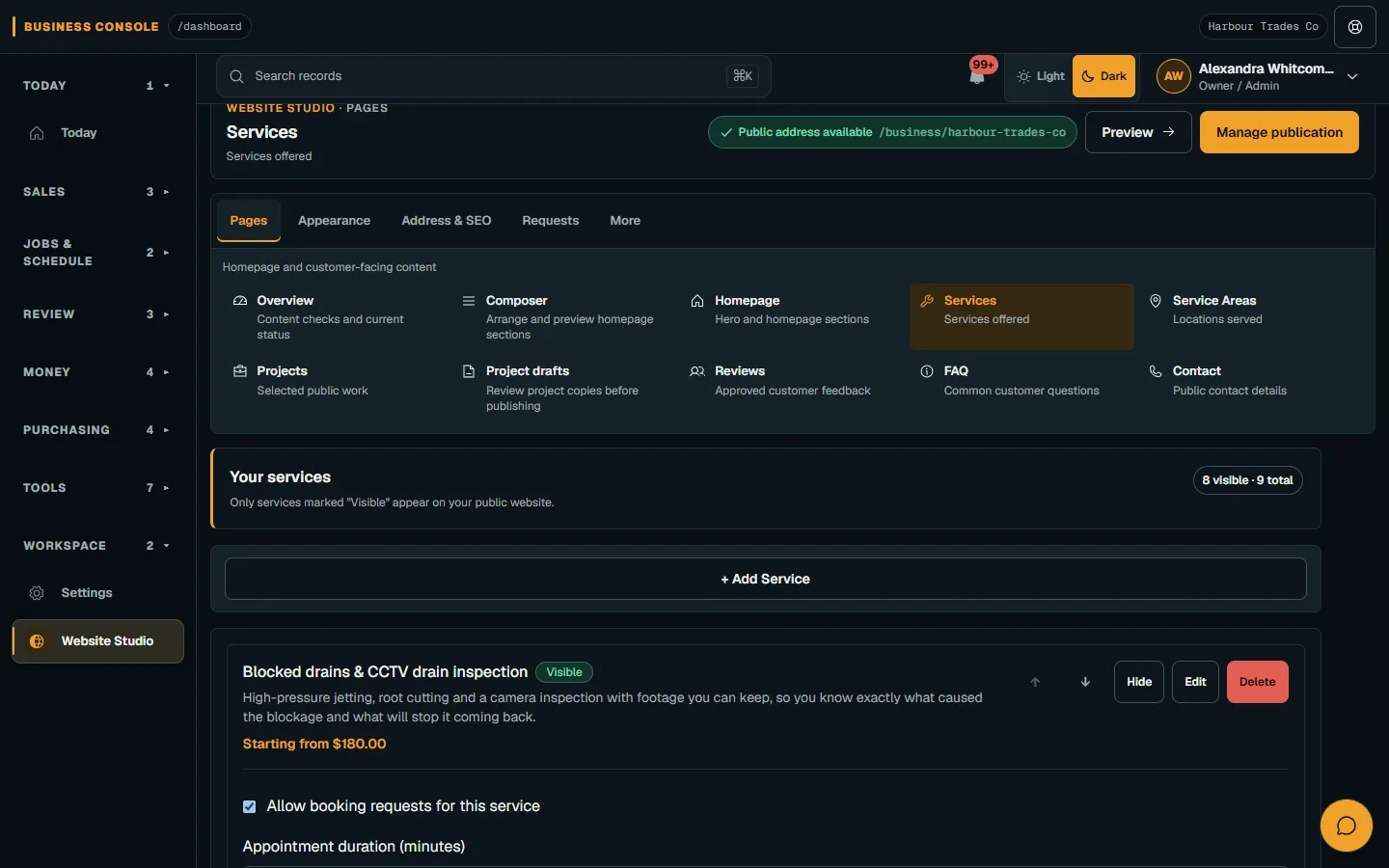
Edit one area
Edit the relevant Homepage area and use its own save control. Services may show Starting from prices, but the final price still requires a quote.
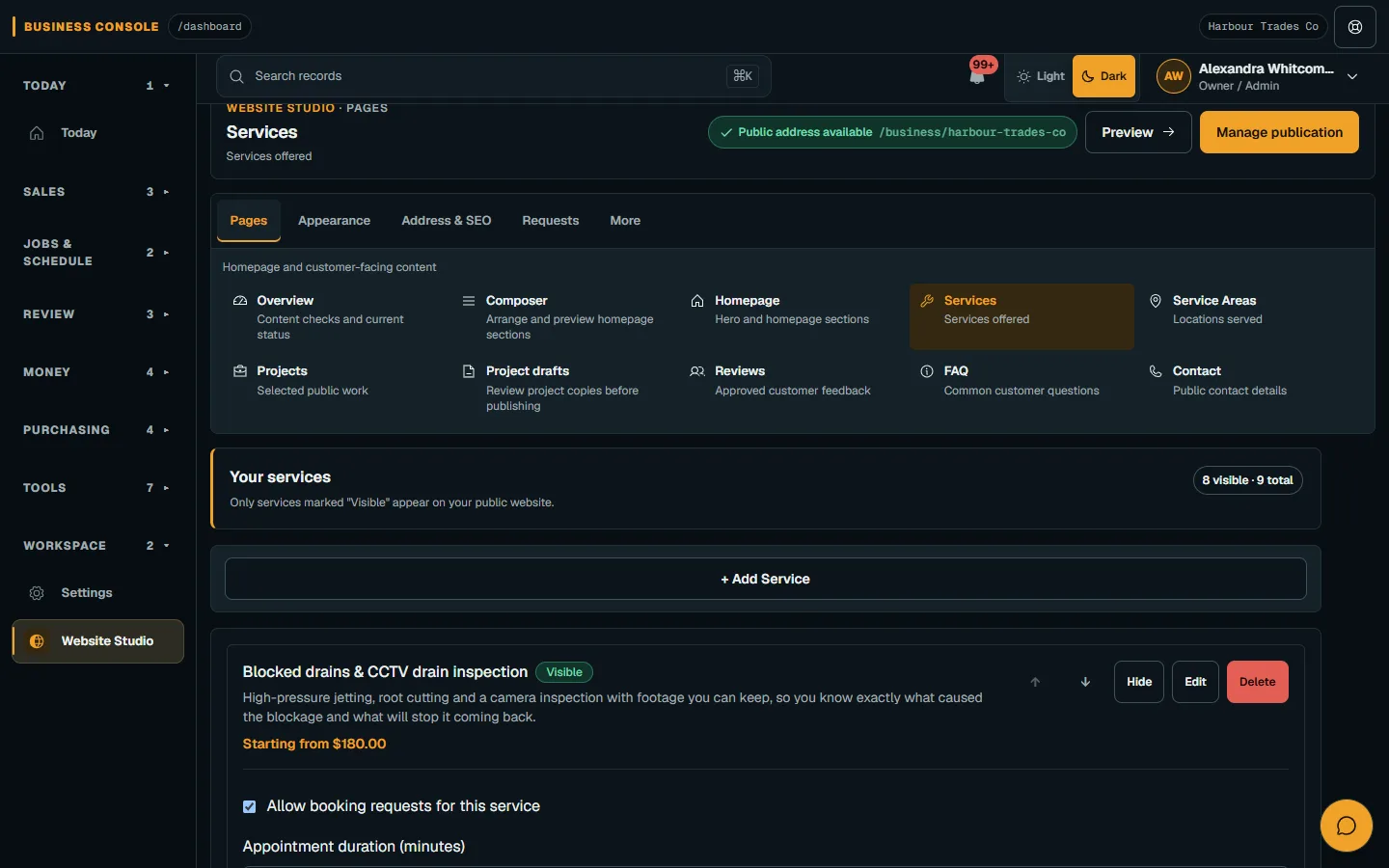
Edit the relevant Homepage area and use its own save control.Step 2 · Reviewed 2026-10-14Tap or click to open full size - 03
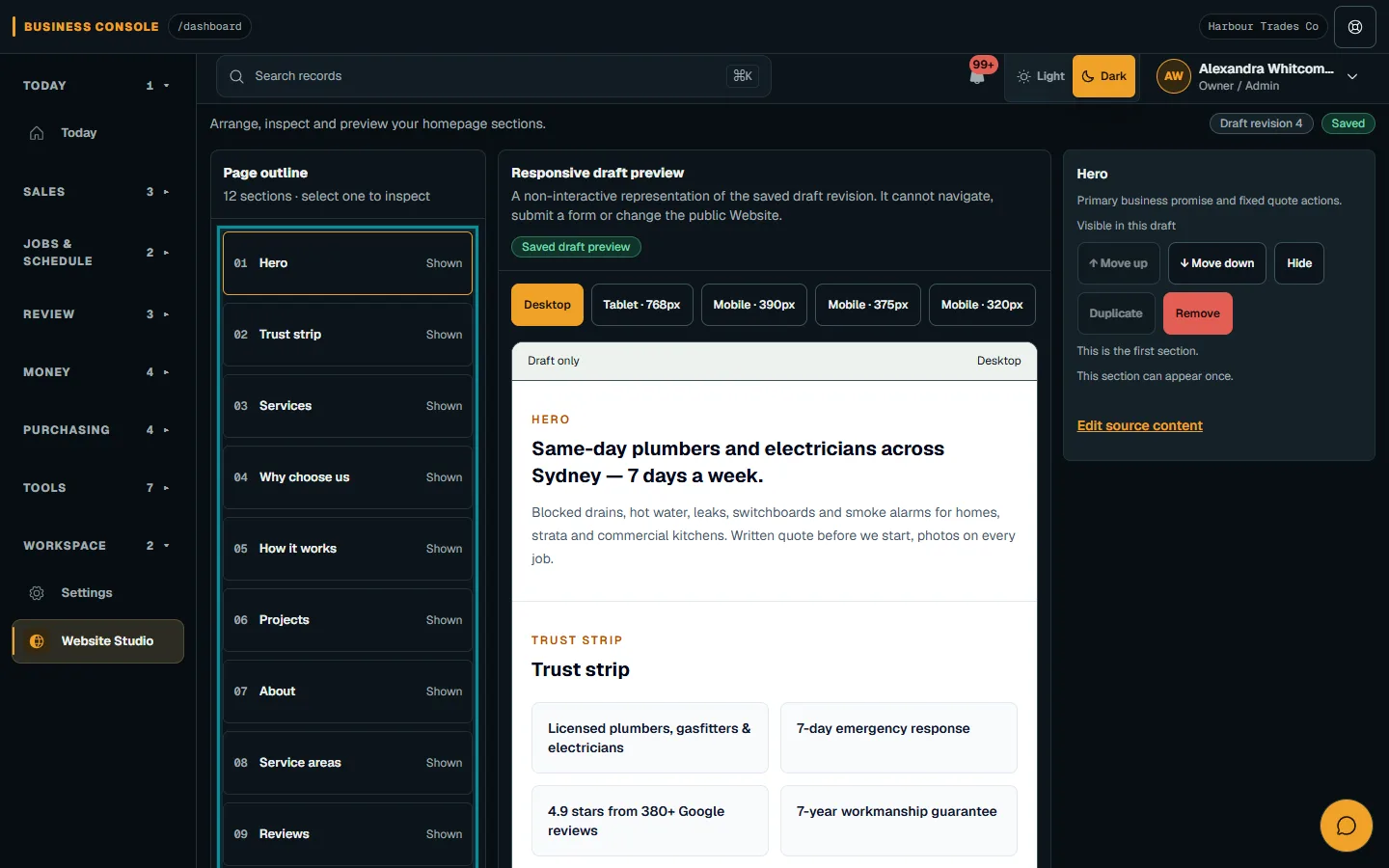
Arrange a section draft
Open a saved draft in Composer and select a section. Use Move up, Move down, Hide/Show, Duplicate, Remove or Add section when offered.
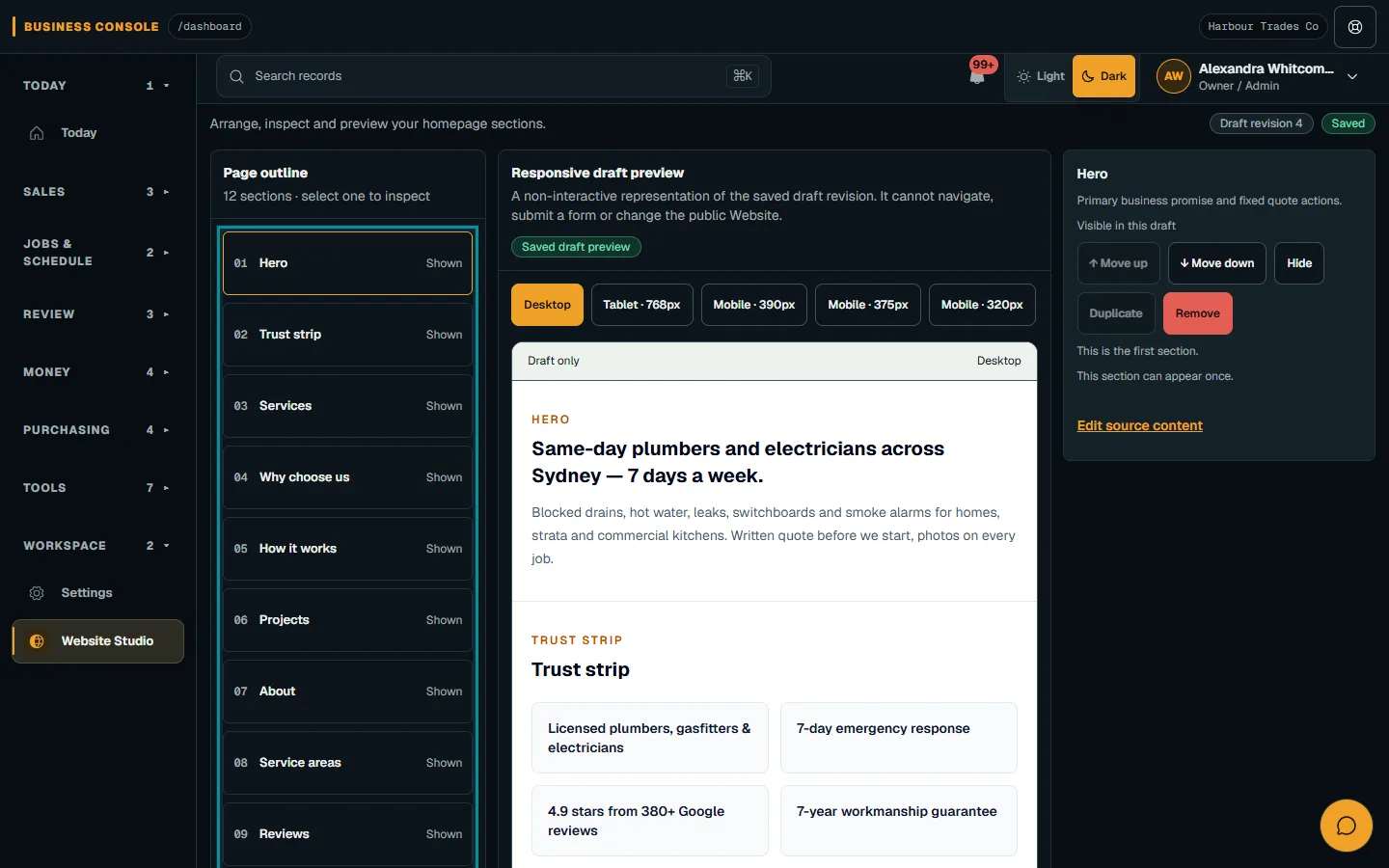
Open a saved draft in Composer and select a section.Step 3 · Reviewed 2026-10-14Tap or click to open full size - 04
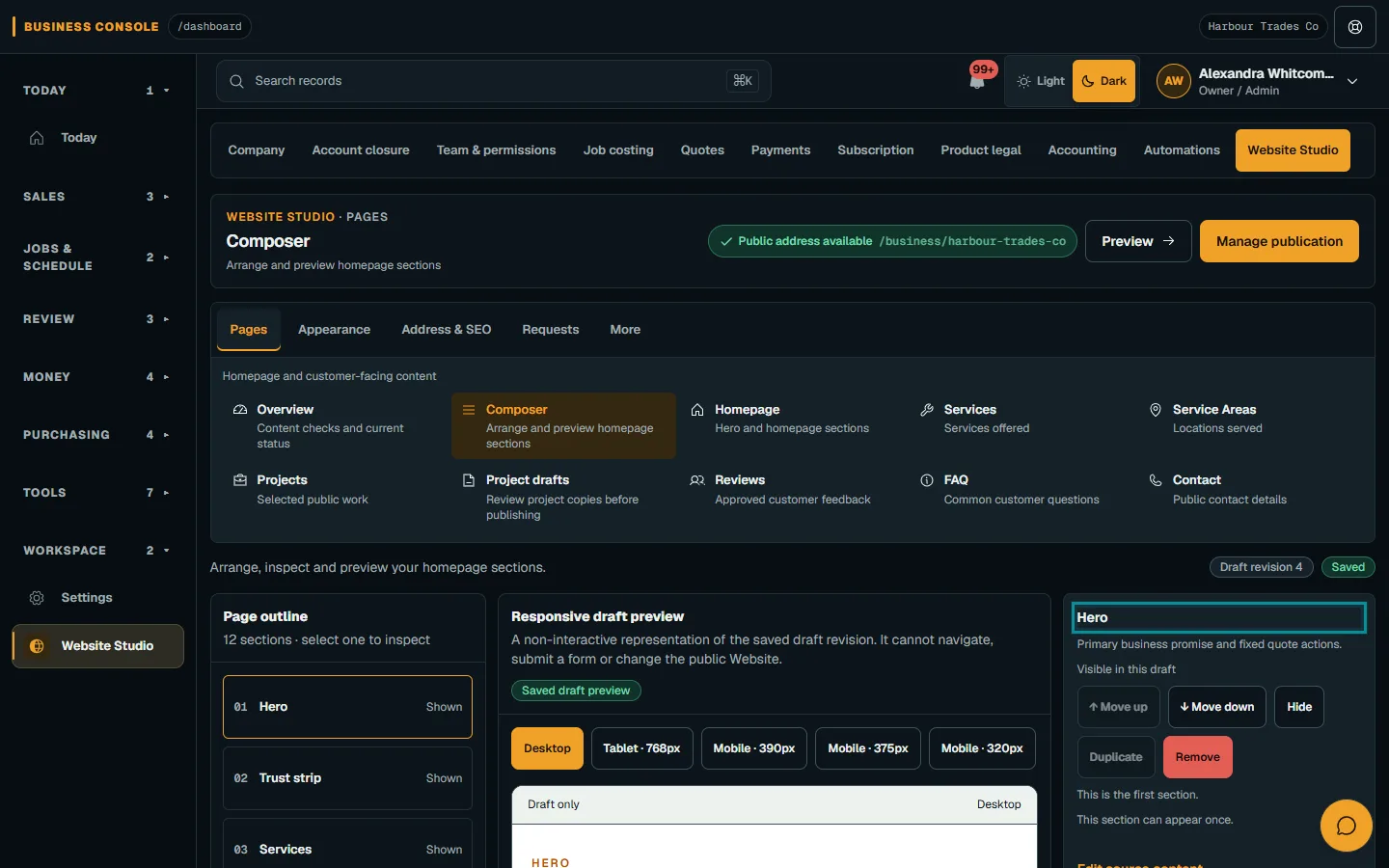
Save and preview
Choose Save section draft and check the preview on phone and desktop. Review links and hidden sections, then continue to Review and publish.
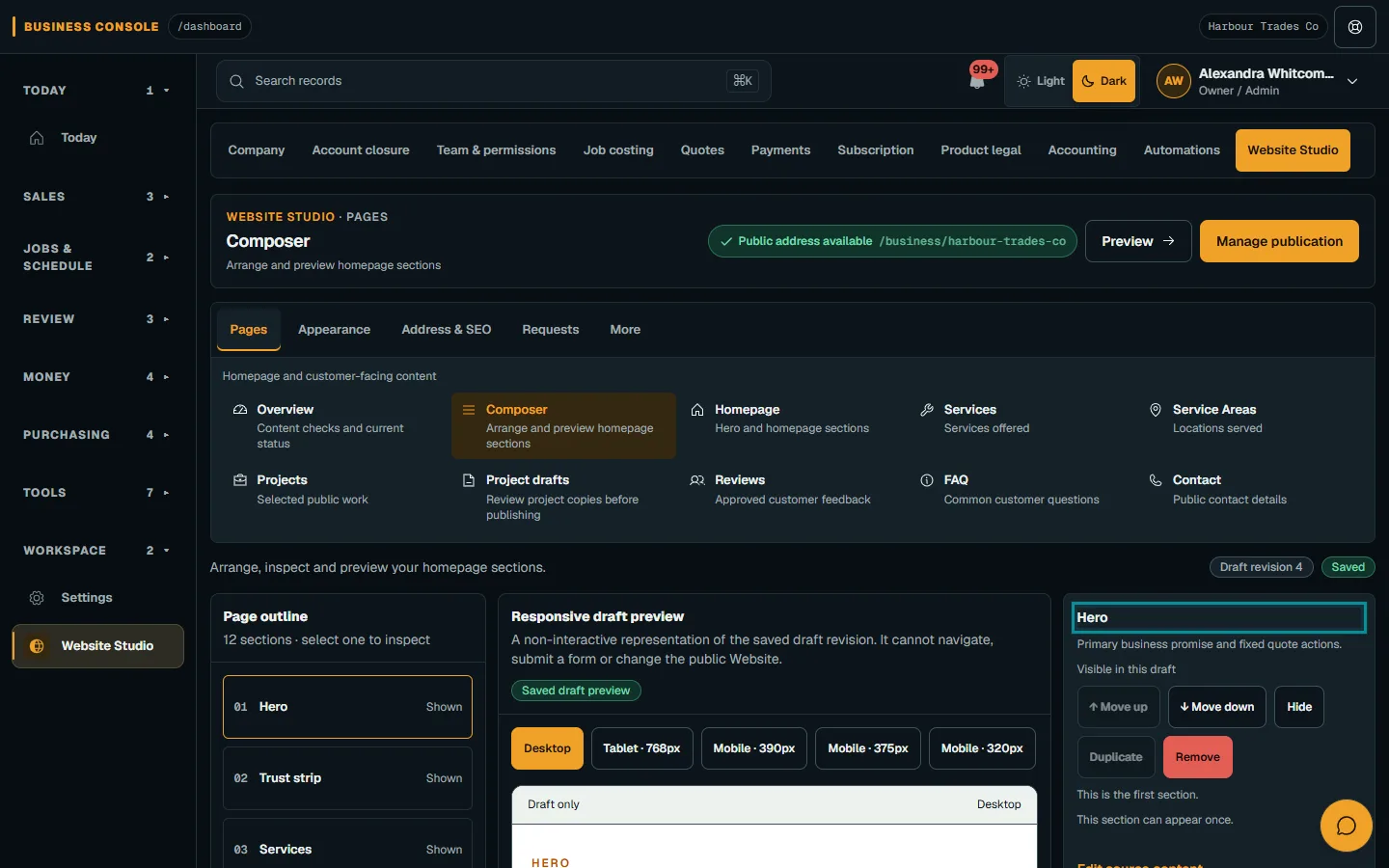
Choose Save section draft and check the preview on phone and desktop.Step 4 · Reviewed 2026-10-14Tap or click to open full size
Troubleshooting
If something does not look right
The action is unavailable.
Read the message on the page. Check your role and plan with the Owner. Reload after an approved access change; do not submit the same change twice.
Keep going