
Before you start
Prerequisites and permissions
Have ready
- An active account and a connection.
Access rules
- Your role and plan must allow this page and the action you want to take. Ask the Owner if access is missing.
Where to find it
Navigation map
- Reviews
- Settings → Website Studio → Pages → Reviews
- Project drafts
- Settings → Website Studio → Pages → Project drafts
Walkthrough
Step by step
In each picture, the outlined area is what to look at.
- 01
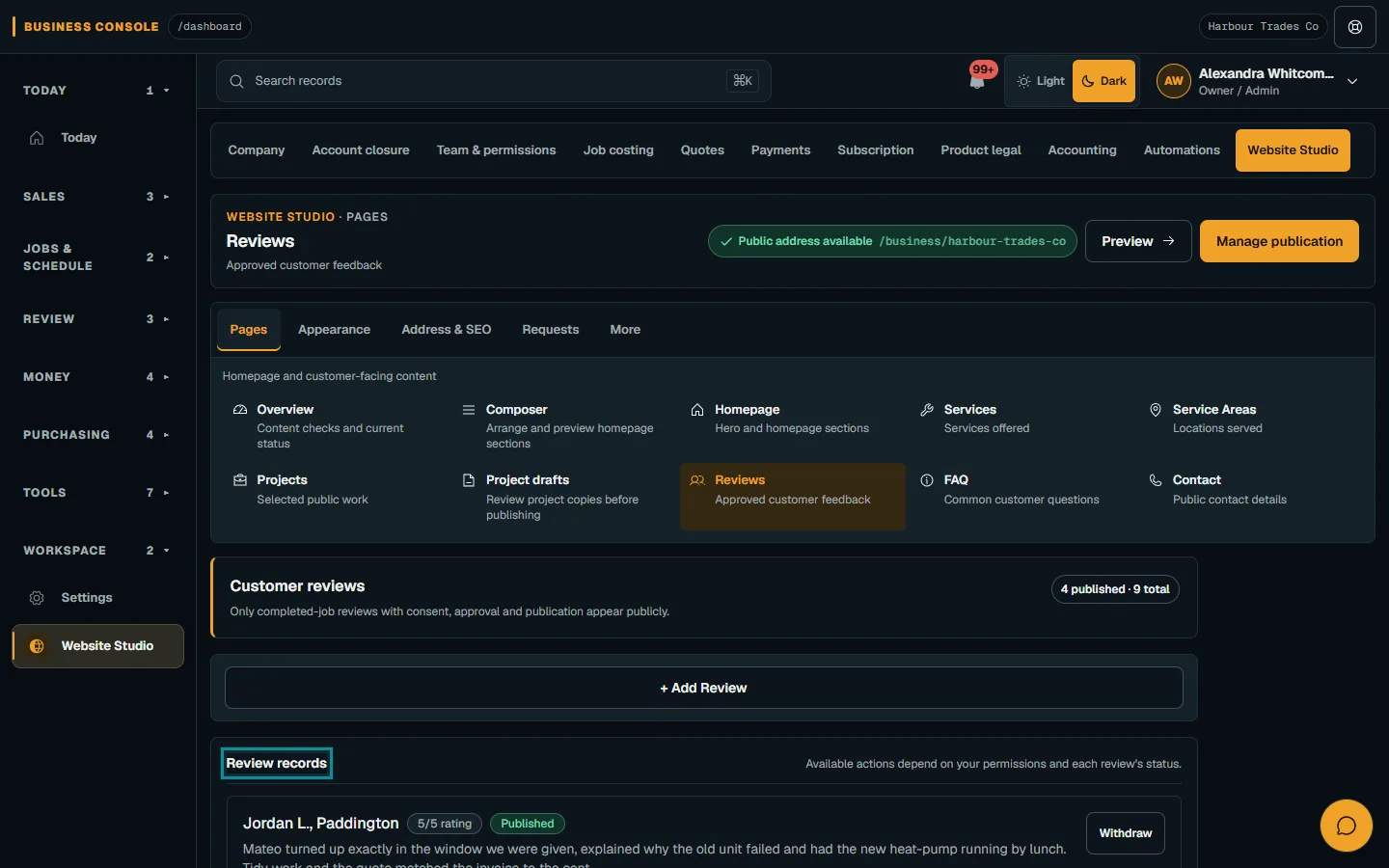
Review genuine customer reviews
Open Pages → Reviews and check the records and consent. Use the available review actions before publishing customer text.
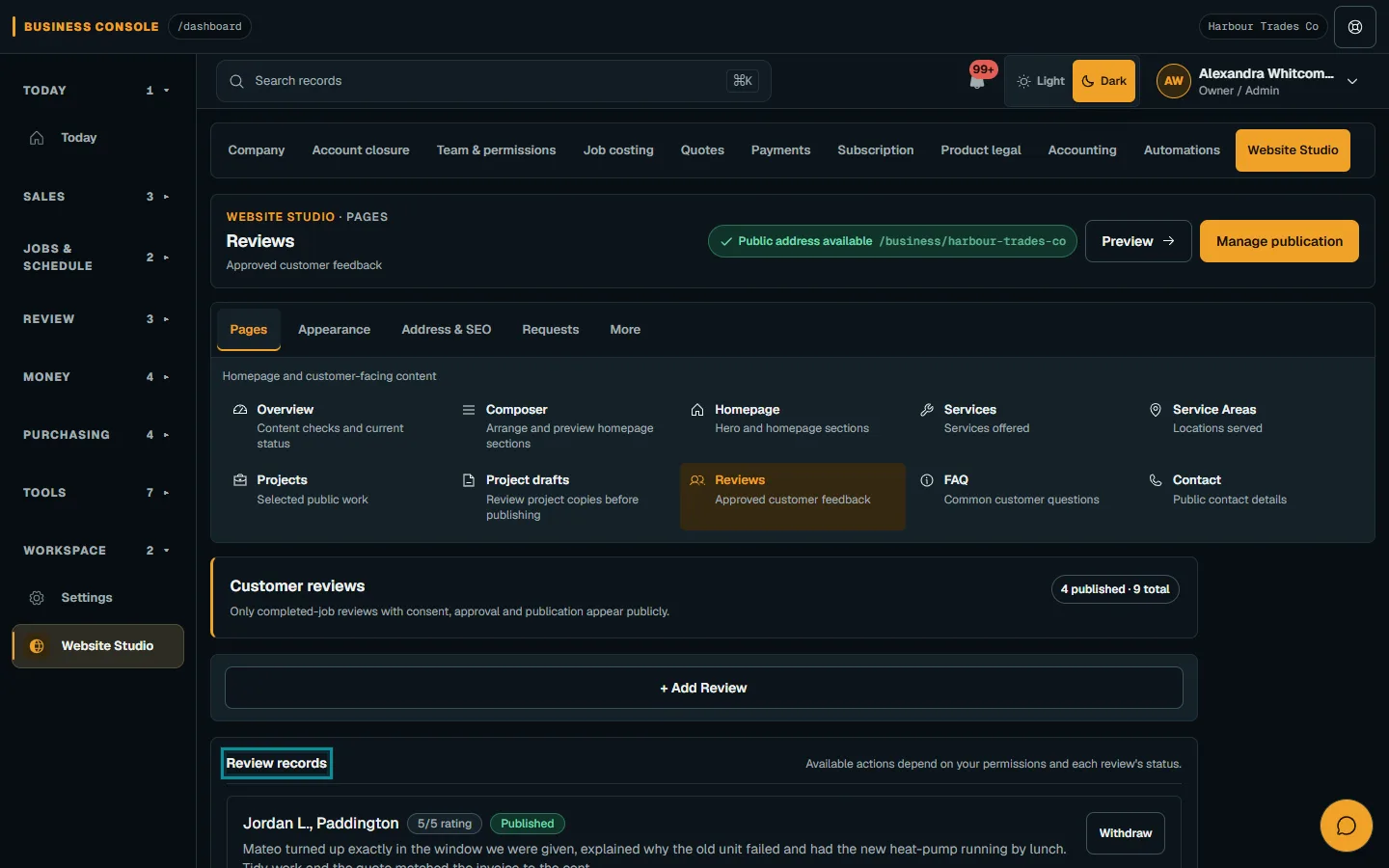
Open Pages → Reviews and check the records and consent.Step 1 · Reviewed 2026-10-14Tap or click to open full size - 02
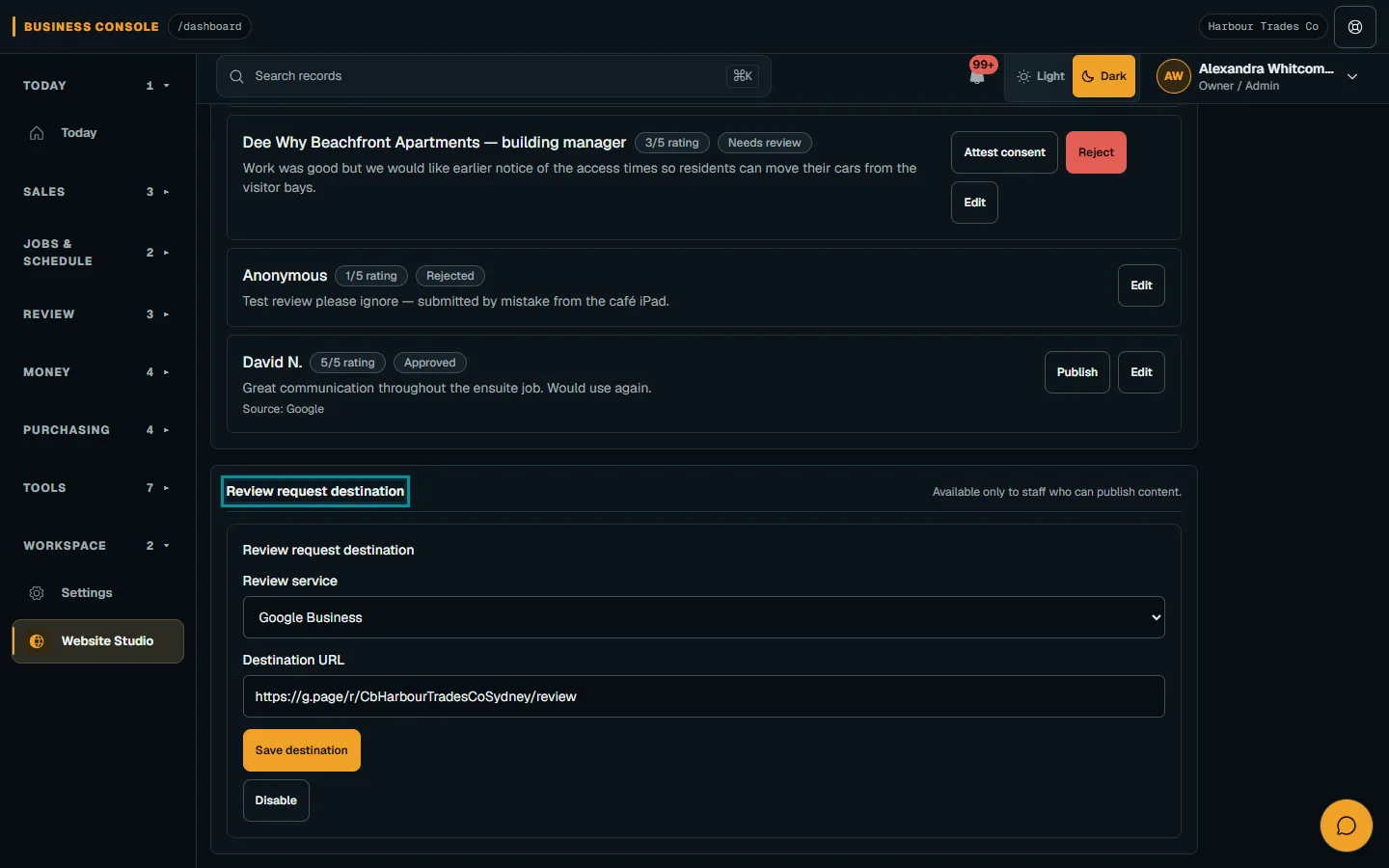
Set the review destination separately
Review the destination form and choose Save destination. This saves the destination setting without approving or publishing reviews.
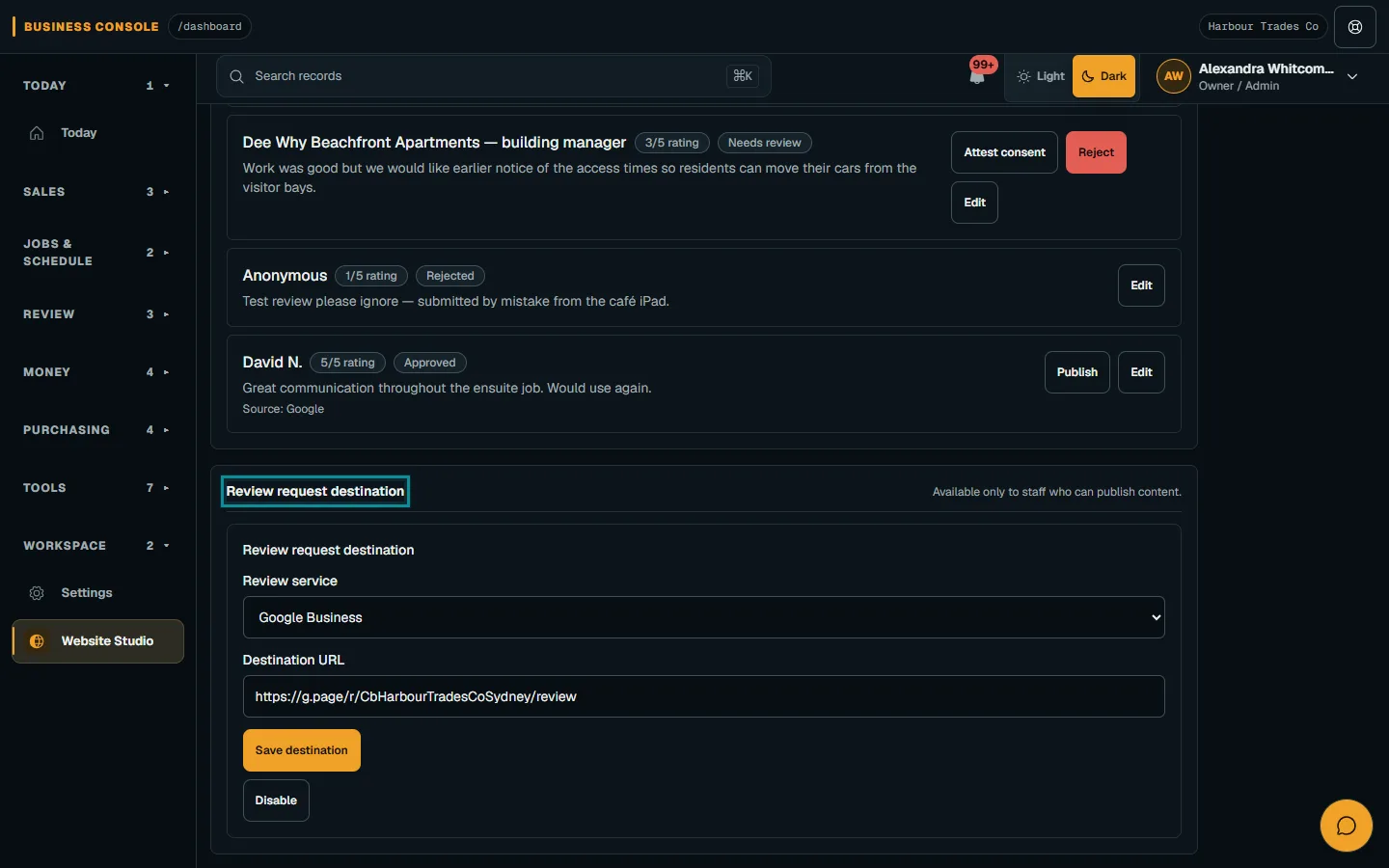
Review the destination form and choose Save destination.Step 2 · Reviewed 2026-10-14Tap or click to open full size - 03
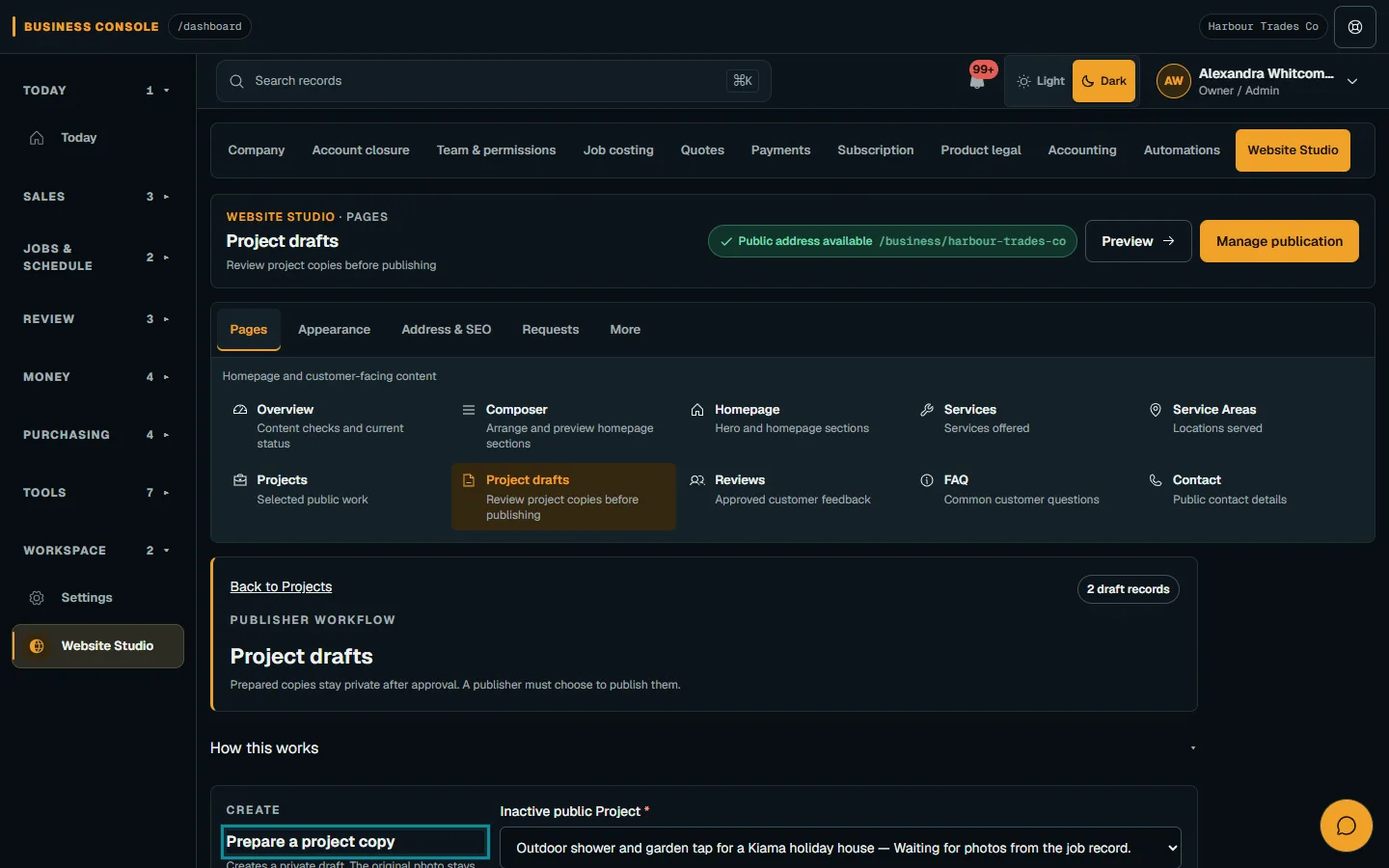
Prepare Project drafts
Open Project drafts and check the completed work, public description and customer-safe photos. Submit only evidence suitable for public sharing.
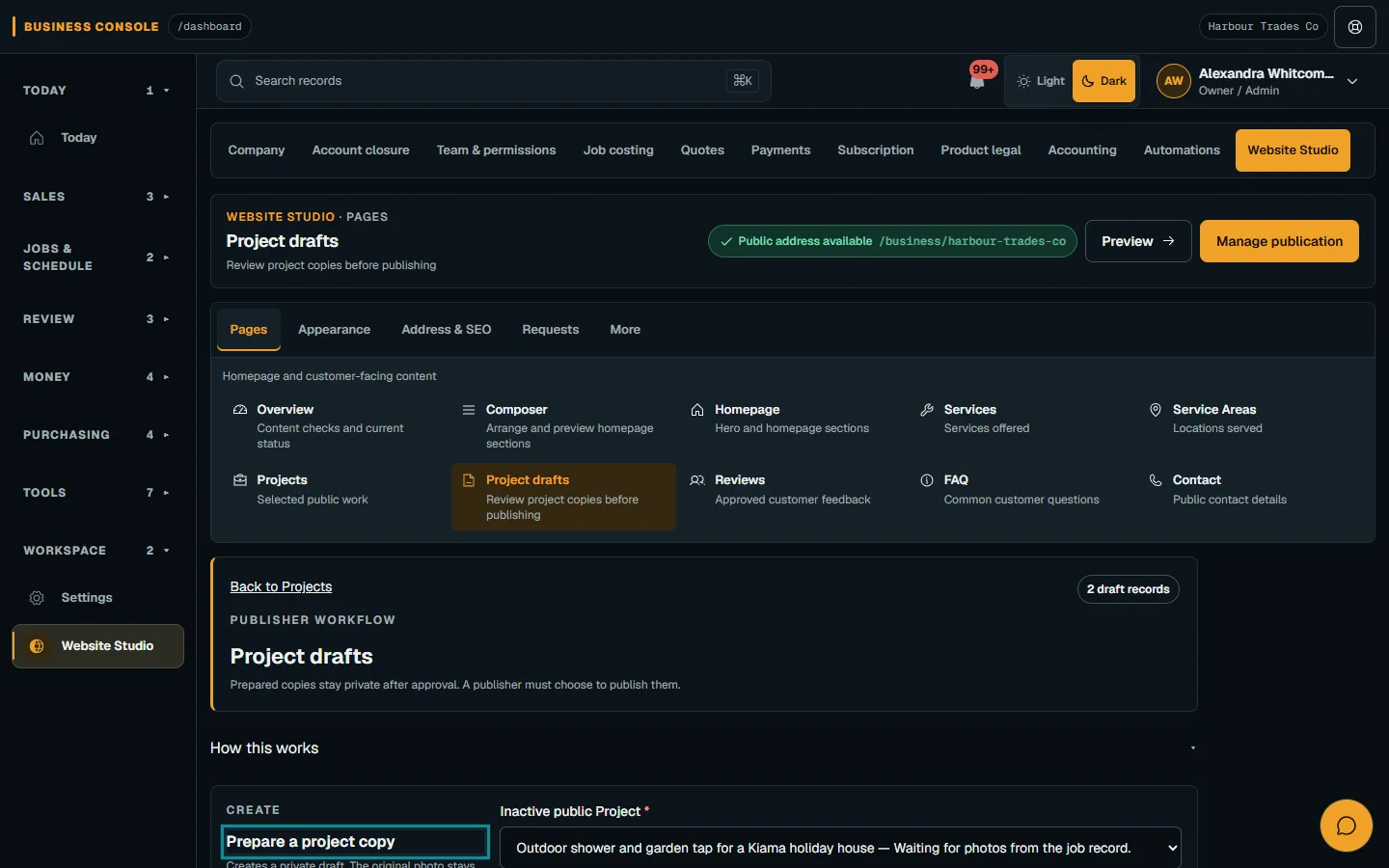
Open Project drafts and check the completed work, public description and customer-safe photos.Step 3 · Reviewed 2026-10-14Tap or click to open full size - 04
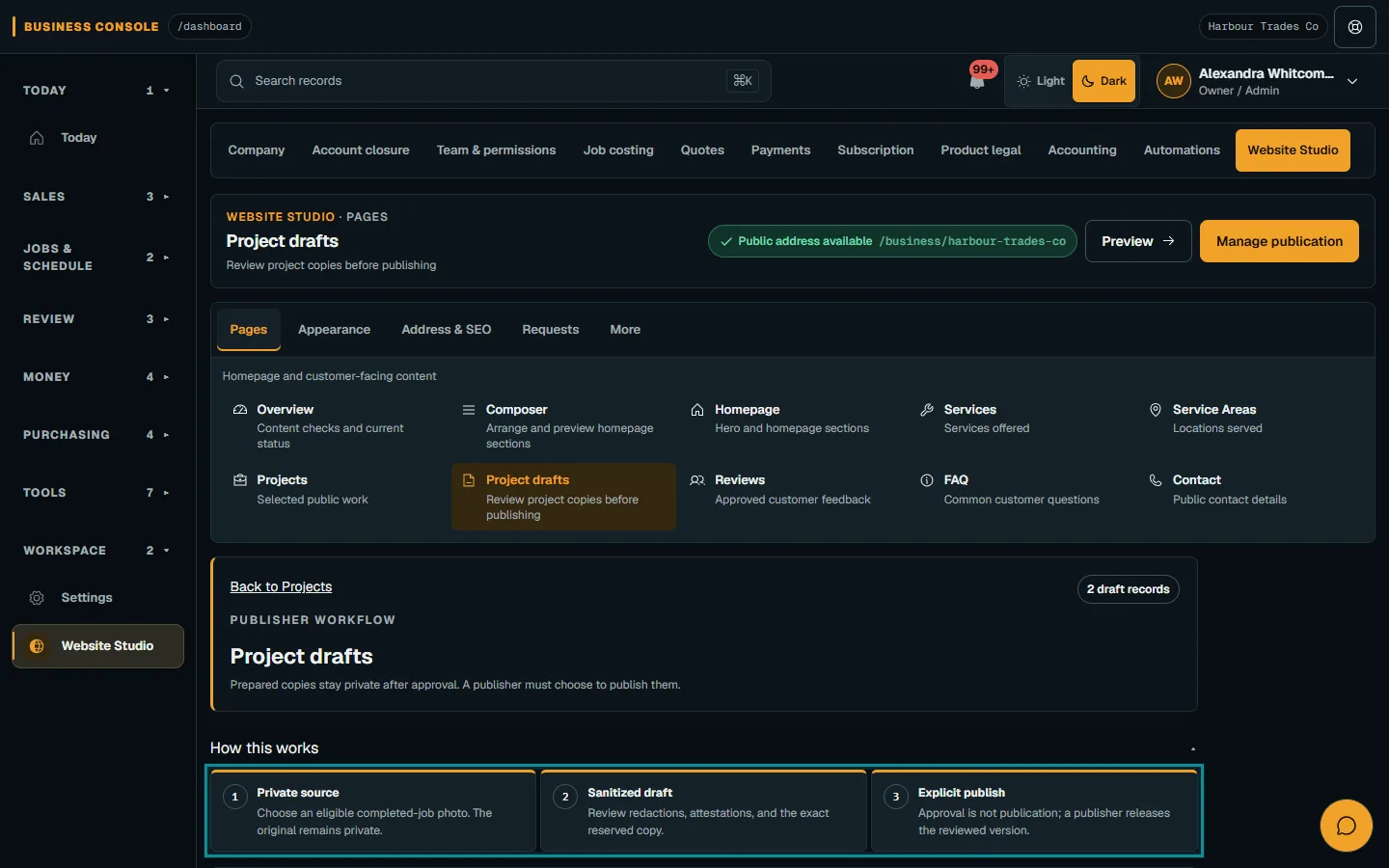
Review and publish evidence
An eligible reviewer chooses “Approve draft”; a publisher confirms that version through Publish project. Use the Revoke review flow to remove eligible public evidence.
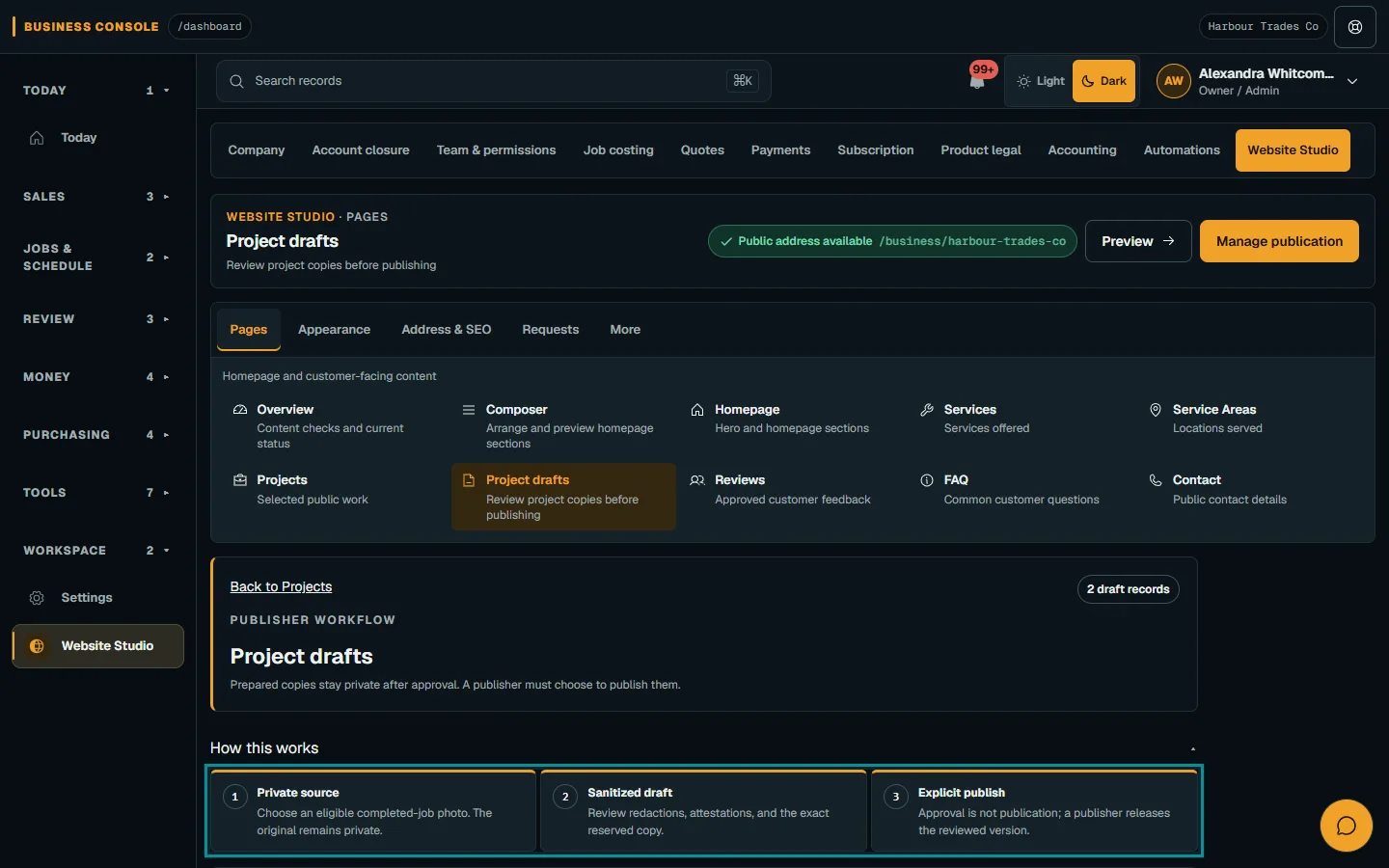
An eligible reviewer chooses “Approve draft”; a publisher confirms that version through Publish project.Step 4 · Reviewed 2026-10-14Tap or click to open full size
Troubleshooting
If something does not look right
The action is unavailable.
Read the message on the page. Check your role and plan with the Owner. Reload after an approved access change; do not submit the same change twice.
Keep going