
Before you start
Prerequisites and permissions
Have ready
- Customers must be included in your business's access.
- For import, a UTF-8 CSV with a header and no more than 5,000 customer rows or 2 MB.
Access rules
- Owners and Office Staff with customer management permission can import. Customer view permission is required to export.
- Imports and exports apply only to the business you are signed into. Field Workers and Customer Portal users cannot use these controls.
Where to find it
Navigation map
- Import customers
- Customers → Import customers
- Export customers
- Customers → Export customers
Walkthrough
Step by step
In each picture, the outlined area is what to look at.
- 01
Upload
Export a CSV of your customers from your current software. In Customers, choose Import customers and select the file. Commas or semicolons, quoted fields, embedded line breaks and a UTF-8 BOM are supported.
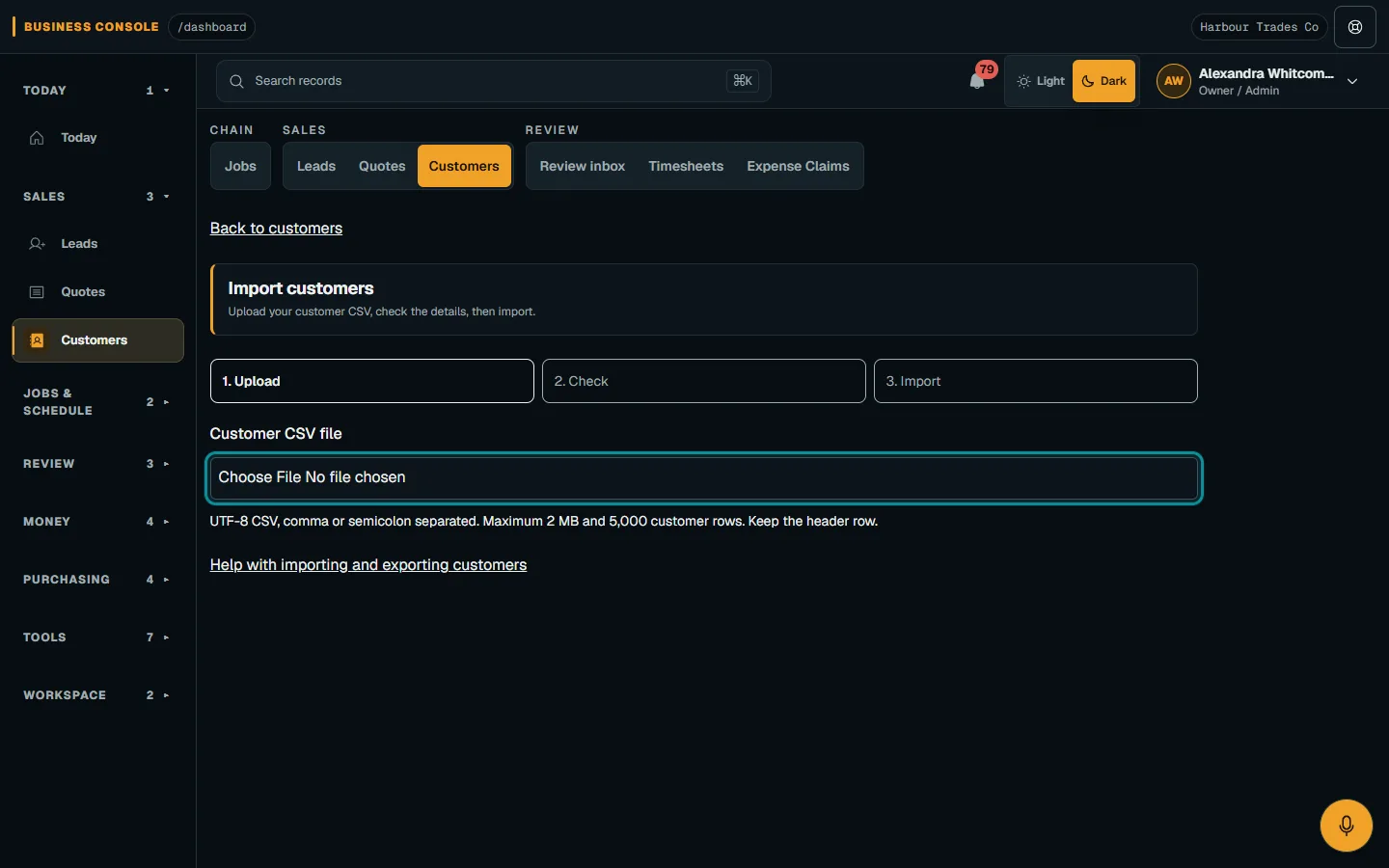
In Customers, choose Import customers, then select your CSV file.Step 1 · Reviewed 2026-10-14Tap or click to open full size - 02
Check
Review the suggested column mappings and change each select as needed. Map Customer name or First name and Last name. Review the preview and use Previous rows and Next rows to check every row. Fix missing names, invalid emails, unrecognised states, postcodes or phone numbers in your source file and upload it again.
- 03
Import
Choose Import customers and keep the page open. Valid rows create a customer, a primary contact and a service site when an address is supplied. Customers start as Individual; change their type afterwards if needed. Existing contact emails or an exact customer name and phone are skipped, including matches within the same file. Rows with no phone match the exact name and an empty phone, so importing the same file again skips existing records.
- 04
Review the result
Check the created, skipped and failed counts. Download skipped and failed rows for the reason beside each original row. Correct failed rows and import them again. Retry remaining rows after a connection problem; completed batches remain saved and existing customers are skipped.
- 05
Export
In Customers, choose Export customers to download all customers in this business, including archived customers, with their primary contact and active service site addresses. There is one row per active service site, or one row when none exists. Cells that could be spreadsheet formulas are prefixed with an apostrophe.
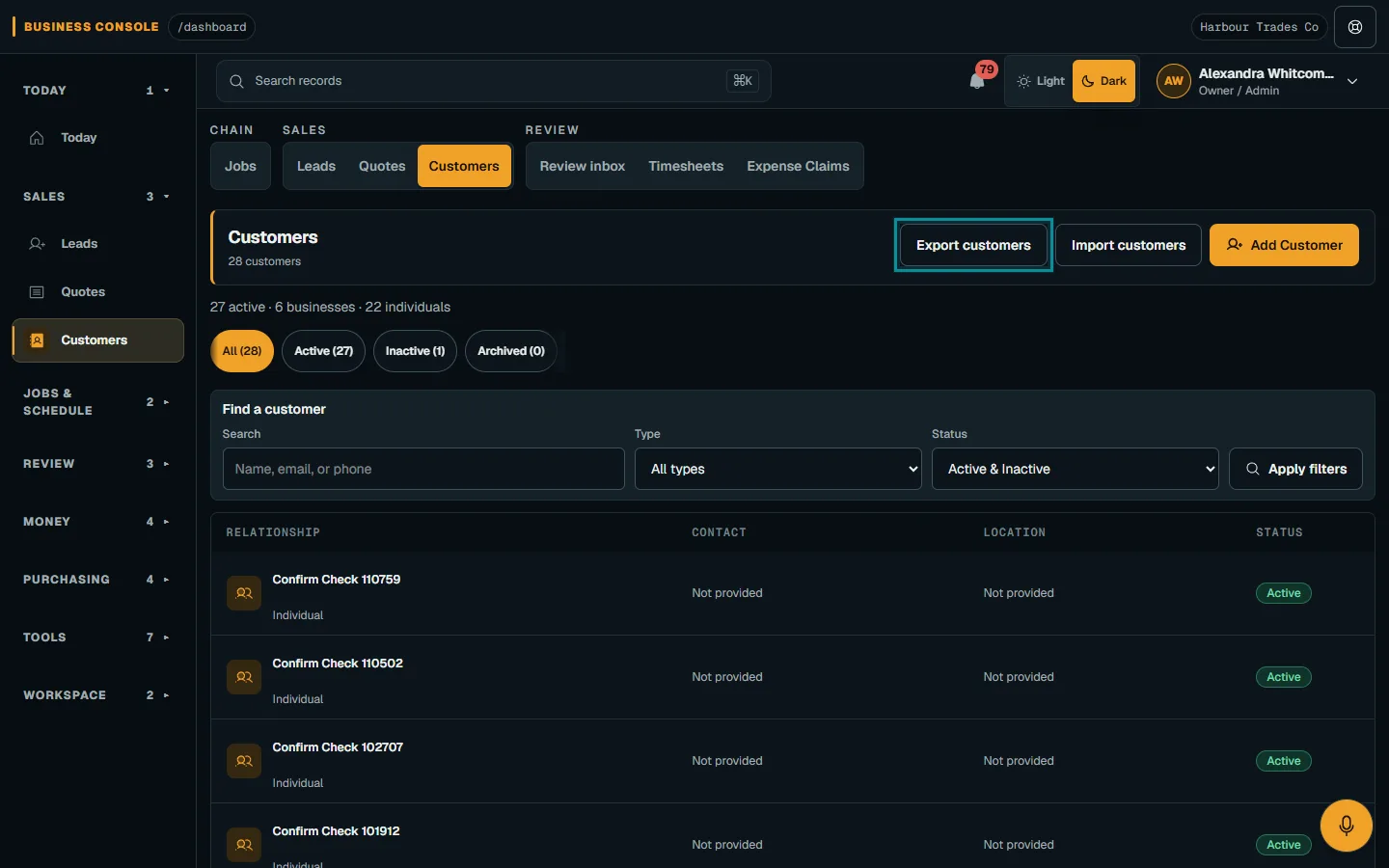
Choose Export customers to download every customer as a CSV file.Step 5 · Reviewed 2026-10-14Tap or click to open full size
Troubleshooting
If something does not look right
I cannot see Import customers or Export customers.
Check that Customers is enabled for your business and ask your Owner to review your customer view or management permissions.
A row says Skipped: already exists.
Search the current business for the contact email or customer name and phone, including archived customers. Import does not overwrite existing records.
The file cannot be read.
Save it as UTF-8 CSV with a header. Use comma or semicolon separators and consistent columns. Split files larger than 2 MB or 5,000 rows.
Keep going