
Before you start
Prerequisites and permissions
Have ready
- Expenses must be available for your company.
Access rules
- Expenses View to see bills; Expenses Manage to change them.
Where to find it
Navigation map
- Bills to pay
- Expenses → To pay
Walkthrough
Step by step
In each picture, the outlined area is what to look at.
- 01
Track a bill
Open an expense and, in Payment, choose Track as a bill to pay, add the due date and choose Track bill. A supplier invoice scanned into the inbox starts as an unpaid bill automatically.
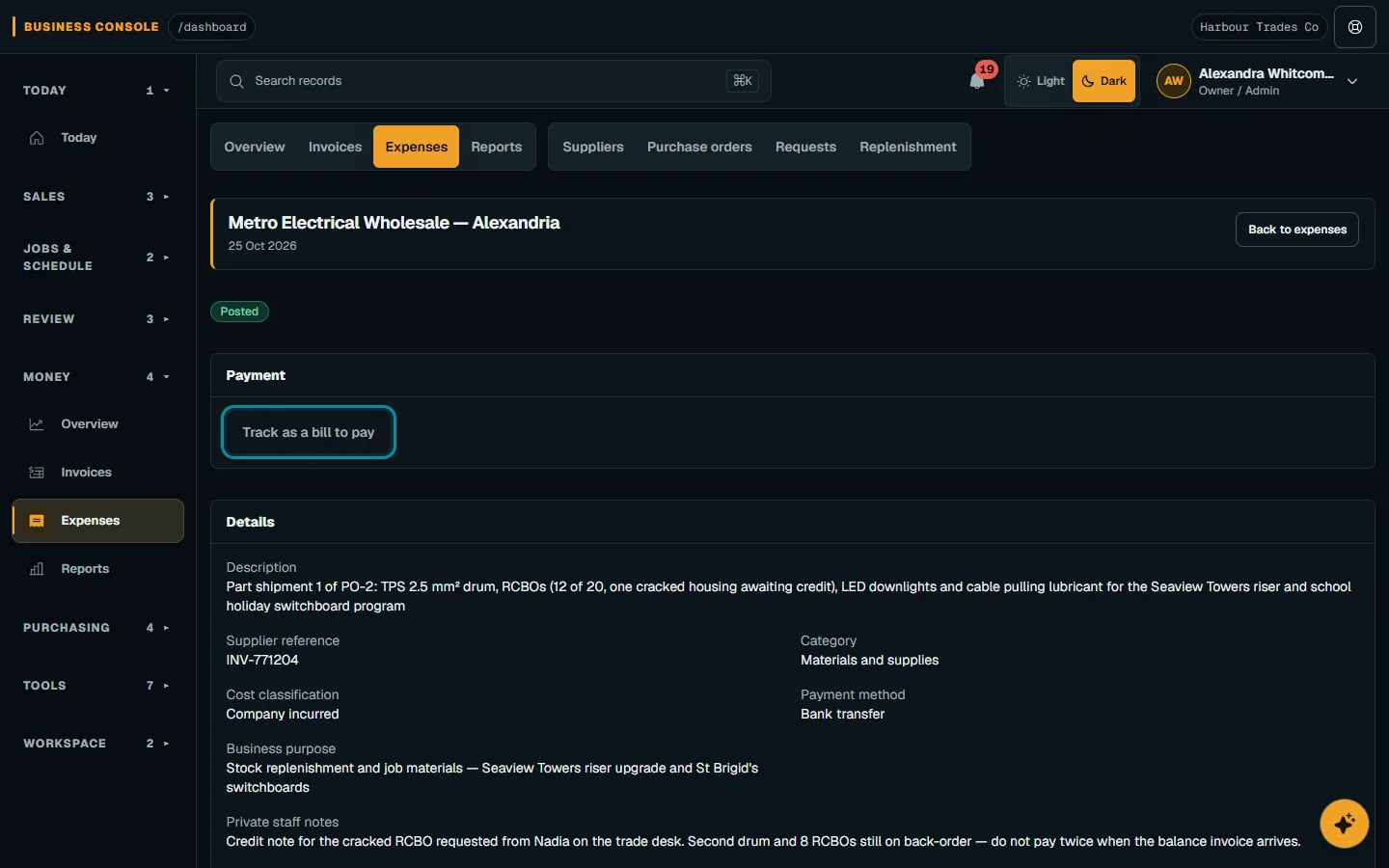
In the Payment card, choose Track as a bill to pay and add the due date.Step 1 · Reviewed 2026-10-14Tap or click to open full size - 02
See what is due
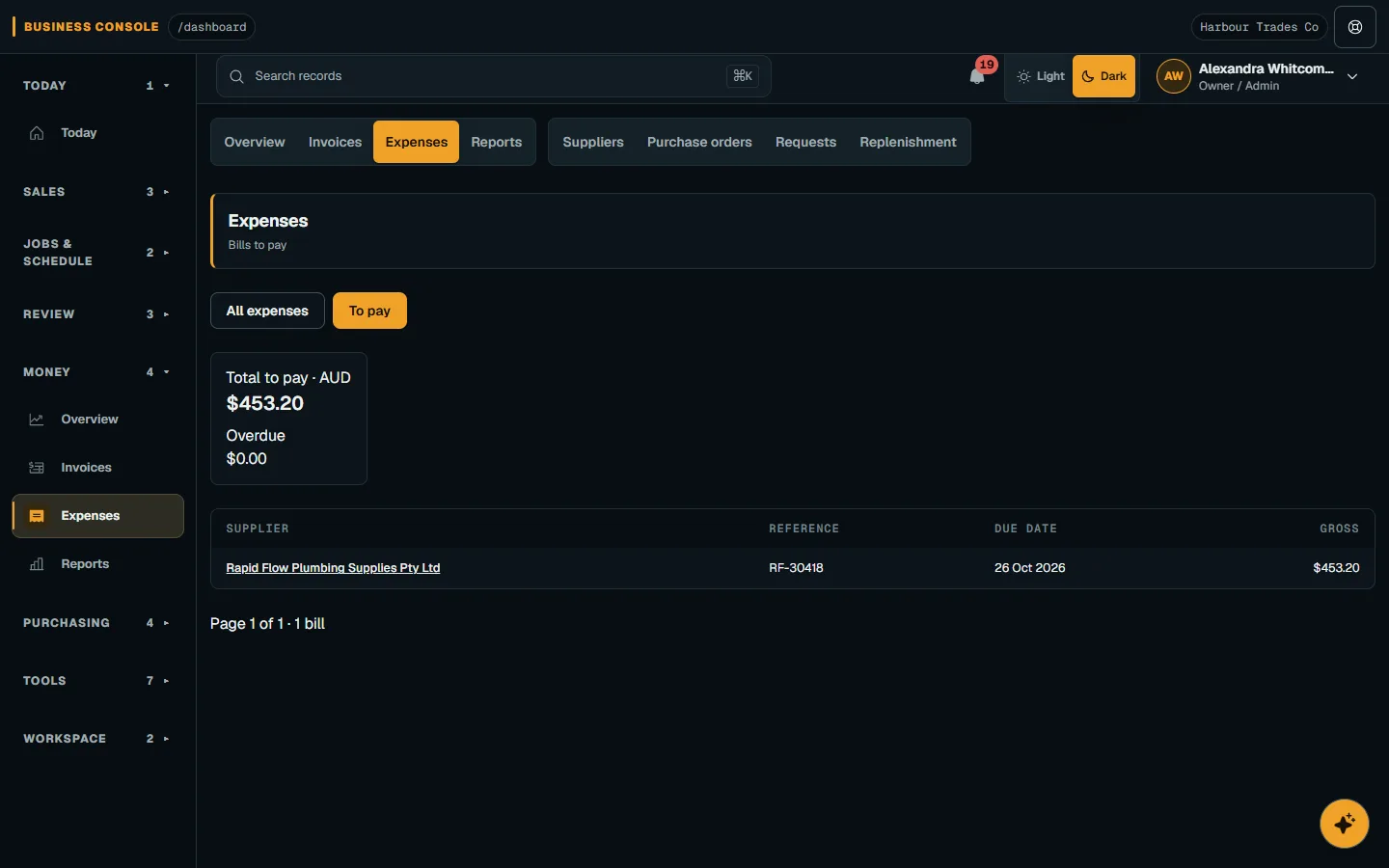
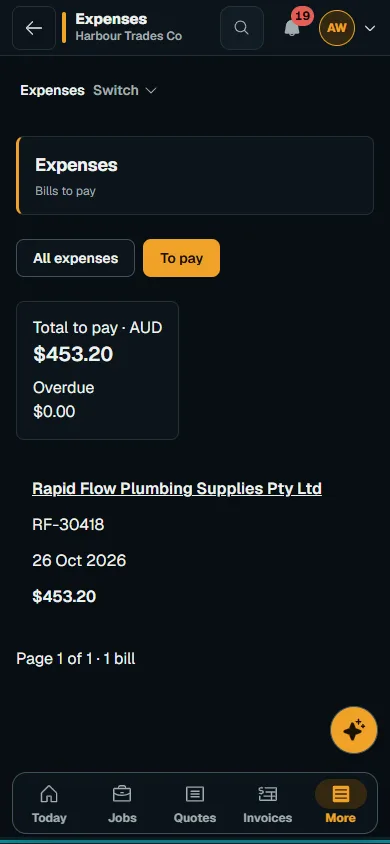
On Expenses, choose To pay to see unpaid bills by due date, with overdue bills marked. Totals show what is to pay and what is overdue for each currency.
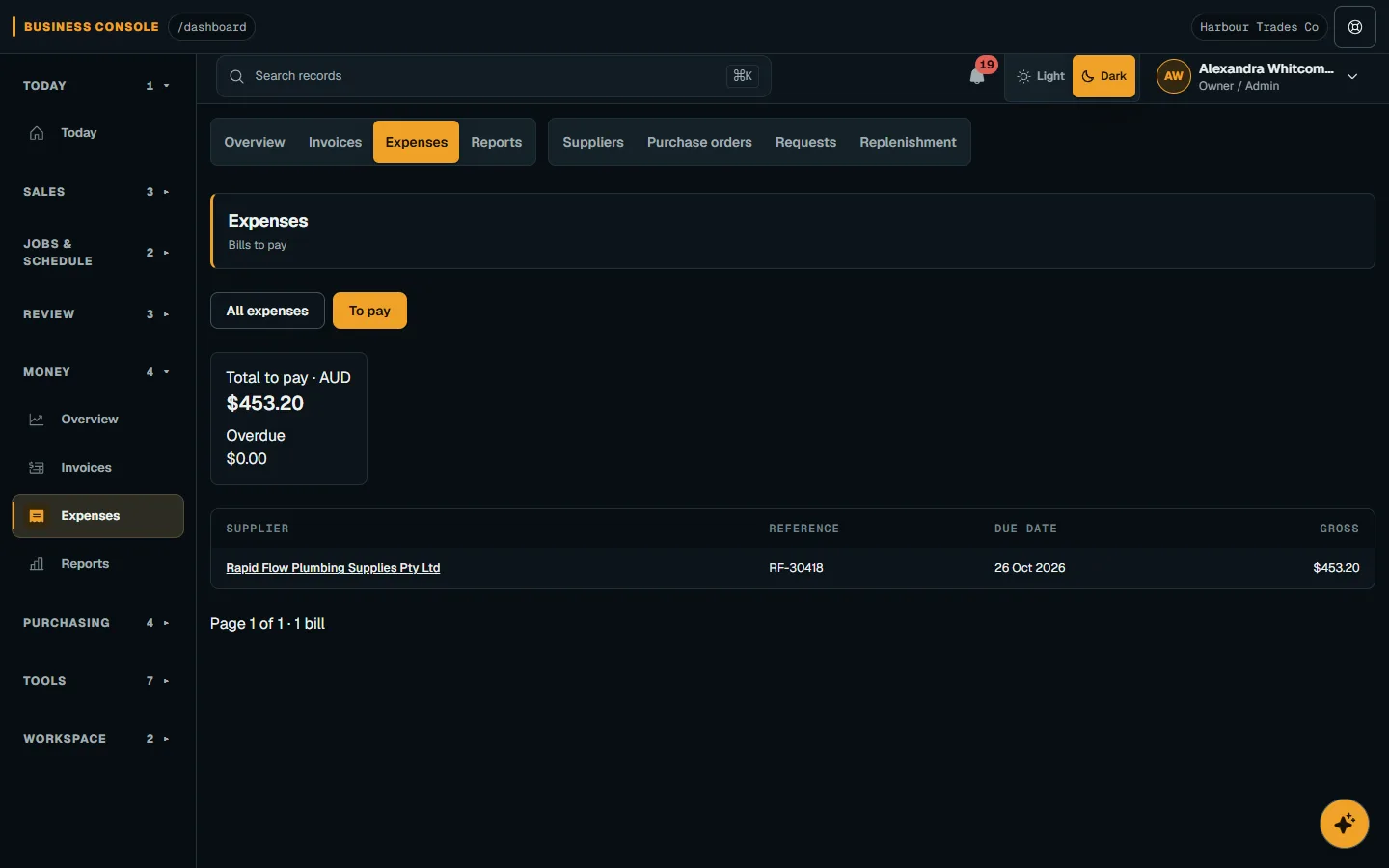
To pay lists unpaid bills by due date with the total to pay and the overdue total.Step 2 · Reviewed 2026-10-14Tap or click to open full size 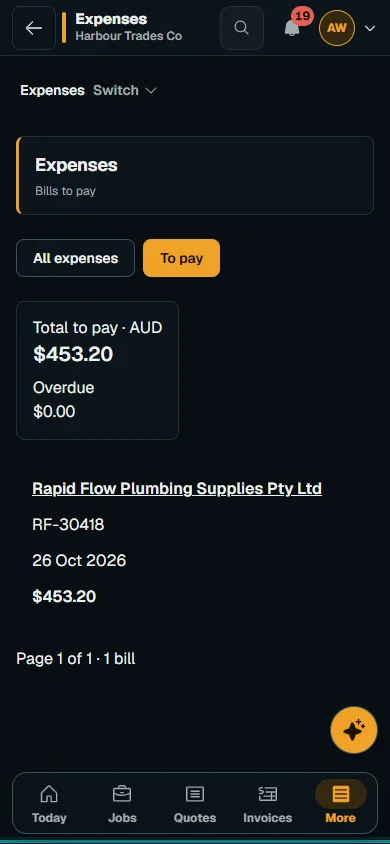
The same To pay list works on a phone.Step 2 · Reviewed 2026-10-14Tap or click to open full size - 03
Record a payment
After you pay the supplier, choose Mark as paid, check Paid on and Payment method, then choose Save payment. The bill then leaves To pay.
- 04
Correct the tracking
Use Change due date to change the date, or Stop tracking bill to remove it. For a paid bill, choose Undo; the expense's amounts never change.
Troubleshooting
If something does not look right
The bill is missing from To pay
Check All expenses. Only unpaid tracked bills on draft or posted expenses appear in To pay.
A payment or due date cannot be saved
Check your Expenses Manage permission and whether Expenses is available for your company. After a change conflict, refresh the expense before retrying. Undo a payment before changing its due date.
Keep going