
Late payments and invoice reminders for tradies
Make the invoice clear, check the live balance before following up and use reminders with a deliberate delivery setup.

Late payments leave a trade business with another job to do after the site work has finished: checking the invoice, finding the right contact and asking what happens next. A useful reminder makes that next step easy to understand. It identifies the work, points to the current invoice and gives the customer a clear way to reply if something needs resolving.
If you are working out how to get paid faster, begin with the parts of invoicing you control. This guide covers clear due dates, polite follow-up and Nenvik's documented reminder and payment workflow. The appliance and equipment service workflow is one example of a business where visit records, customer questions and the final invoice need to tell the same story.
Make the invoice easy to understand first
Check the customer's billing details, work description, agreed terms and due date before issuing. Use descriptions the customer can recognise from the quote or service visit. If the payer is different from the person who met the technician, confirm the billing contact through your normal business process. A reminder cannot fix an invoice sent to someone who was never responsible for arranging payment.
Use an actual due date that matches the arrangement you have made. Avoid relying on a vague note that leaves the customer guessing when action is expected. The free tax invoice template can help organise a draft document. Check the finished invoice for your situation; the template does not decide your payment terms or replace a review of the work billed.
Issue the document and check delivery separately
Nenvik's invoice and payment workflow explains how to enter the Customer or linked Job, items, tax, terms and due date, then review before issuing. In the Issue dialog, check Email the secure invoice link. For an active customer with a valid email, it is selected by default; clear it if you intend to issue without sending email.
Issuing and email delivery have separate results. Check both before deciding that the customer has everything needed to pay. If a new emailed secure link is activated, older invoice links are cancelled, so direct the customer to the newest email. If delivery is uncertain, check with the customer before repeatedly sending another link and making the conversation harder to follow.
Check the live balance before contacting the customer
In Invoices, use the Overdue chip to find invoices needing review, then open the particular record. Read the due date, payment history and remaining balance before contacting anyone. Someone else in the office may already have recorded a payment or received a reply. Base the message on the latest record rather than yesterday's printed list or a remembered total.
The issued PDF stays unchanged while the live invoice can show later payments and the remaining balance. A customer looking at an older download may therefore be reading a different view of the account. Refer them to the current invoice page and explain the remaining balance plainly. Do not request the original total again when the record shows that part has already been paid.
Write a polite first reminder
When the customer raises a query, separate the question from the payment request. Ask which part of the work description or record they want reviewed, and give the office a clear action to investigate. Keep any promised response time realistic. Before the next follow-up, check whether that question has been answered so the reminder reflects the conversation instead of restarting it.
A practical message is: I am checking the invoice for the work at your property. The due date has passed and our current record shows a balance outstanding. Could you please review the invoice and let us know when payment is expected? If anything needs clarification, reply so we can look into it. Add the correct invoice reference and check the link before sending.
Keep the tone factual. There may be a billing query, an access problem with the document or a payment awaiting review. Ask for information that lets the office act. If the customer says they have paid, check the evidence and current record before sending another request. Avoid making the customer repeat the same explanation to several people in the business.
Prepare Nenvik's overdue reminder deliberately
Overdue reminders are an automation that starts switched off. In Settings → Automations, prepare the Invoice overdue reminder recipe with email or SMS and check its delivery window. The automations and delivery guide explains that availability depends on the business settings, plan and customer contact choices. Having an overdue invoice does not mean a reminder has been sent.
- Review the recipeChoose the supported recipe and channel, then Review setup. Check its trigger, recipient rules and content before Save prepared recipe.
- Check the delivery windowReview the allowed times and timezone before Save delivery window. Customer contact preferences still apply.
- Review the outcomeCheck delivery results for queued, confirmed or failed messages. Review uncertain results before retrying.
Saving automation settings alone sends no message. Do not treat a saved setup or an action on the business record as proof that an email or SMS arrived. Give one staff member responsibility for reviewing delivery outcomes and customer replies so a planned reminder and a manual phone call do not become competing conversations about the same invoice.
Offer a current payment link when available
Overdue reminders include a secure invoice link when one can be prepared safely. They offer View and pay invoice when online card payment is available; otherwise they offer View invoice or retain the reminder without a link. Keep your wording consistent with what the customer can actually use. Do not promise a payment button on every reminder regardless of setup.
With Stripe card payments connected, Pay invoice on the secure invoice page or Customer Portal opens Stripe's hosted Checkout. The Owner connects the business's own Stripe account, and online collection needs a Ready connection and an issued invoice with a balance outstanding. See card payments on invoices for the broader customer payment journey.
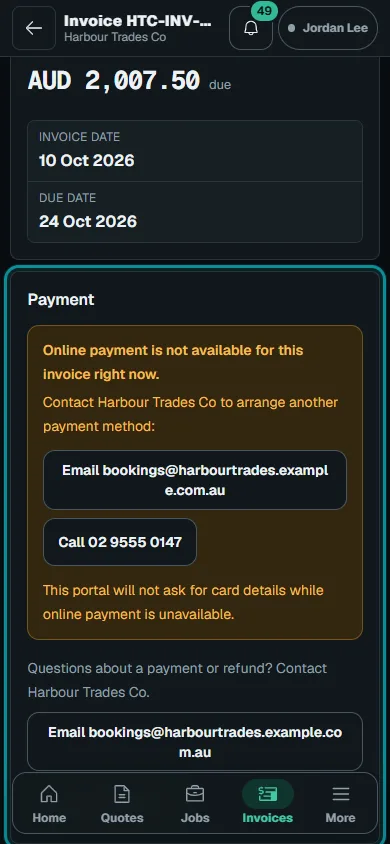
A customer returning from checkout does not prove payment. Check Stripe's confirmed result on the invoice. Keep the message focused on the action available now: open the current invoice, review the balance and use the offered payment control. Providing a convenient route to payment supports the process, but does not tell you why a particular customer has not paid.
Escalate politely and keep payment evidence current
Agree internally who owns the next contact. If the owner has spoken to the customer, the office should know the agreed next step before sending another reminder manually. When discussing a proposed payment date, describe it as the customer's stated intention until payment is confirmed. This keeps the record useful for the next person and avoids confusing a promise to pay with money received.
If there is still no useful response, make the next message specific: I am following up our earlier message about this overdue invoice. Please confirm your expected payment date, or tell us which item needs review so we can resolve it. Record the reply through your normal office process. Seek appropriate advice before taking formal recovery steps rather than inventing consequences in a reminder.
Record received full or partial payments with the amount, method and date, then check the updated balance. For offline payments, use genuine evidence of receipt. Give the next person handling follow-up a clear handover: what was checked, what the customer said and what action remains. That keeps future reminders accurate and helps the office close the conversation when payment is confirmed.
Common questions
Does Nenvik send overdue invoice reminders by default?
No. The Invoice overdue reminder automation starts switched off. Prepare the recipe and channel, review its setup and delivery window, and check the delivery outcomes.
Can a reminder include a card payment link?
When a secure link can be prepared safely, reminders can include it. View and pay invoice is offered when online card payment is available; other reminders may offer View invoice or have no link.
What should a polite overdue invoice reminder say?
Identify the invoice and work, refer to the passed due date and current balance, and ask for an expected payment date or a clear explanation of any query. Check payment records before sending.
Does returning from Stripe Checkout mean the invoice is paid?
No. Check the confirmed payment result on the invoice. A browser return alone is not payment evidence.
More from the blog
 Locksmith call-outs: dispatch, install quotes and getting paid on siteKeep urgent call-outs and planned installs in the same diary, with clear job records, agreed charges and confirmed payments.Read article
 Deposits on quotes: a practical guide for tradiesExplain a deposit before the customer accepts, check the resulting invoice and confirm payment separately from acceptance and scheduling.Read article
 Variations and change orders: recording extra trade workKeep the accepted quote intact, describe the proposed change and ask the customer to decide on that exact scope and price.Read article