
Job management software that works with Xero: what to check
Check what moves between the systems, who controls sending and where your accountant reviews the records before choosing a Xero job management workflow.

If your trade business uses Xero, job management software needs a clear handover between operational work and accounting records. A connection label alone does not explain that handover. Ask which records can move, which direction they travel, when they are eligible and who checks the result. Those details determine whether the workflow suits your office and bookkeeper's normal responsibilities.
This guide explains what to examine when choosing job management software for a Xero business, then describes Nenvik's documented connection. Read it alongside choosing job management software so the accounting check sits within the whole work process. A useful selection also covers customer records, job instructions, worker evidence and the office review before an invoice is issued.
Ask what moves and in which direction
List the records your business actually needs to send. Customer contacts, invoices, payments and supplier expenses are different record types with different review needs. Ask whether each one is supported and what state it reaches in the accounting system. A supplier document arriving as a draft needs a different office process from a payment status returning to an existing invoice.
- Which customer and supplier record types can be sent?
- Which information travels back, and to which existing records?
- What event makes a record eligible for sending?
- Who chooses the accounts, settings and start date?
- Where are failures shown, and when is a retry appropriate?
- Who reviews, approves and reconciles the accounting records?
Also ask about exclusions and older records. Decide how the business will avoid sending work that is already in the accounting system. Agree who checks problems before anyone attempts another send. These are practical selection questions for a tradie software Xero integration: the answers should describe a repeatable office process rather than leave staff guessing from a connection badge.
Check Nenvik's supported records
Xero is available for selected customer invoices, payments and contacts. Nenvik's supported exports include customer contacts, customer invoices and applied customer payments. Posted supplier bills can be sent as draft bills with documents. Supplier bill export is on by default. Review the current Xero connection guide before choosing the settings for your business.
Paid receipt export is optional and off by default to help avoid bank-feed duplicates. Discuss existing entries with your accountant before enabling it. Posted supplier bills tracked in To pay and eligible posted paid receipts use the same sending mode, start date, exclusion and manual retry controls. Treat each supported record type deliberately rather than assuming that every expense should be exported.
Expenses arrive in Xero as draft bills, with the current PDF, JPEG or PNG document attached when available. Your accountant approves and reconciles them in Xero. Older connections without document permission can create a draft bill without its document and show Reconnect Xero to include documents. Reconnect the same organisation to grant that access, then review the record and available retry action.
Connect the right organisation and review settings
An Owner opens Settings → Accounting to connect Xero, then checks the organisation and connection status. Xero availability does not establish that your particular business is connected. Choose Load accounts & GST from Xero, review the revenue, payment and expense accounts and GST choices, then save the settings. Ask your accountant to help review those choices for your existing accounting process.
Check the connected business name, currency and last successful update before relying on figures. Read the last-confirmed time and coverage labels where totals are shown. Operational estimates and accounting-confirmed values serve different purposes. Keep the source visible in your review so a job estimate is not mistaken for a confirmed accounting outcome when deciding what needs attention.
Choose automatic or manual sending and a start date
Nenvik offers Automatically when invoices are sent or Only when I choose. Select the mode that matches who reviews the work and when. Set Send records from as well: the initial date is the connection date. Changing it does not backfill old records. Only records on or after that date are eligible, including records you select manually.
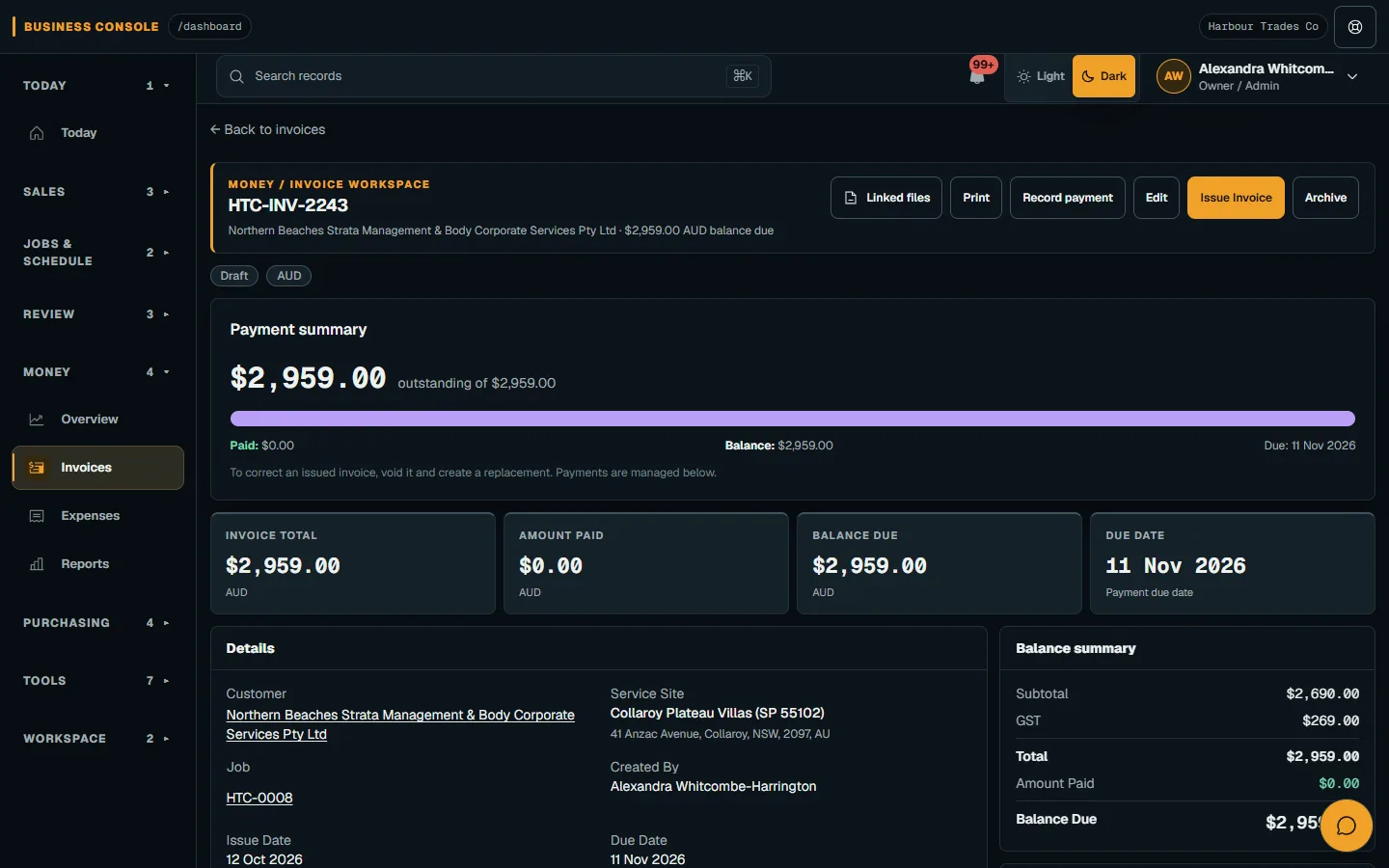
On each invoice or payment, the Xero line shows Not sent, Waiting, Sent to Xero or Failed. Available controls include Send to Xero, Retry and Don't send to Xero. Draft and void invoices cannot be sent. Invoice-list bulk selection is not available; sending is from each invoice detail page. Check the actual state before deciding whether a record still needs action.
Keep the operational review before sending. The invoice and payment workflow explains checking the customer, invoice lines and totals before issue. The connection carries eligible records; it does not decide whether the work description or amount is correct. For the job-side handover, review Nenvik's job sheet workflow and the evidence your office needs to prepare an accurate invoice.
Understand payment status coming back from Xero
Update payment status from Xero is on by default. Payments on exported customer invoices appear as Recorded in Xero, including partial payments. Those returned payments are recorded once and are never sent back to Xero. Deleting an imported payment in Xero reverses its local record. Turning the setting off stops these payment-status checks; review that choice with the person responsible for payment review.
Fully paid supplier bills show Paid in Xero and close the local payable on the Xero payment date. If a bill later becomes unpaid in Xero, only a bill closed by this update is reopened. A manually closed bill stays paid. Local paid or unpaid status is not sent to Xero. The supplier bills To pay guide explains the local review process.
Keep refunds and reversals in the accountant's review process. The documented connection does not include refunds or general financial editing in both directions. If you void an exported expense, its Xero bill is deleted only while still draft. An approved Xero bill is left untouched and needs a manual update in Xero. Check both records before treating a local correction as an accounting correction.
Give connection problems a clear owner
Settings → Accounting → Problems lists failed records and safe retries. If the write result is uncertain or a mapping conflicts, check the existing Xero record with support before sending again. Agree who in the office reviews this list. Repeatedly pressing a send control is not a useful way to establish whether the accounting record already exists.
Temporary connection failures retry automatically. If Problems asks you to reconnect, reconnect the same Xero organisation. This retains existing record links and settings; waiting records resume when the connection is ready and the retry delay has passed. A different organisation stops exports, and existing links are never silently reused for it. Ask support for a reviewed organisation change if that is what the business needs.
Check the office handover before choosing
Review a representative invoice, supplier bill and payment scenario with your bookkeeper before settling on settings. Identify who prepares each source record, who chooses whether to send it and who checks the Xero outcome. Include a failed-record review in that discussion so responsibility is clear when the usual process needs attention. Keep approval and reconciliation with your accountant in Xero.
Use the features catalogue to review the wider operational workflow and pricing to check the current offer. Then return to the help guide for the connection's specific controls. Choosing Xero job management software works best when the business can explain the full path from reviewed job evidence to a reviewed accounting record, with each person's next action clear.
Common questions
What can Nenvik send to Xero?
Supported exports include customer contacts, customer invoices, applied customer payments, posted supplier bills tracked in To pay and optional eligible posted paid receipts. Expenses arrive as draft bills with available supported documents.
Can I choose when records are sent?
Yes. Choose automatic or manual sending, set Send records from and use Don't send to Xero on an individual record when appropriate. The start date also applies to manual selections.
Does payment status return from Xero?
Update payment status from Xero is on by default. It returns payments on exported customer invoices, including partial payments, and closes fully paid exported supplier bills locally under the documented rules.
Who approves supplier bills?
Your accountant approves and reconciles the draft bills in Xero. Paid receipt export is optional and off by default; check existing bank-feed entries before enabling it.
Will reconnecting keep existing record links?
Reconnecting the same Xero organisation retains the existing record links and settings. A different organisation stops exports and requires the documented recovery or reviewed change process.
More from the blog
 Locksmith call-outs: dispatch, install quotes and getting paid on siteKeep urgent call-outs and planned installs in the same diary, with clear job records, agreed charges and confirmed payments.Read article
 Deposits on quotes: a practical guide for tradiesExplain a deposit before the customer accepts, check the resulting invoice and confirm payment separately from acceptance and scheduling.Read article
 Late payments and invoice reminders for tradiesMake the invoice clear, check the live balance before following up and use reminders with a deliberate delivery setup.Read article