
Plumbing software: what it should handle day to day
Check whether your job software can handle an interrupted schedule, clear replacement options, field records and customer decisions through to invoicing.
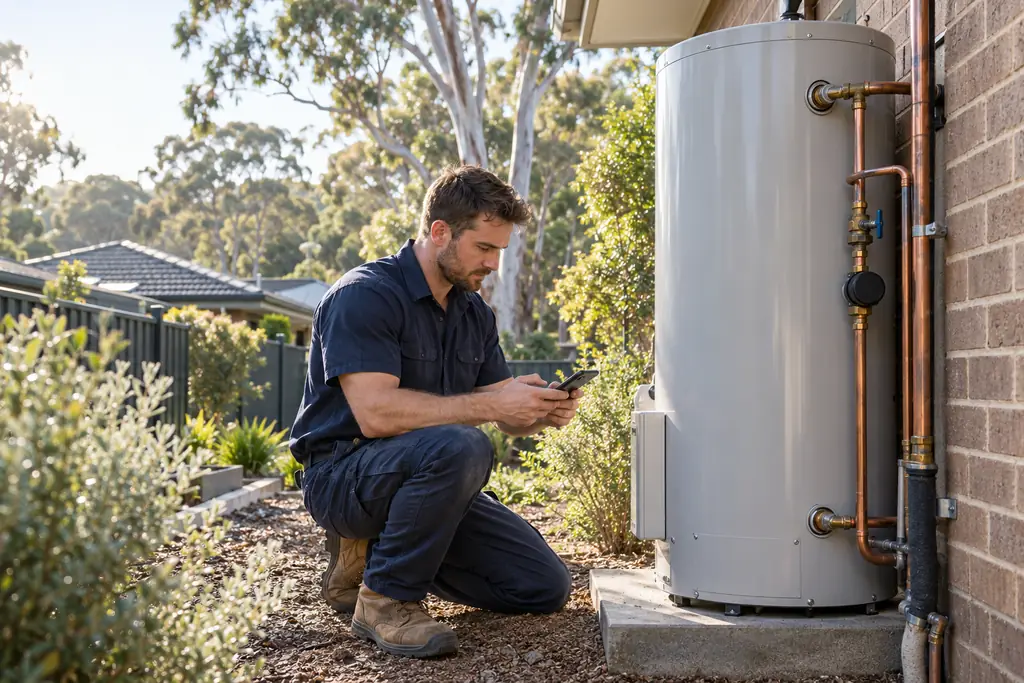
A booked hot water installation can look straightforward until an urgent leak interrupts the morning. Someone needs to assess the new request, check who can attend and explain any changed arrangements to customers. Meanwhile, the installer still needs the right site details and agreed scope. Plumbing software should help the office and field team keep that work connected as the day changes.
For an owner comparing plumbing software in Australia, the useful test is an ordinary working day with an interruption. Follow a call from the first enquiry through assessment, customer decisions and payment review. This guide uses Nenvik's plumbing and drainage workflows to show what to examine, including the points where staff must review information and make a deliberate decision.
Capture the call and the actual service site
Start with who is buying the work, where the problem is and who can provide access. A property manager's billing details and a resident's service address serve different purposes. Keep the customer, contacts and service sites distinct so another staff member can understand the booking. Record reported symptoms as reported; the plumber's findings come after assessment.
- Identify the customer, the exact service site and the person arranging access.
- Describe the reported leak, blockage or hot water problem without assuming its cause.
- Record access instructions, parking, safety notes and any reported shut-off details needing confirmation on site.
- Explain the requested visit and any attendance arrangements already discussed with the customer.
Follow customers and service sites to organise those records. Check the location saved on the job before dispatching: later edits to a service site do not rewrite the historical job details. A useful handover gives the plumber enough context to prepare while making uncertainty clear.
Fit urgent call-outs around booked installs
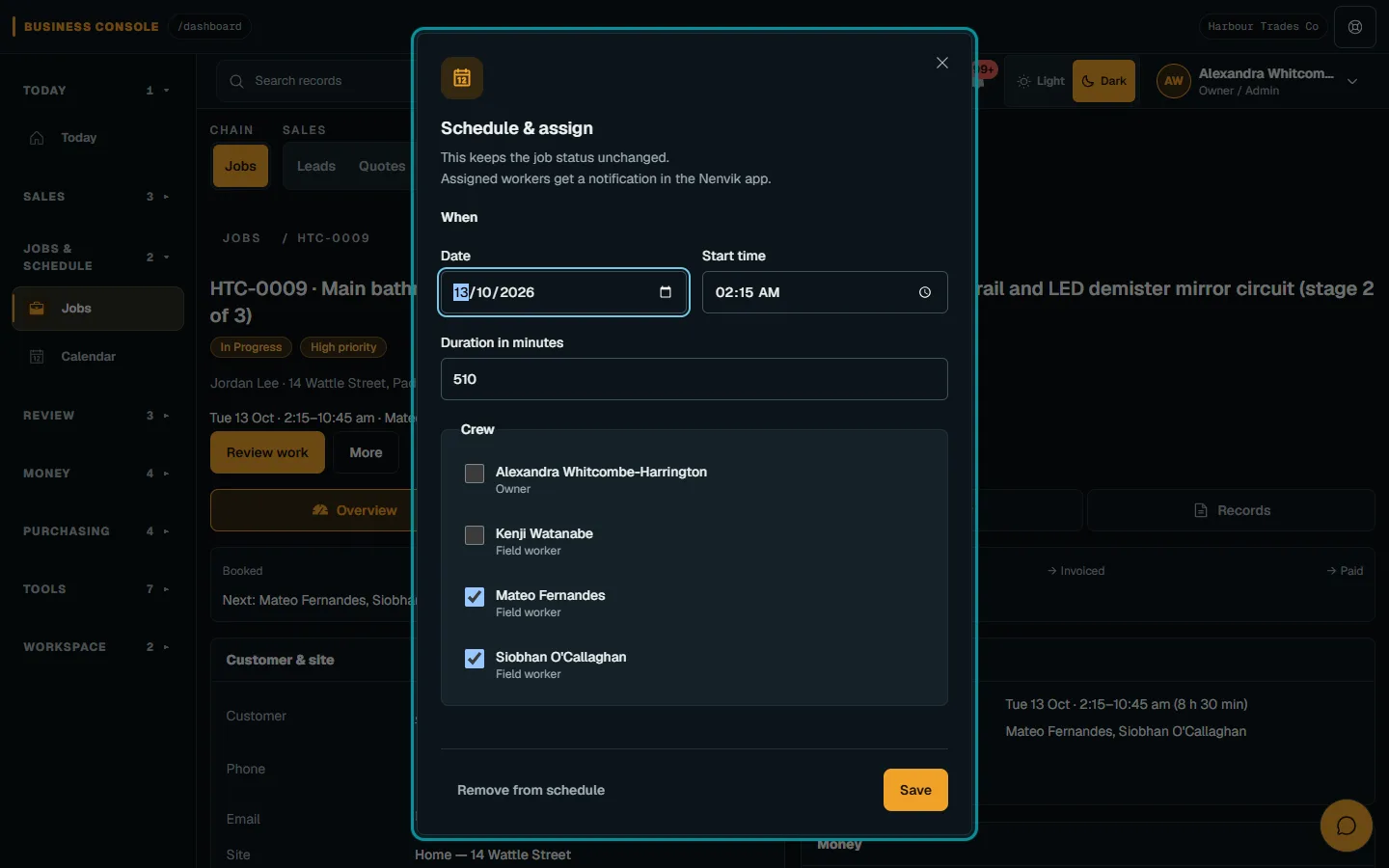
Use the calendar to review existing commitments before choosing a plumber and visit time yourself. Consider the booked install as well as the urgent request. If an appointment must move, review the affected booking and customer arrangements rather than treating a spare-looking space as proof that the worker is available.
In Nenvik, When & crew contains Assign workers and the scheduling controls. Timed assignments check availability and conflicts; overlaps cannot be overridden. The plan and dispatch a job guide explains the workflow. Wait for the saved result, then confirm that the intended time and eligible worker are recorded before making the next promise.
Send a reviewed on-the-way email
Once the plumber is travelling, office staff can send an on-the-way email. In Records → Activity, use Send arrival update, select On the way and choose the available customer or contact email. Review the subject, body and any note before choosing Save and send email. The on-the-way update guide also explains delivery results. A provider accepting the email does not prove the customer opened it, so check the result before assuming the message reached its purpose.
Quote replacements with clear choices
A hot water replacement quote should make the proposed equipment, fittings, labour and old unit removal understandable. Where alternatives are appropriate, explain the complete scope of each option. Keep optional extras visibly optional so the customer can see what is included in the selected work. Use options and optional extras to review how the choices appear before acceptance.
- Describe the assessed replacementBuild the quote from the site findings, with clear equipment and installation lines. State exclusions and assumptions that still need confirmation.
- Show relevant evidenceAuthorised staff can copy eligible Before, Progress and After job photos into the quote. Issue photos cannot be added. Select images that explain the proposed scope and review the customer document.
- Review the customer's choiceCheck the accepted option and extras before planning the installation. Nenvik uses that selection for deposits and invoice prefill; unticked extras are not accepted work.
Follow quote photos when choosing images. Private work photos do not become a customer photo feed. Select and review what belongs in the quote instead of assuming every site image is suitable to share.
Check the deposit separately from acceptance
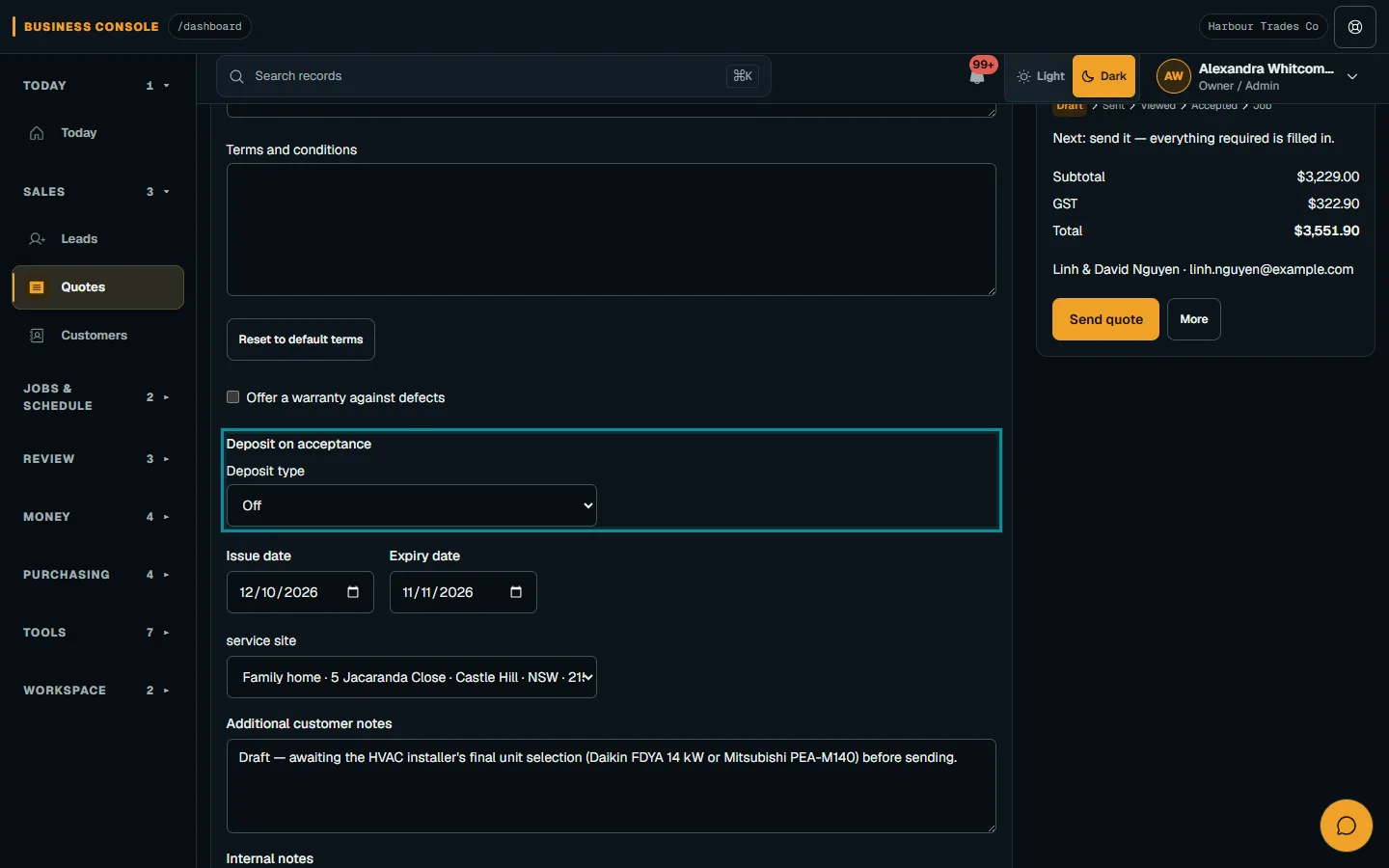
Where an agreed deposit is appropriate, review your terms for the work and use Deposit on acceptance. With the required customer, invoice access and permissions in place, online acceptance creates and issues the configured deposit invoice. Acceptance does not confirm payment or schedule the job. Check payment separately before ordering equipment, then arrange the installation and assign the crew. The deposit on acceptance guide covers setup and staff review when issuance needs attention.
Record findings while the work is fresh
The assigned plumber needs to record what was found, what was done and what remains unresolved. In Nenvik's field workspace, workers can complete configured checklists and forms, record time and upload private work photos. Use factual notes and relevant images, keeping unrelated personal information out of the record. Give the office enough detail to review the visit without reconstructing it from memory.
The field evidence and time guide explains recording and submission. Complete required answers and close timers before submitting for office review. Submission records work evidence; it does not automatically complete the whole job or publish private evidence to customers. Forms should reflect your team's operational process and prompt useful observations.
Agree extra work before proceeding
Newly exposed pipework or an additional customer request can change the agreed scope. Record the finding and proposed extra work, then publish a Job Change Order for the customer's decision before proceeding with that additional scope. Describe the change clearly and check the amounts. A private photo or a conversation recorded in a note does not replace the customer's decision on the published change.
Use Job Change Orders and customer approval to check the process. The customer needs current portal access and visibility of the exact job. Publishing saves the revision and approval request but sends no email. Check the recorded outcome before treating the extra work as approved.
Retain paperwork prepared through your own process
Plumbing and gas fitting software should help keep prepared paperwork with the right job. Nenvik does not issue plumbing or gas certificates. Forms do not certify work or decide compliance. Requirements are set by the relevant state or territory regulator; check with the regulator for your situation. Your qualified team prepares documents through its own process, uploads them as job documents and publishes the reviewed version when appropriate. Check whether each document is Team only or Shared with customer.
Keep equipment history by customer and site
A hot water unit needs a recognisable equipment record for the next visit. Nenvik's customer asset service history links customer-owned equipment to its customer and, where selected, service site. Record useful identity details such as manufacturer, model and serial number. Add factual service entries and link the relevant job where appropriate. Keep internal detail in the private staff note; portal visibility for an asset and its service summaries is deliberate.
Invoice from the job and review the customer view
After reviewing the completed work and approved scope, prepare the invoice from the job. Check the customer, items, tax treatment, terms and totals before issuing. Card payment is available on the emailed invoice when Stripe is connected. Use the invoice and payment workflow to review payment evidence and the current balance separately from email delivery or a return from checkout.
Invited customers can view published quotes, jobs and invoices in the customer portal. Check the intended customer view during your trial, including shared documents. Private worker records and work photos are not automatically shared. The office should know what the customer can actually see before directing them there.
How to evaluate plumbing software during a trial
- Can you fit an urgent call-out around a booked install and check assignment conflicts?
- Can another staff member find the correct customer, site, symptoms and access details?
- Can the customer compare replacement options, with deposit payment checked separately?
- Can you record field findings and obtain a decision on extra work before proceeding?
- Can you find prepared documents, equipment history and the reviewed job invoice?
- Can you confirm exactly which published records the invited customer can see?
Common questions
How are plumbers assigned to jobs?
You choose the eligible plumber and visit time. Nenvik checks availability and conflicts when saving a timed assignment; overlaps cannot be overridden.
Who sends an on-the-way update?
Office staff with the required access select the customer or contact email, review the message and explicitly send the on-the-way email.
Does quote acceptance mean the deposit is paid?
No. Acceptance issues the configured deposit invoice when prerequisites are met. Check payment separately; acceptance does not schedule the job.
Does Nenvik issue plumbing or gas certificates?
No. Your qualified team prepares them through its own process and can retain them as job documents. Forms do not certify work or decide compliance. Check with the relevant state or territory regulator for your situation.
Can customers see private work photos in the portal?
Private work photos are not automatically shared. Invited customers see the published records and deliberately shared content available to their account.
More from the blog
 Locksmith call-outs: dispatch, install quotes and getting paid on siteKeep urgent call-outs and planned installs in the same diary, with clear job records, agreed charges and confirmed payments.Read article
 Deposits on quotes: a practical guide for tradiesExplain a deposit before the customer accepts, check the resulting invoice and confirm payment separately from acceptance and scheduling.Read article
 Late payments and invoice reminders for tradiesMake the invoice clear, check the live balance before following up and use reminders with a deliberate delivery setup.Read article